
Mailcellar
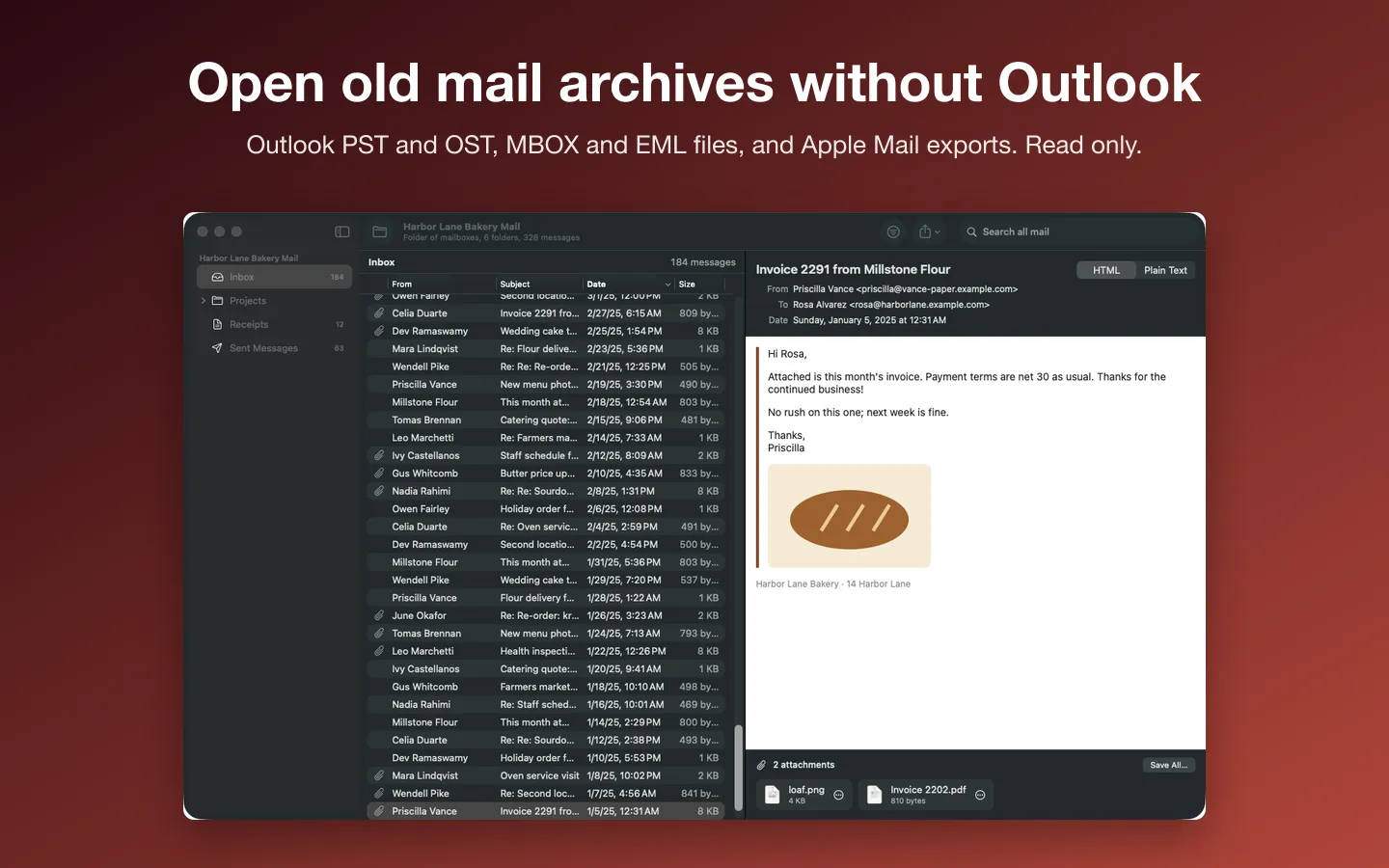
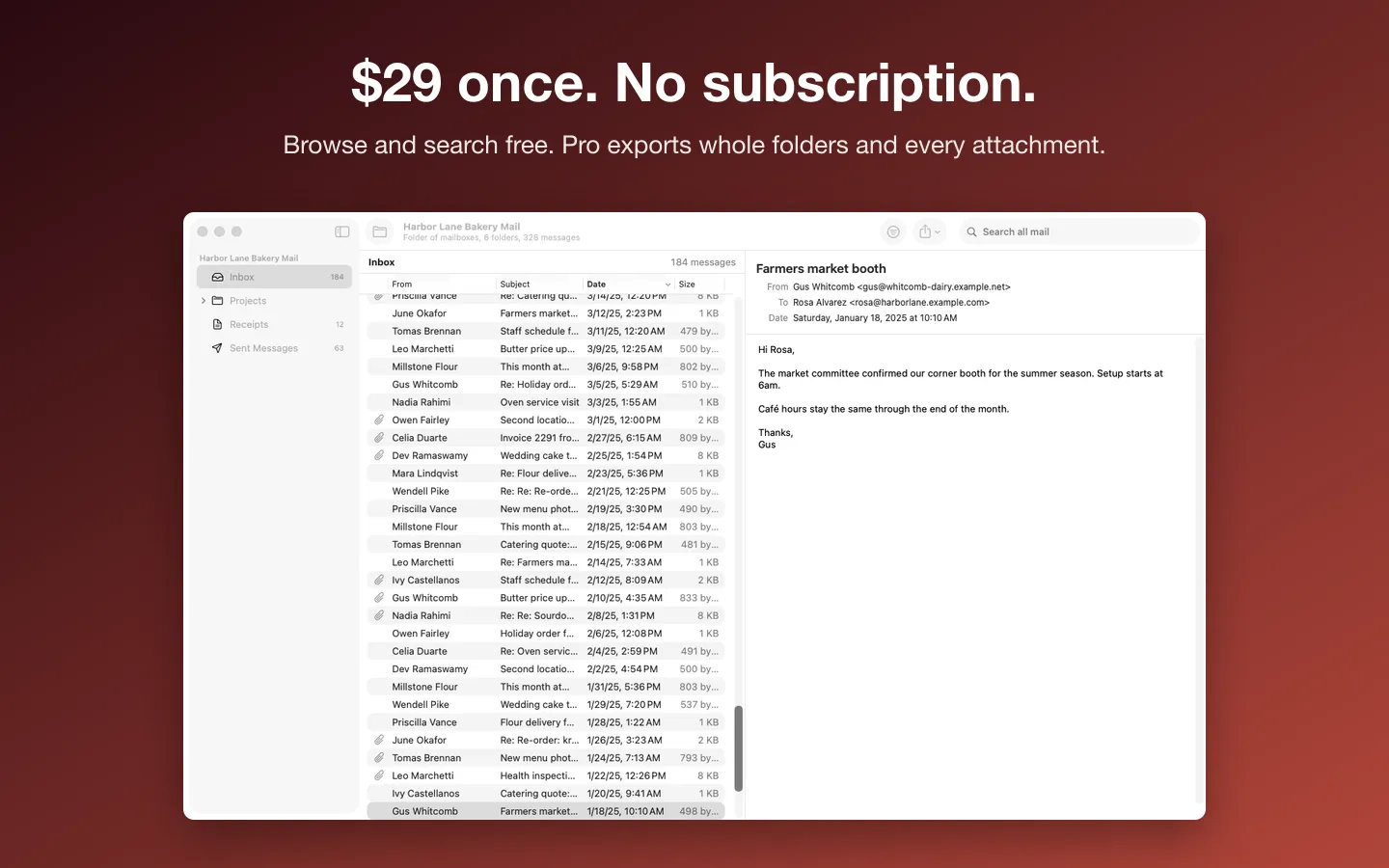
What it does: Mailcellar opens old mail archives on your Mac without Outlook: Outlook PST files, offline OST files from classic Outlook, MBOX and EML files, and Apple Mail exports. Browse the folders, read every message, search years of mail in a moment, and export to PDF, EML, MBOX or CSV. Read only: it never changes your archives.
- Checkout by Gumroad
- Notarized by Apple
- No FitzTopPicks account needed
Free to use without a key: open, browse, read and search everything; exports and attachment saving 10 at a time.
Buy a license key to unlock Pro: export whole folders and search results, and save every attachment at once.
macOS 14 Sonoma or later · Version 1.0 · 4.3 MB disk image · Notarized by Apple
One-time $29 for the app with Pro: export and save without limits. No subscription. One license key works on up to 3 of your Macs.
Download: The download (a signed, notarized .dmg) comes with your purchase in your Gumroad receipt, together with your license key. Updates install from inside the app.
Buy now opens Gumroad's checkout on this page; Gumroad is the seller and handles payment, sales tax and your receipt.
Screenshots
5 pictures: swipe or scroll sideways.
What you get
- Mailcellar for Mac: macOS 14 Sonoma or later
- The signed, notarized .dmg download and your license key, in your Gumroad receipt
- One license key for up to 3 of your Macs
- Updates that install from inside the app
- A one-time price: no subscription
Features
- Outlook PST from Outlook 2003 and later (tested with 2003–2013-era Unicode PSTs), OST from classic Outlook 2013 and later, MBOX, EML and Apple Mail exports; older ANSI PSTs supported through libpff
- Folder tree with counts, a message list that stays fast at 100,000 messages, and HTML, rich text or plain text bodies
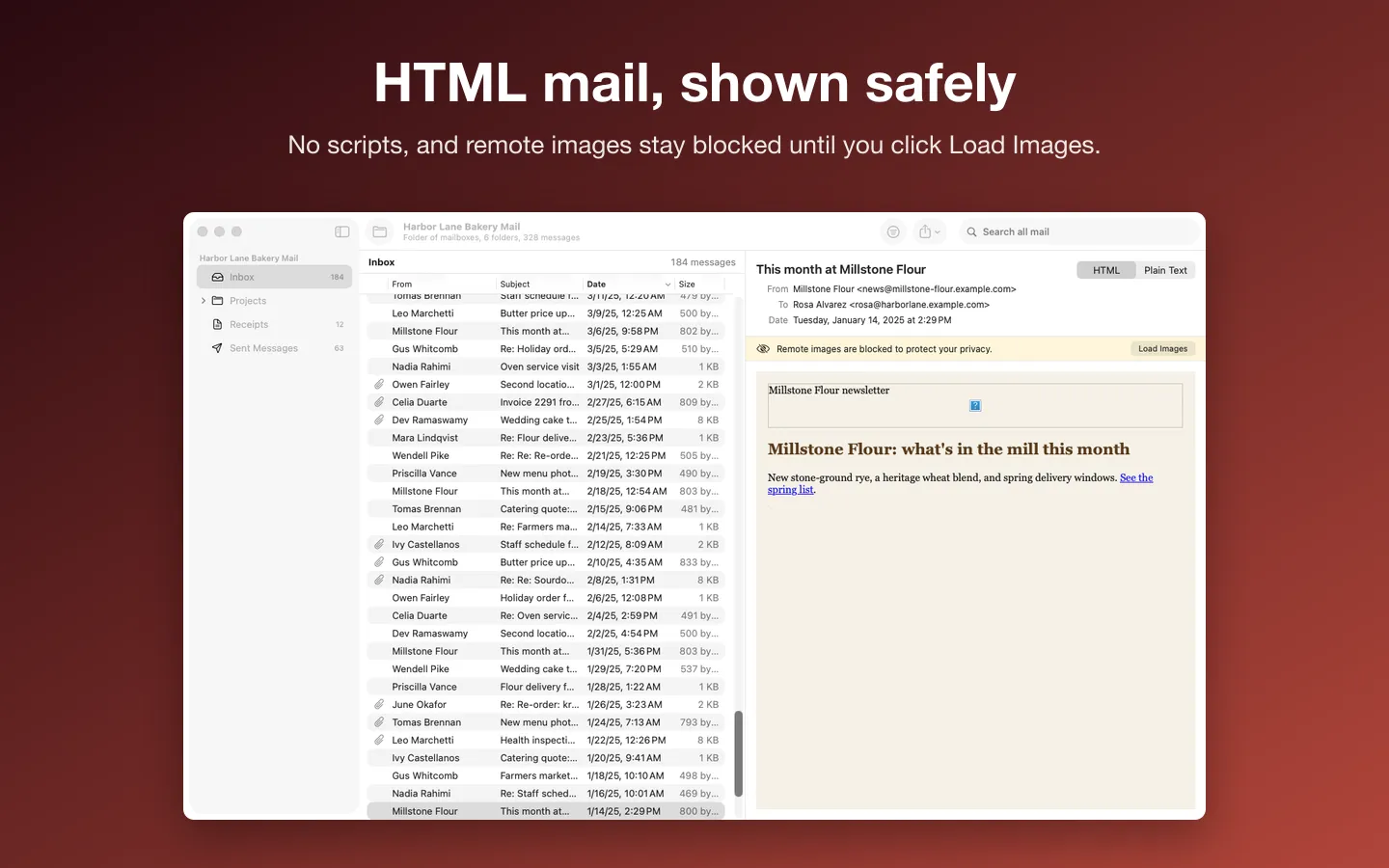
- HTML mail shown safely: no scripts, remote images blocked until you click Load Images
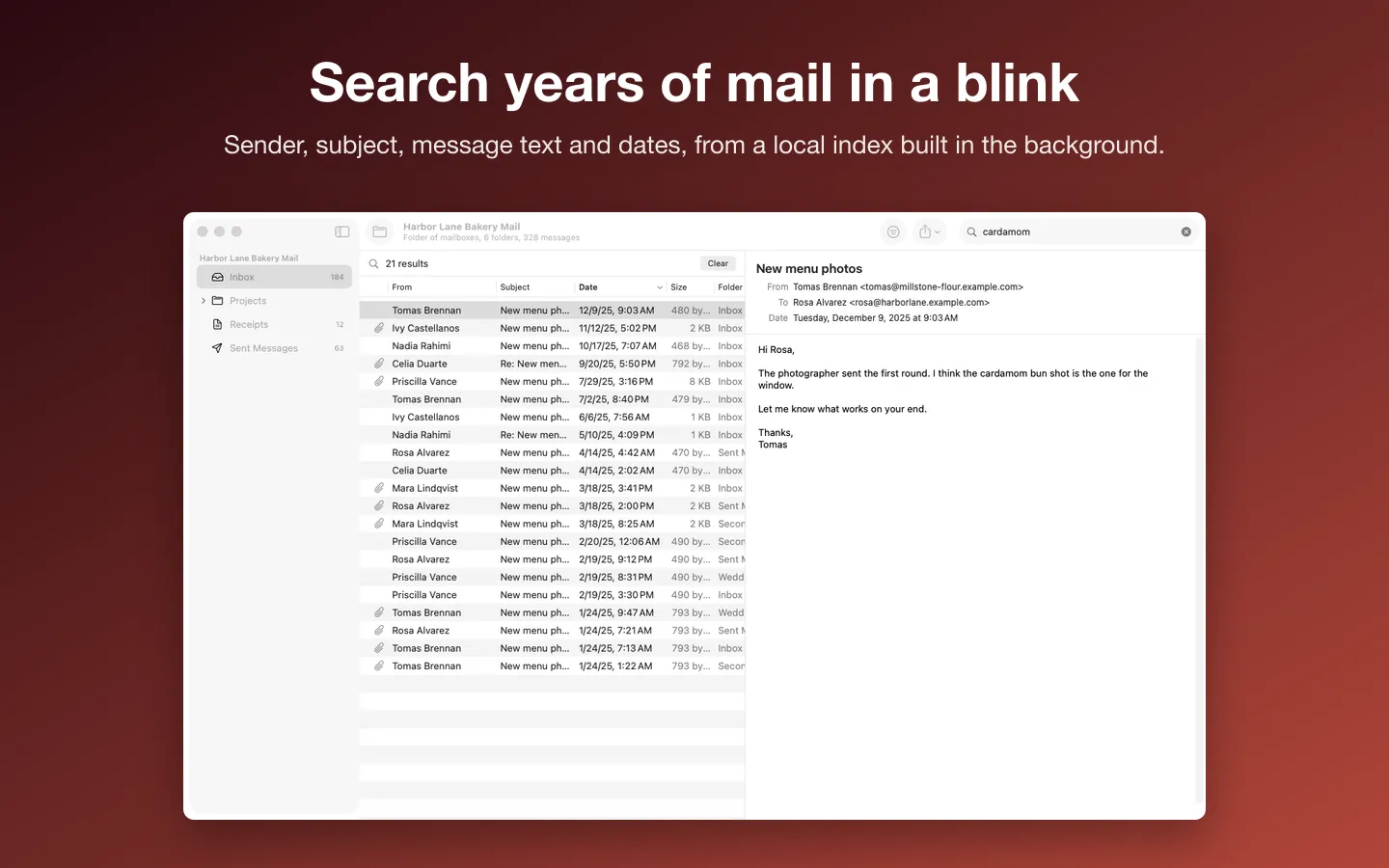
- Search sender, subject, message text and attachment names, between dates, in one folder or all
- Attachments with Quick Look; attached Outlook messages open too
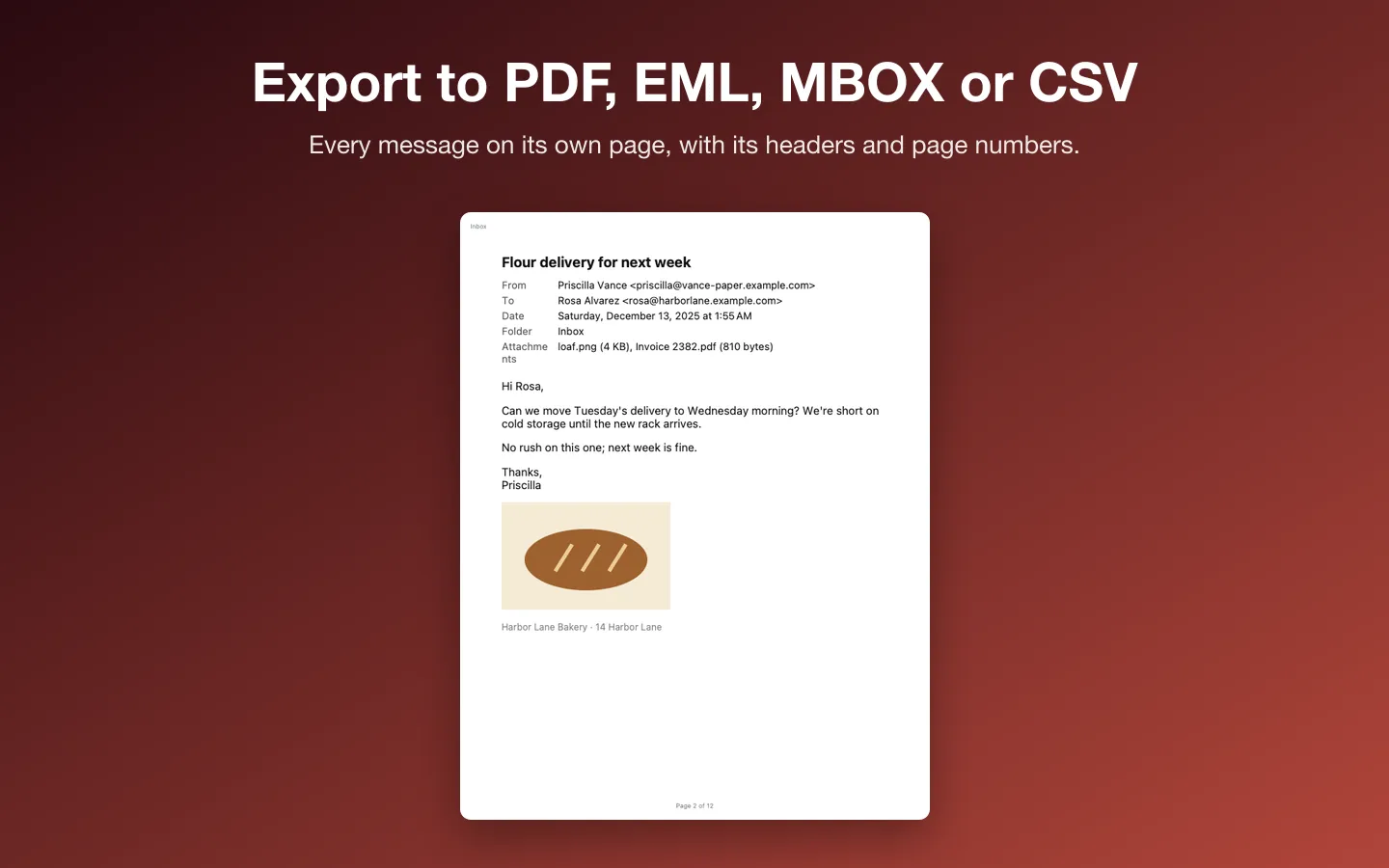
- Export selected messages, a folder or search results as EML, MBOX, PDF or CSV
- PDFs with each message on its own page, its headers and page numbers; print a whole conversation
- Save one attachment, a message's, or a whole folder's at once
- Password-protected PSTs are recognized and ask for their password; a Text Encoding menu for old ANSI files
- Light and Dark Mode, VoiceOver labels and keyboard shortcuts
Free vs Pro
| Feature | Free | Pro |
|---|---|---|
| What you can do | Open, browse, read and search everything; exports and attachment saving 10 at a time | Everything free, plus export whole folders and search results, and save every attachment at once |
| Price | Free download | $29 one-time |
Questions
What can it open?
Outlook data files (.pst from Outlook 2003 and later, tested with 2003–2013-era files; older Outlook 97–2002 “ANSI” files are supported through libpff), offline Outlook files (.ost from classic Outlook 2013 and later), MBOX files, single.eml files, and folders of them, such as an Apple Mail export. You don’t need Outlook or a Microsoft account.
Why are some OST messages empty?
An OST is Outlook’s local copy of a mailbox. Items Outlook never downloaded (for example with a “keep the last 12 months” setting) aren’t in the file; Mailcellar says “No message text” for them. The new Outlook for Windows doesn’t make OST files.
The text looks garbled. What can I do?
Old ANSI PSTs and some MBOX messages don’t say which character set they use. Choose Message › Text Encoding and pick the language the mail was written in (for example Cyrillic or Japanese).
How does search work?
When you open an archive, Mailcellar lists every message and then indexes the text in the background; big archives keep working while it does. Search by sender, subject or message text, between dates, in one folder or all of them.
What’s free, and what does Pro add?
Opening, browsing, reading, search and Quick Look are free with no limit. Without a key, exports and attachment saving work 10 messages or attachments at a time; Pro removes the limit. It’s a one-time purchase on Gumroad, with no subscription.
Where do I enter my license key?
Choose Mailcellar › Settings…, open the Pro tab, paste the key from your Gumroad receipt and click Activate.
From the Mailcellar help page.
How-to guide
How to open a PST file on a Mac without Outlook
The free and built-in ways first, where they stop, and how Mailcellar does it.
Setting it up
How to open a newly downloaded Mac app the first time
Step by step, with what to do if your Mac asks a question.
Requirements
- macOS
- macOS 14 Sonoma or later
- Processor
- Apple silicon and Intel
- Languages
- English
- Download
- 4.3 MB disk image
- Version
- 1.0
Read only: no repair, no conversion to PST, no Exchange or IMAP. Includes libpff (LGPL-3.0-or-later); source at fitztoppicks.com/mac/mailcellar/source.
Privacy
Your mail never leaves your Mac. Mailcellar only reads the archives you open and writes only the exports you save, plus a search index (senders, subjects, dates, message text and attachment names) in its own folder, which you can delete in Settings. A few settings and your license key (in your Keychain) stay on your Mac. The only network requests are the license check with Gumroad (your license key, about once a week), checking for updates at fitztoppicks.com and, when you click Load Images, that message’s pictures.
Questions about your purchase or license key? See Help and FAQ, reply to your Gumroad receipt or contact us.
More Mac apps
 MailshelfExport Apple Mail messages to searchable PDFs, with attachments and an index · $9.99
 LevelMarkLoudness checks for every file, and a live scope and spectrum for your audio interface · $19.99
 Vintage Disk ReaderOpen old Mac floppy, hard disk and CD images, and convert the classic files inside · $9.99