Pixel Caliper
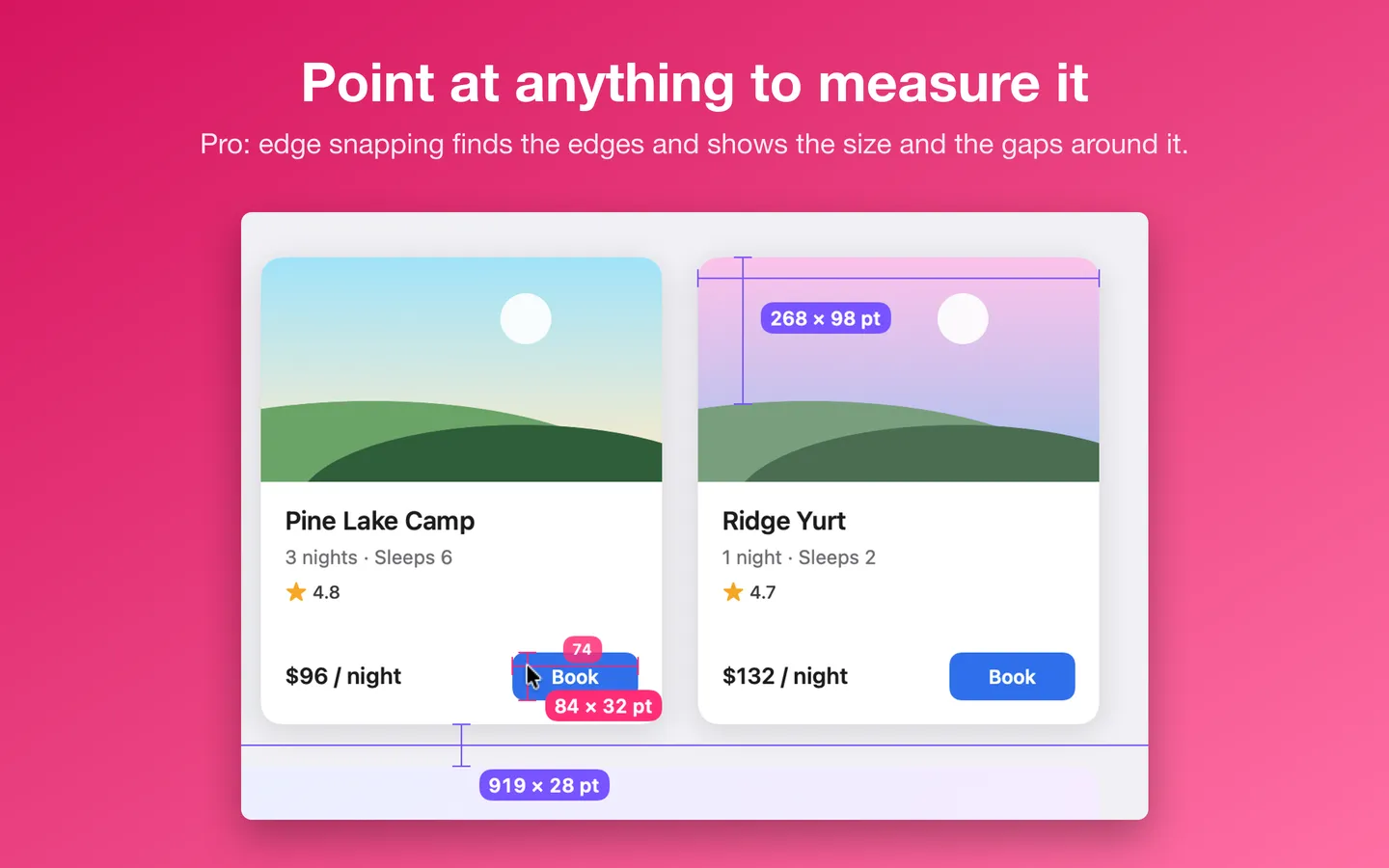
What it does: Point at anything on screen to measure it. Edge snapping finds the edges around the pointer and shows the distances in four directions, plus width and height, with a loupe, guides and a ruler that follows the pointer.
- Checkout by Gumroad
- Notarized by Apple
- No FitzTopPicks account needed
Free to use without a key: the ruler that follows the pointer, guides with the gaps between them, and points or pixels.
Buy a license key to unlock Pro: edge snapping, the loupe, the contrast checker, the grid overlay, several measurements on screen and copying sizes as text, CSS or SwiftUI.
macOS 14 Sonoma or later · Version 1.2.2 · 3.3 MB disk image · Notarized by Apple
One-time $6.99 for the app with Pro: edge snapping, the loupe and every Pro tool. No subscription. One license key works on up to 3 of your Macs.
Download: The download (a signed, notarized .dmg) comes with your purchase in your Gumroad receipt, together with your license key. Updates install from inside the app.
Buy now opens Gumroad's checkout on this page; Gumroad is the seller and handles payment, sales tax and your receipt.
Screenshots
4 pictures: swipe or scroll sideways.
What you get
- Pixel Caliper for Mac: macOS 14 Sonoma or later
- The signed, notarized .dmg download and your license key, in your Gumroad receipt
- One license key for up to 3 of your Macs
- Updates that install from inside the app
- A one-time price: no subscription
Features
- Edge snapping: distances to the nearest edges in four directions, plus width and height
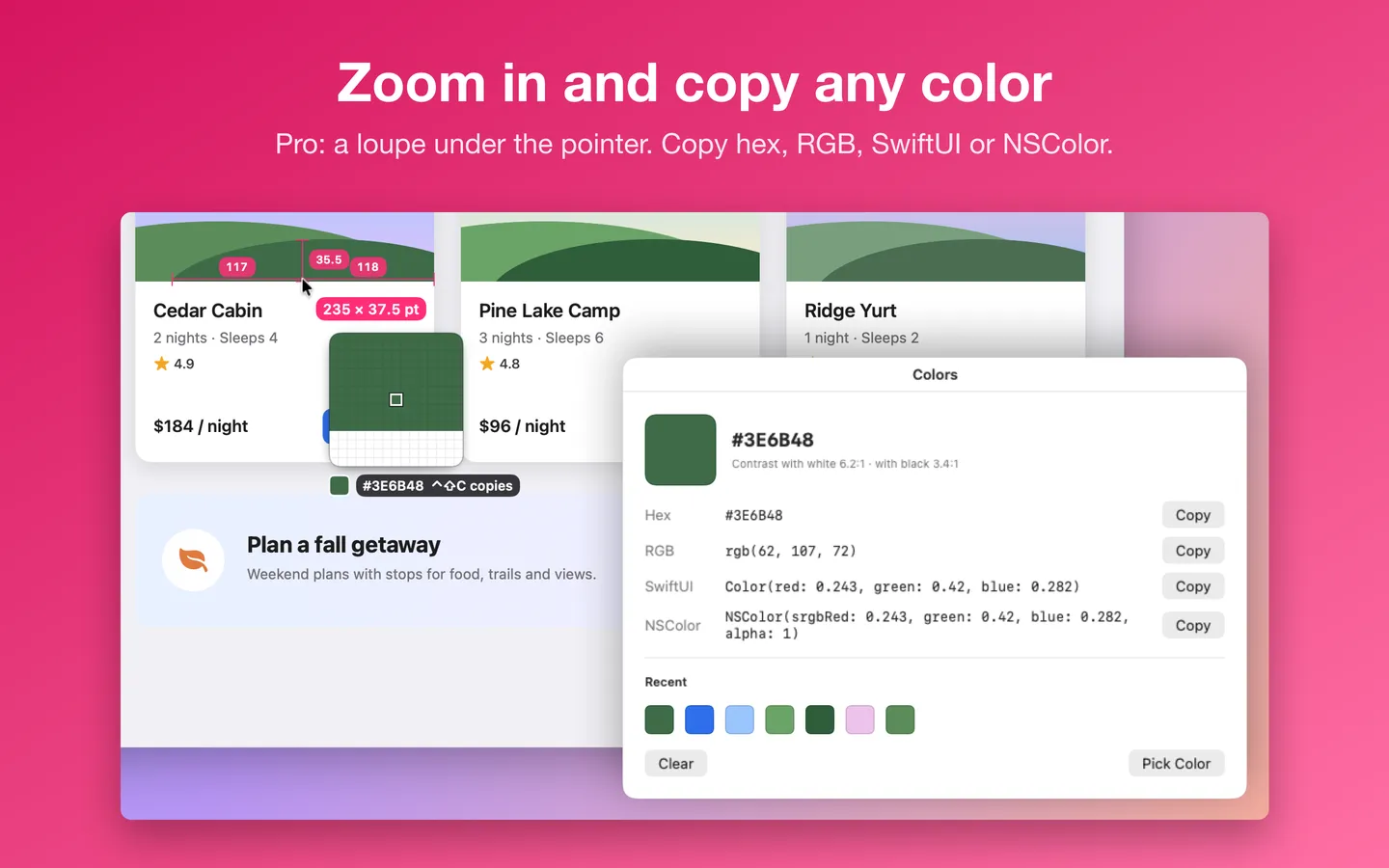
- A loupe that copies colors as hex, RGB, SwiftUI or NSColor
- Pro: a contrast checker with the WCAG contrast ratio of any two colors, and AA and AAA pass or fail for text and UI
- Pro: a grid overlay with 1 to 24 columns, margins and gutters, or a baseline grid, on every display
- Pro: saved measurements with a label, the size in points and pixels, the color, the time and the display, exported as CSV, JSON or a Markdown table
- Keep several measurements on screen while you compare
- Copy sizes as text, CSS or SwiftUI code
- Keyboard shortcuts for everything (Control-Shift plus a letter)
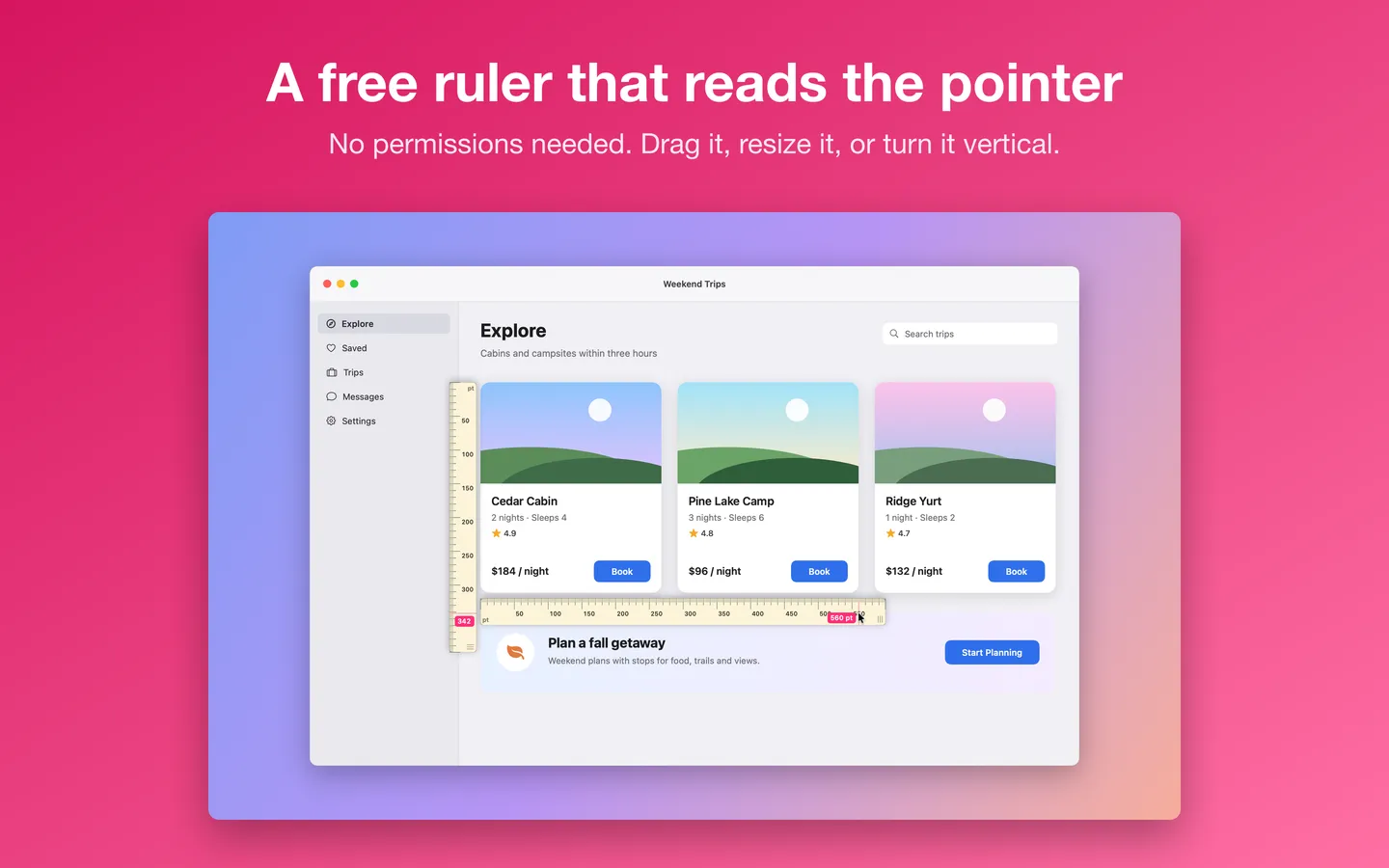
- A horizontal or vertical ruler that follows the pointer
- An angle tool (free): a line's rotation and length, or the angle between two lines, to 0.1°; hold Shift to snap to 0, 45 or 90 degrees
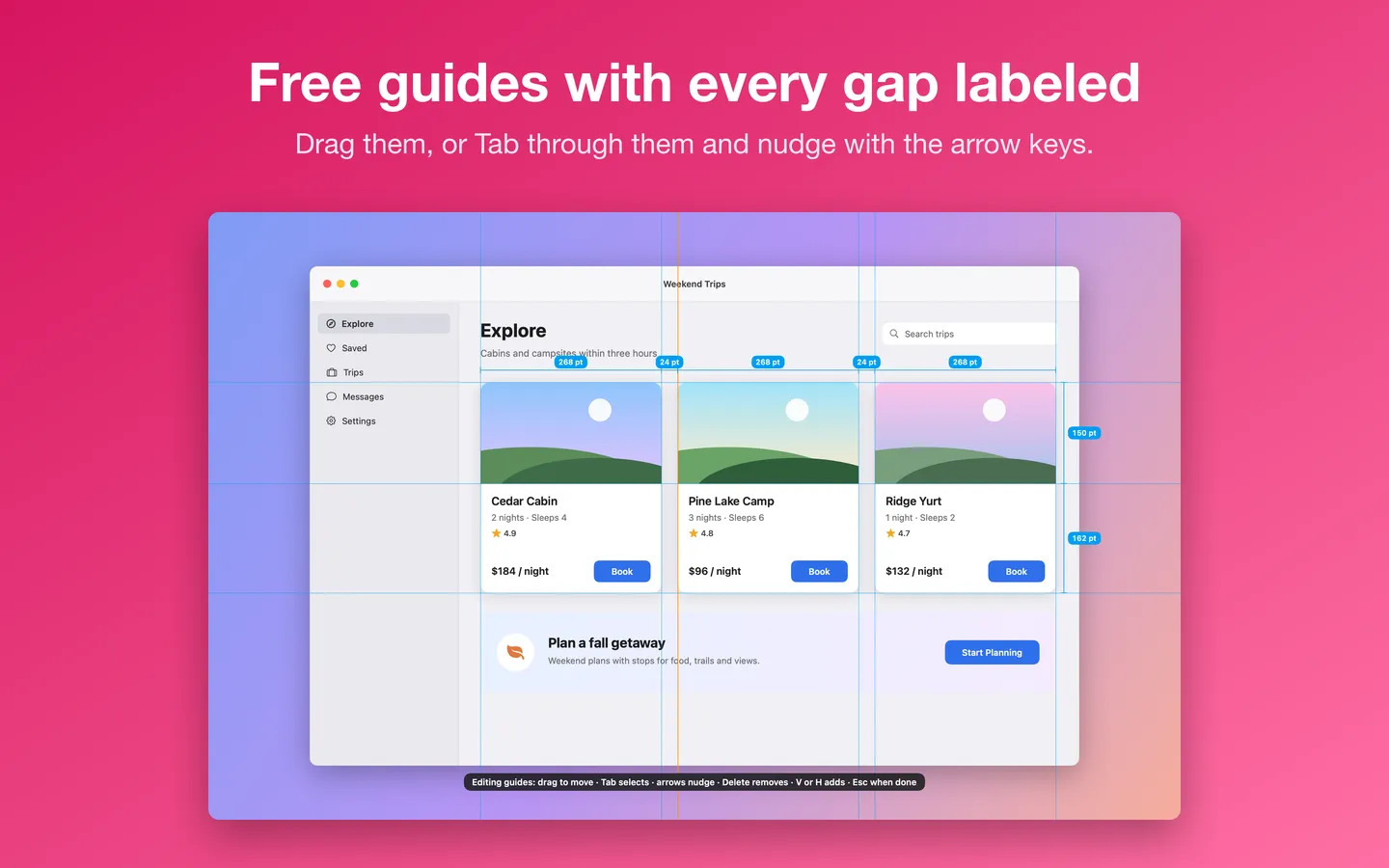
- Guides with the gaps between them
- Points or pixels, on every display
Free vs Pro
| Feature | Free | Pro |
|---|---|---|
| What you can do | The ruler that follows the pointer, guides with the gaps between them, and points or pixels | Everything free, plus edge snapping, the loupe, the contrast checker, the grid overlay, several measurements on screen and copying sizes as text, CSS or SwiftUI |
| Price | Free download | $6.99 one-time |
Questions
Where is Pixel Caliper after I open it?
In the menu bar, under the ruler icon; it has no Dock icon. Choose Welcome and Shortcuts in its menu to see the keyboard shortcuts again.
How do I use the ruler?
Press ⌃⇧R or choose Ruler in the menu. Drag it to move it, drag its far end to change its length, and double-click it to turn it vertical. After you click it, the arrow keys move it (hold Shift for 10), Option-arrow keys change its length, G drops a guide at the pointer and Escape hides it. Reset Ruler Position brings it to the middle of the display with the pointer.
How do guides work?
⌃⇧V and ⌃⇧H add a vertical or horizontal guide at the pointer, and the gaps between guides are labeled. Press ⌃⇧E to edit them: drag a guide, press Tab to select one, nudge it with the arrow keys, press Delete to remove it and Escape when you’re done. Guides snap to each other as you drag.
Points or pixels?
Points are what apps and CSS use; on a Retina display each point is two pixels. Switch with ⌃⇧U or the Units section of the menu. Copied CSS and SwiftUI always use points.
What does Pro add?
Edge snapping with its loupe, picking colors, keeping several measurements on screen, and copying sizes as text, CSS or SwiftUI. It’s a one-time purchase from Gumroad with a license key for up to 3 of your Macs, with no subscription.
Do I have to pay again on another Mac?
No. One license key works on up to 3 of your Macs. Download the app again from your Gumroad receipt or library and enter the same key.
From the Pixel Caliper help page.
How-to guide
How to measure pixels on your Mac screen
The free and built-in ways first, where they stop, and how Pixel Caliper does it.
Compared with other apps
Screen ruler apps for Mac compared: PixelSnap, xScope and Pixel Caliper
What each one's own page says, with the date it was checked.
Setting it up
How to open a newly downloaded Mac app the first time
Step by step, with what to do if your Mac asks a question.
Requirements
- macOS
- macOS 14 Sonoma or later
- Processor
- Apple silicon and Intel
- Languages
- English
- Download
- 3.3 MB disk image
- Version
- 1.2.2
What's new
Version 1.2.2 ·
- A new app icon.
- Easier to read: warning, success and error text now uses deeper shades in Light Mode, so it stands out clearly on the window (Dark Mode looks the same).
Version 1.2.1 ·
- Licence checks are stricter, so Pro stays tied to a real licence key. Nothing changes for buyers with a key.
Version 1.2.0 ·
- Saved measurements (Pro): every measurement you keep goes into a saved list (Saved Measurements… in the menu) with a label you can rename, its width and height or length in both points and pixels at that display's scale, the color under the pointer, the time and the display. Copy it, or export it as CSV, JSON or a Markdown table to paste into a ticket. It stays until you clear it; ⌃⇧X now only clears the marks from the screen.
- Angle tool (⌃⇧A, free): click a vertex and a point to read a line's rotation from horizontal and its length, or a second point for the angle between two lines, to 0.1°. Drag from the vertex to draw the first line, hold Shift to snap to 0, 45 or 90 degrees, press Return to keep it in the saved list (Pro), Delete to undo a point, Escape when done. Space places a point at the pointer for keyboard use.
From Pixel Caliper's release notes. Updates install from inside the app.
Privacy
Edge snapping asks for Screen Recording permission and reads only a thin row and column of pixels through the pointer (plus a tiny square for the loupe), in memory; nothing is sent, and only colors you pick are kept. The contrast checker and grid overlay need no permission. Your settings, guides, last 12 picked colors and your license key (in your Keychain) stay on your Mac. The only network requests are the license check with Gumroad (your license key, when you enter it and about once a week), checking for updates at fitztoppicks.com and downloading the list of our other Mac apps from fitztoppicks.com when you open it (at most once a day; the same file for everyone); none sends anything about your screen.
Questions about your purchase or license key? See Help and FAQ, reply to your Gumroad receipt or contact us.