Screen ruler apps for Mac compared: PixelSnap, xScope and Pixel Caliper
UpdatedShort answer
PixelSnap 2 is a measuring tool that snaps to objects and measures the distance between them. xScope is a larger set of tools for measuring, inspecting and testing on-screen graphics, including rulers with edge snapping. Pixel Caliper's free ruler follows the pointer, with guides; its Pro adds edge snapping and a loupe. Built in, the ⇧⌘4 screenshot crosshair shows the size of what you drag. If the tool you have works for you, keep it.
How they compare
From each tool's own page, read on Oct 18, 2026. Things change: follow the link for the current details. Names are their owners' trademarks, used only to compare.
| Tool | What its own page says | Source |
|---|---|---|
| PixelSnap 2 | Measure the distance between elements, snap to objects by dragging around them, measure several objects at once, add snappable guides and take screenshots of measurements. Sold with a 30-day money-back guarantee. | Its page |
| xScope | A set of tools for measuring, inspecting and testing on-screen graphics and layouts: rulers with scaling, rotation and edge snapping, Dimensions, Loupe, Guides, Overlay and more. Free trial; macOS 12.3 or later. | Its page |
| Pixel Caliper | A menu bar ruler that follows the pointer and guides with the gaps between them, in points or pixels: free. Pro adds edge snapping in four directions, a loupe that copies colors, several measurements on screen, and copying sizes as text, CSS or SwiftUI. | Our page |
The free ways
Free: the screenshot crosshair
- Press ⇧⌘4 and drag across what you want to measure: the width and height of the area show beside the crosshair.
- Press Esc before you let go, and no screenshot is saved.
Where the free ways stop
- The crosshair can't snap to edges or show the gap between two things, and the numbers are gone when you let go.
- There's nothing to leave on screen while you line things up.
How Pixel Caliper does it
Pixel Caliper is a Mac app we make: screen ruler & edge snapping for your menu bar.
- Press ⌃⇧R for the ruler that follows the pointer, and ⌃⇧V or ⌃⇧H for guides with the gaps labeled (free).
- With Pro, edge snapping shows the distances in four directions plus width and height, and sizes copy as CSS or SwiftUI.
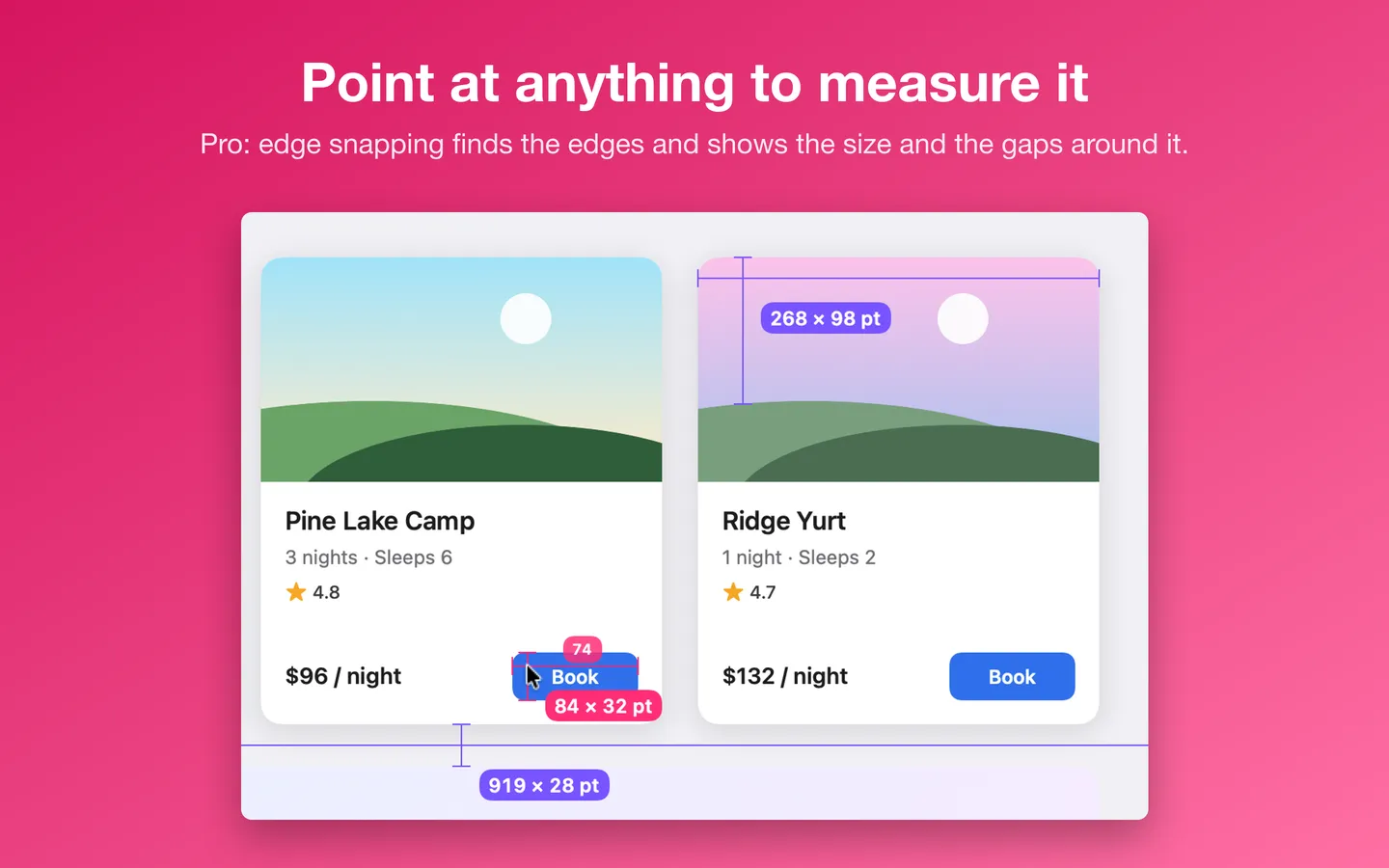
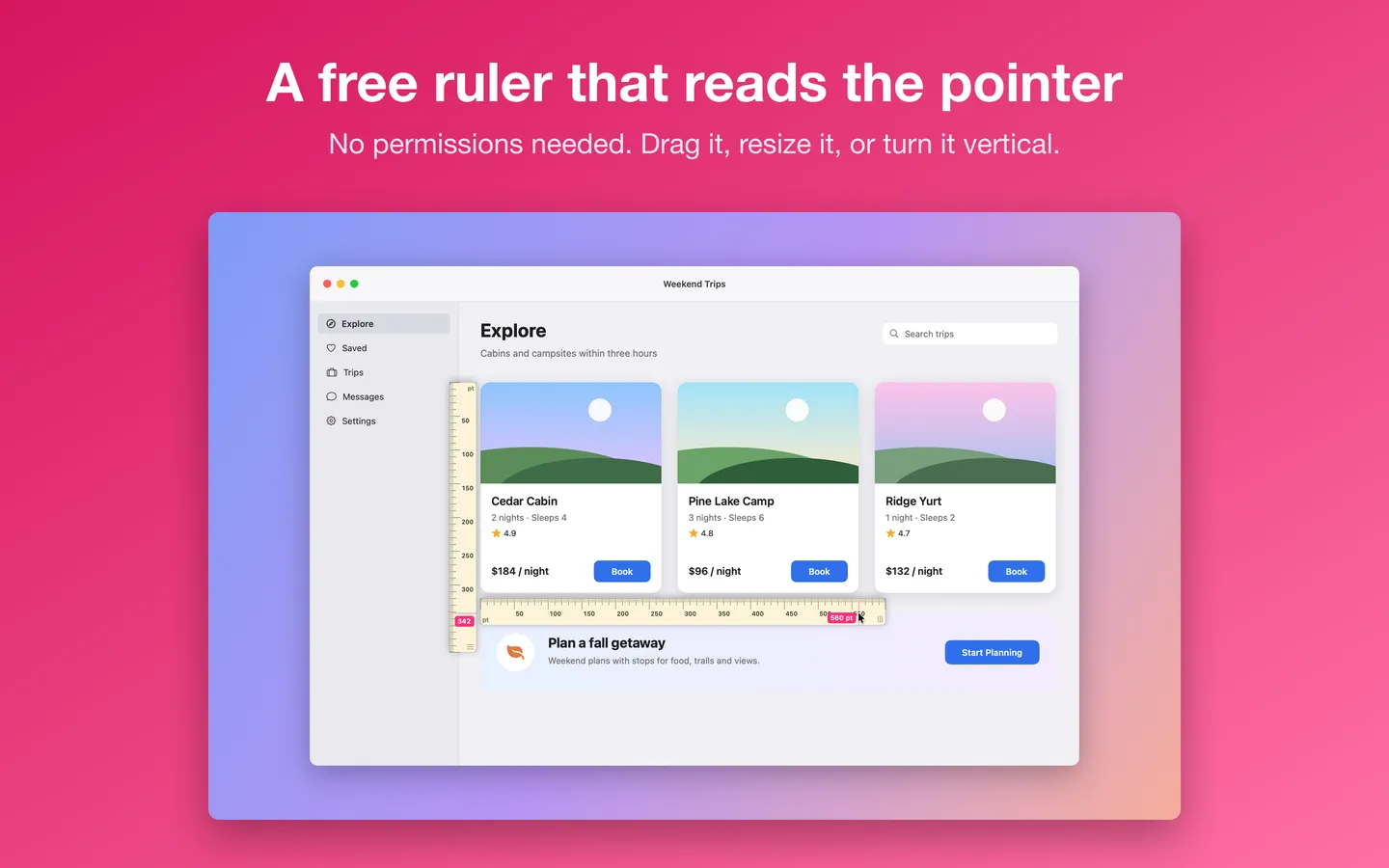
Free to use without a key: the ruler that follows the pointer, guides with the gaps between them, and points or pixels.
$8.99 one-time for Pro, no subscription. Buy a license key to unlock Pro: edge snapping, the loupe, several measurements on screen and copying sizes as text, CSS or SwiftUI.
macOS 14 Sonoma or later. Apple silicon and Intel.
Questions
Which one should I use?
For a free ruler and guides, Pixel Caliper's free part covers that. For snapping to objects and measuring between them, PixelSnap and Pixel Caliper Pro both do it. For a wider design toolkit with overlays and mirroring, xScope has more tools. If the tool you have works for you, keep it.
Do these need Screen Recording permission?
Pixel Caliper's edge snapping does, because macOS allows reading the pixels under the pointer only with that permission; its ruler and guides don't. Check each other app's own page for what it asks for.
Is Pixel Caliper made by the makers of these apps?
No. PixelSnap and xScope belong to their own makers and are named here only to compare. Each description above is from that app's own page, checked on the date shown.