Snapwright: Windows-style window snapping for Mac
What it does: Snapwright brings the window tools Windows users miss to macOS: Shift-drag a window onto zones, pick a Snap Layout from the green button, keep snapped windows together as snap groups, save and restore workspaces, put windows back when a monitor comes back, move and resize from anywhere with ⌃⌥-drag, add a taskbar with previews and jump lists, and keep part of any window floating on top as a live crop.
- Checkout by Gumroad
- Notarized by Apple
- No FitzTopPicks account needed
Free for 7 days from the first time you open it: every feature, no key needed.
Buy a license key to unlock Snapwright for good after the trial. Your zones, workspaces and settings are kept either way.
macOS 15 Sequoia or later · Version 1.5 · 5.0 MB disk image · Notarized by Apple
One-time $19.99. No subscription. One license key works on up to 3 of your Macs.
Download: The download (a signed, notarized .dmg) comes with your purchase in your Gumroad receipt, together with your license key. Updates install from inside the app.
Buy now opens Gumroad's checkout on this page; Gumroad is the seller and handles payment, sales tax and your receipt.
Screenshots
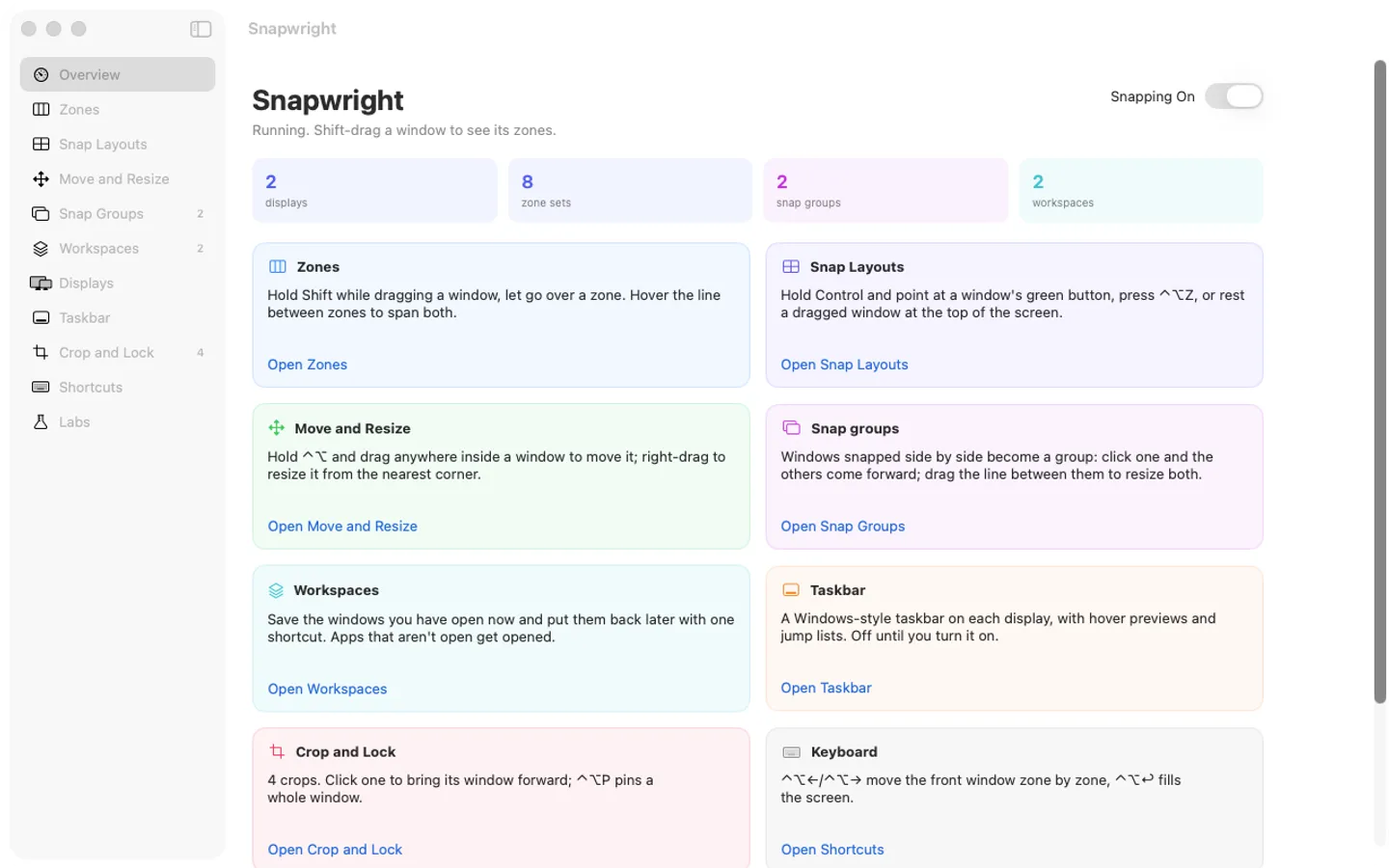
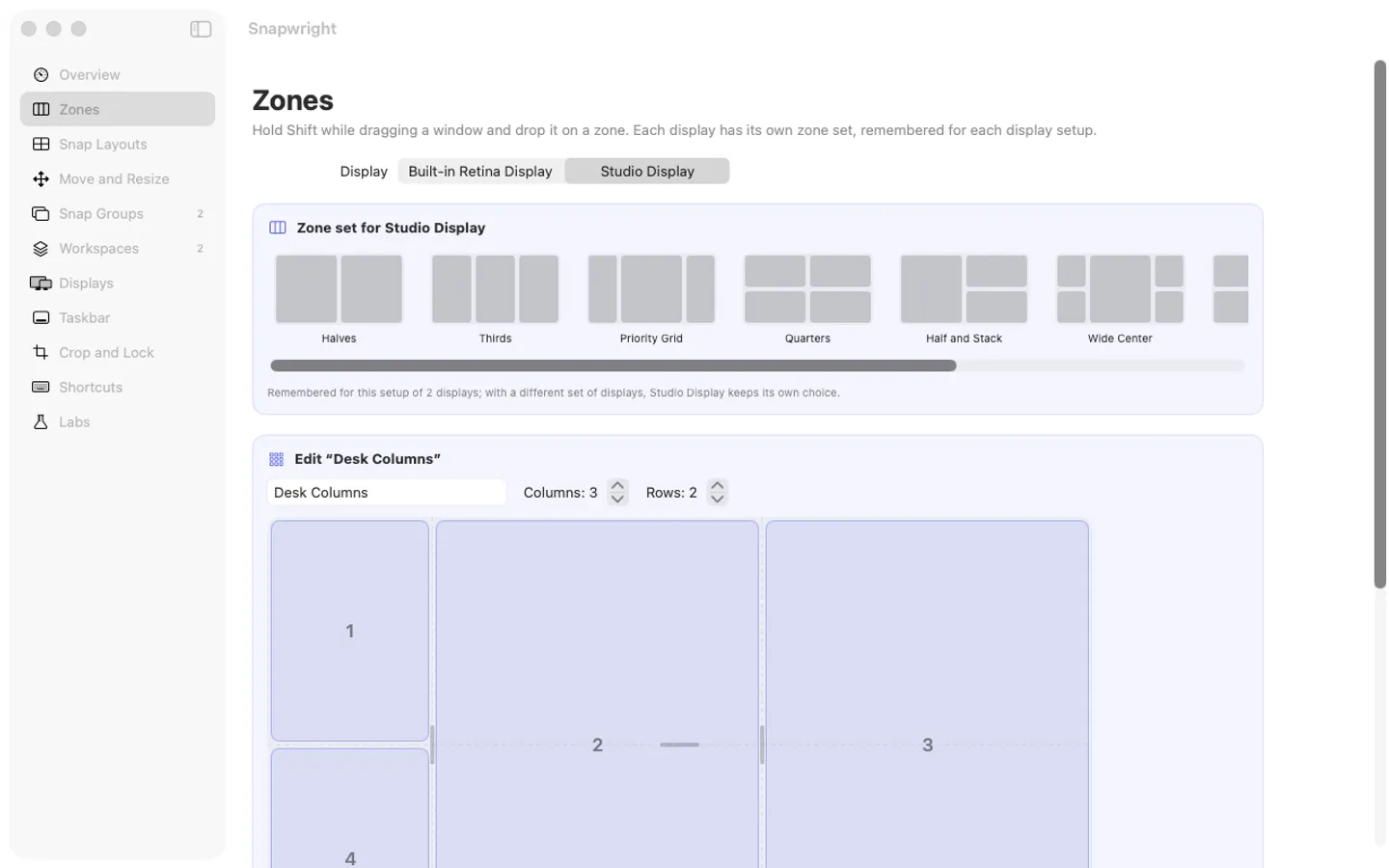
5 pictures: swipe or scroll sideways.
What you get
- Snapwright for Mac: macOS 15 Sequoia or later
- The signed, notarized .dmg download and your license key, in your Gumroad receipt
- One license key for up to 3 of your Macs
- Updates that install from inside the app
- A one-time price: no subscription
Features
- Zones per display, remembered for each display setup
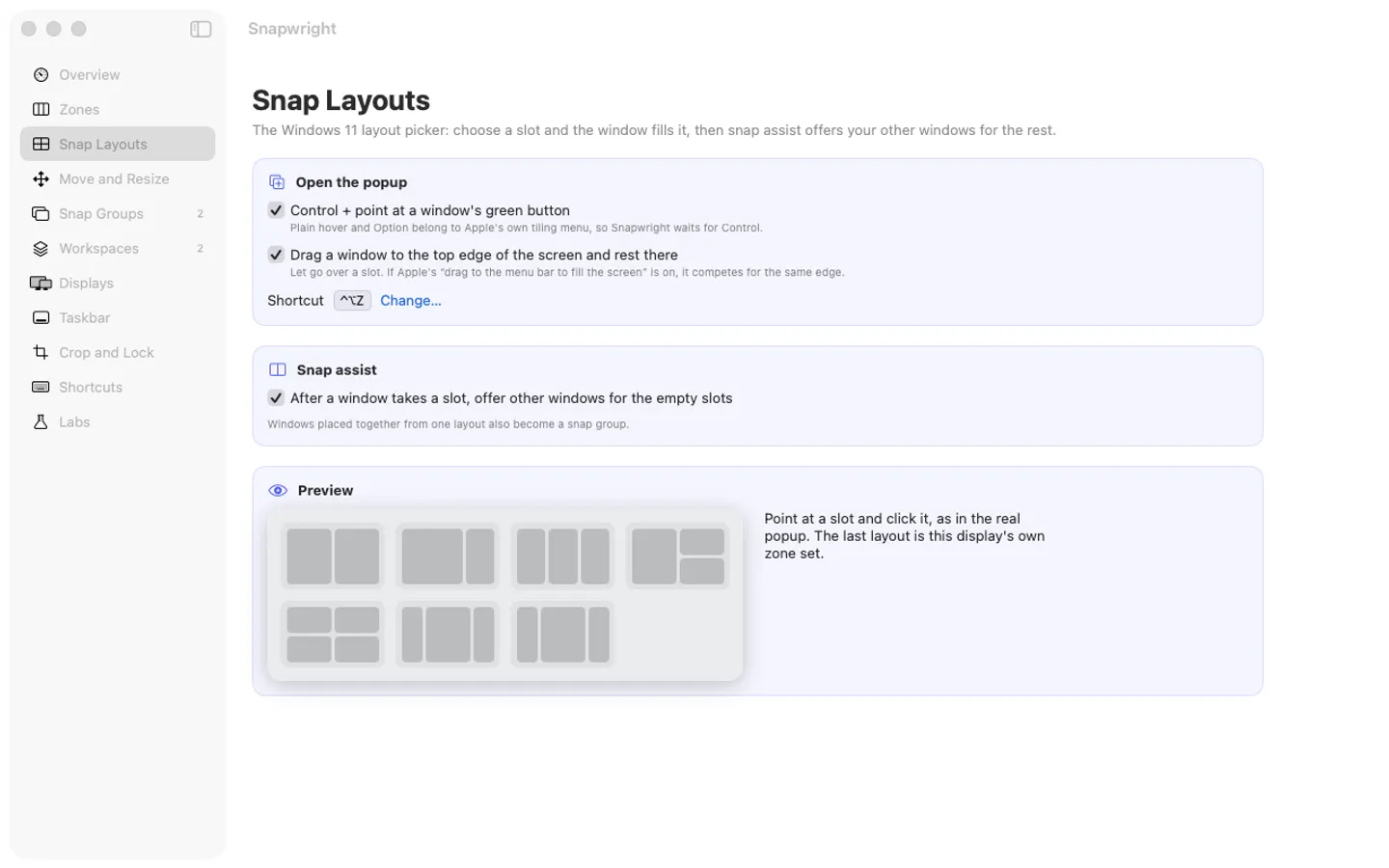
- Snap Layouts from the green button or the top edge, with snap assist
- Snap groups that come forward and resize together
- Workspaces restored with one shortcut
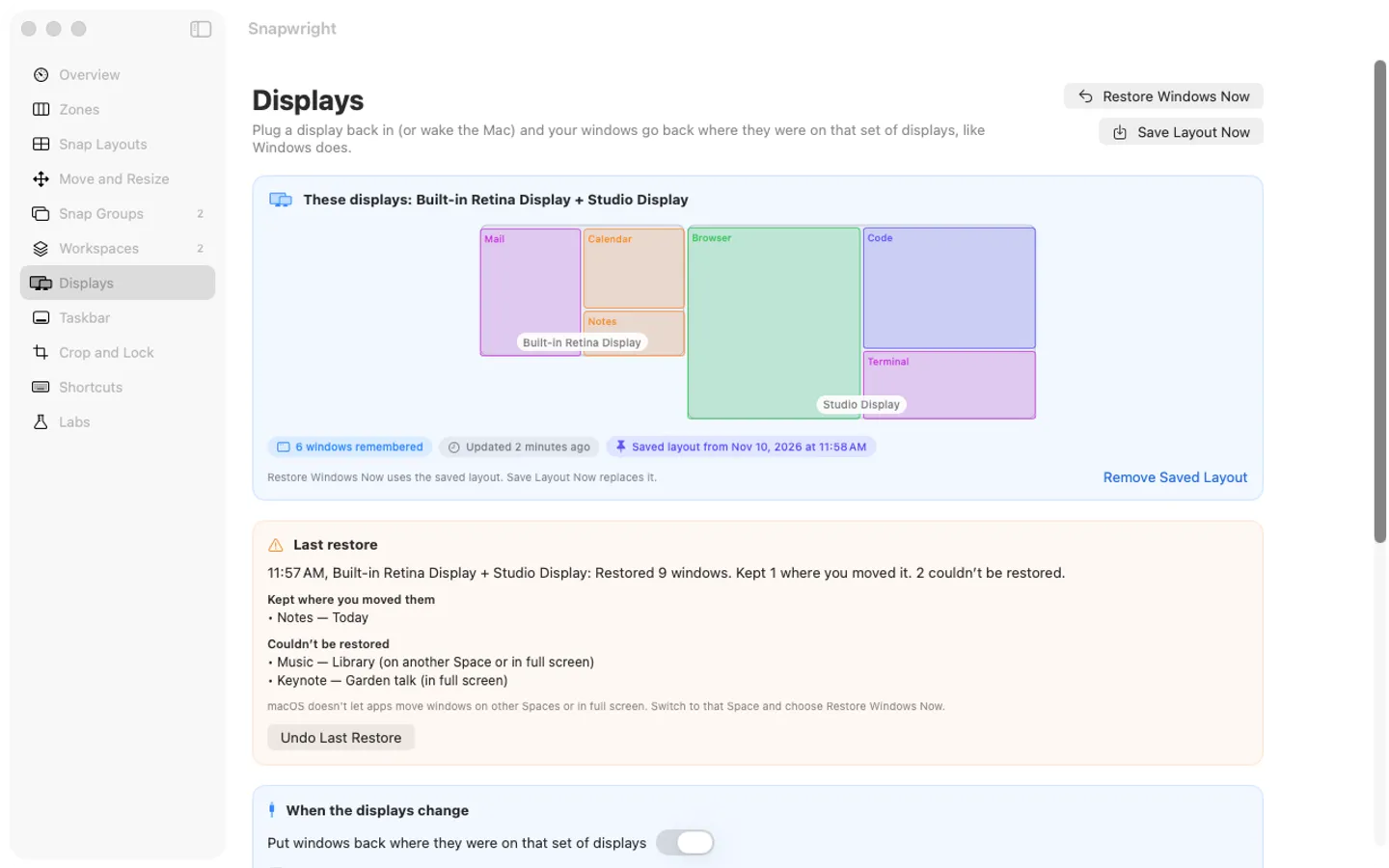
- Windows go back home when a monitor reconnects or the Mac wakes
- ⌃⌥-drag to move and resize from anywhere in a window
- A Windows-style taskbar per display with hover previews and jump lists
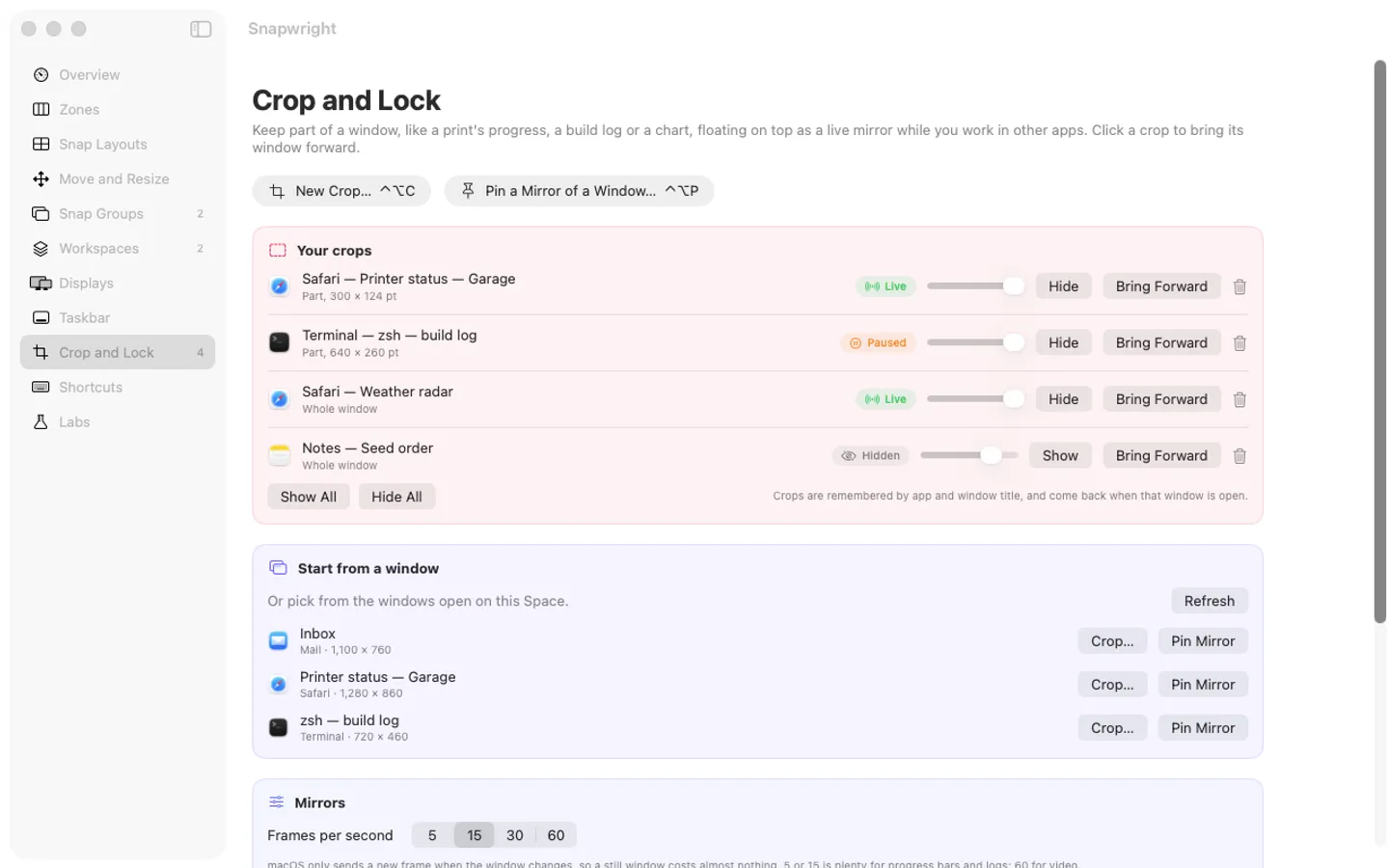
- Crop and Lock: live floating crops and pinned mirrors of any window
- Cross-app tabs (Labs)
Free trial vs With a license key
| Feature | Free trial | With a license key |
|---|---|---|
| What you can do | Every feature, no key needed | Buy a license key to unlock Snapwright for good after the trial. Your zones, workspaces and settings are kept either way. |
| Price | Free to try | $19.99 one-time |
Questions
How do I snap a window to a zone?
Hold Shift while you drag a window and drop it on a zone. Hover the green button for Snap Layouts.
Windows don’t move.
Allow Snapwright in System Settings › Privacy & Security › Accessibility, then quit and reopen it.
Is there a free trial?
Yes: every feature for 7 days from the first time you open it. After that, a one-time license key from Gumroad keeps it working on up to 3 Macs, with no subscription.
Where do I enter my license key?
Choose License… from the Snapwright menu, paste the key from your Gumroad receipt and click Activate.
How do I get updates?
Snapwright checks for updates on its own; you can also choose Check for Updates… from its menu. Updates are free.
Do I have to pay again on another Mac?
No. One license key works on up to 3 of your Macs. Download the app again from your Gumroad receipt or library and enter the same key.
From the Snapwright help page.
Setting it up
How to open a newly downloaded Mac app the first time
Step by step, with what to do if your Mac asks a question.
Requirements
- macOS
- macOS 15 Sequoia or later
- Processor
- Apple silicon and Intel
- Languages
- English, Spanish
- Download
- 5.0 MB disk image
- Version
- 1.5
What's new
Version 1.5 ·
- First release, sold direct on Gumroad and fitztoppicks.com: window zones on Shift-drag, Snap Layouts and snap groups, saved workspaces, an optional taskbar with previews and jump lists, Crop and Lock mirrors, windows put back when displays come back, Move and Resize with a held modifier, and the new Pointer pane below. A 7-day trial of everything, then one license key for up to 3 Macs.
- Pointer pane: pointer wrap sends the pointer around to the opposite edge when you push it past an outer edge of your displays: left and right, top and bottom, or all four. Your displays count as one desktop as arranged in System Settings (different sizes and offsets included), or choose "on the same display it left". Where two displays meet, the pointer crosses as usual. Off until you turn it on.
- Pointer wrap stays out of the way: not while a mouse button is held, not while a full-screen app or a game is in front, not in front of apps you list; after a wrap a small wobble never sends the pointer straight back.
- It only listens (a listen-only event tap on its own thread, so it can't hold up or change a click), and if mouse events ever reach it late it turns itself off and says so, with one button to turn it back on.
- Mouse Jump (⌃⌥J, changeable): a small map of all your displays; click a spot and the pointer goes there. Esc closes it; 1, 2… go to the middle of a display. Live pictures when Screen Recording is already allowed (Snapwright never asks for it here), otherwise display outlines with your windows' shapes.
- Menu bar: Pointer Wrap and Mouse Jump. Shortcuts pane: a Pointer group. Help: Pointer wrap and Mouse Jump.
- Spanish for the Pointer pane, Mouse Jump, those menu items and the Help topic (the rest of the app is still English).
- The Go menu gains Pointer as its tenth pane (⌘1…⌘9 unchanged).
Version 1.4 ·
- Move and Resize (task 1700.1, AltDrag style): hold ⌃⌥ (configurable; never ⌘, ⇧ or ⌃ alone) and left-drag anywhere inside a window to move it, right-drag to resize it from the nearest corner or edge (thirds), or left-drag near an edge (24 pt, corners easier) to resize from it. Hold Shift too while moving to snap to a zone.
- A short label by the pointer (Move / Resize from the … corner / Snap Zone n, with the size).
- Leaves games and remote desktops / VMs alone by default; per-app list in the new Move and Resize pane.
- The mouse tap is on only while the modifier is held and takes only the clicks it uses. The new pane sits after Snap Layouts: Snap Groups…Crop and Lock moved from ⌘4…⌘8 to ⌘5…⌘9, and Shortcuts lost ⌘9.
Version 1.3 ·
- Displays (task 1694.1): windows go back to the displays and places they had when a set of displays comes back or the Mac wakes, after a settle delay (2 s default). Each window's frame is remembered per display setup (the same setup key the zone choices use), refreshed within about 2 s of any move or resize and frozen the moment the displays start to change, so macOS's reshuffle never overwrites it.
- A window moved while unplugged keeps its newer place unless "always restore" is chosen; per-app exclusions; changed resolutions and arrangements are mapped (shrunk only if the window no longer fits).
- Menu bar › Displays: Restore Windows Now, Save Layout Now (pins a layout), Undo Last Restore; both are assignable shortcuts. A notice after a restore lists windows it couldn't reach (other Spaces, full screen).
- The Go menu gives ⌘1…⌘9 to the first nine panes (a tenth pane would have crashed the old digit mapping).
From Snapwright's release notes. Updates install from inside the app.
Privacy
Snapwright reads window positions, sizes and titles on your Mac to move them, never what's inside them, and records no typing. Crop and preview pictures stay in memory and are never saved or sent. No account, no tracking. Your license key is kept in your Keychain. The only internet requests are the license check with Gumroad (when you enter a key and about once a week), update checks at fitztoppicks.com, and the More Mac Apps list from fitztoppicks.com when you open it in Help. It needs the Accessibility permission; Screen Recording only if you turn on taskbar previews or make a crop.
Questions about your purchase or license key? See Help and FAQ, reply to your Gumroad receipt or contact us.