How to practice language shadowing on a Mac: loop, slow down and record
UpdatedShort answer
Shadowing means listening to a short stretch of native speech and saying it straight back, many times. On a Mac you can do it for free: trim one sentence and loop it in QuickTime Player, or loop a selection in Audacity, slow it down with Audacity's Change Tempo (which keeps the pitch), and record yourself with Voice Memos or Audacity to compare.
The free ways
Free: QuickTime Player and Voice Memos
- Make a copy of the recording and open it in QuickTime Player. Choose Edit › Trim, drag the yellow handles around one sentence and click Trim.
- Choose View › Loop and press Play: the sentence repeats until you stop it. Say it along with the speaker, then on your own.
- Record your attempt with Voice Memos (or File › New Audio Recording in QuickTime Player) and play it after the original.
- For the next sentence, open the full recording again and trim the next part.
QuickTime Player's playback controls also have a Playback Speed menu.
Free: Audacity
Audacity is a free, open-source audio editor (audacityteam.org). Opening the sound of a video file needs its optional FFmpeg library.
- Open the recording and drag across the waveform to select one sentence.
- In the Transport menu's looping commands, choose Set Loop to Selection and turn looping on, then press Play: the sentence repeats.
- To slow it down without changing the pitch, keep the sentence selected and choose Effect › Pitch and Tempo › Change Tempo with a negative percent change (for example −20). Edit › Undo puts it back.
- Record your attempt with the Record button and play it back after the original.
Where the free ways stop
- Every sentence is set up by hand: find where it starts and ends, trim or select it, then move on. A ten-minute lesson has dozens of sentences.
- A loop plays the sentence back to back, with no pause to say it yourself unless you add silence.
- Slowing down in Audacity changes the audio until you undo it.
- Comparing your recording with the original means switching between apps or tracks.
- Nothing remembers which sentences were hard for you.
How TalkShadow does it
TalkShadow is a Mac app we make: shadow any recording, one sentence at a time.
- Open any audio or video file on your Mac, such as a podcast episode, a lesson or a video course (only the sound plays).
- TalkShadow splits it into sentences at the pauses and adds a transcript with on-device speech recognition.
- Each sentence loops 1 to 20 times with a pause after it sized to the sentence, so you can say it back. Looping at normal speed stays free after the 7-day trial.
- Pro slows down to 50% without changing the pitch, records your attempt to play right after the original, keeps hard sentences marked and moves on to the next sentence by itself.
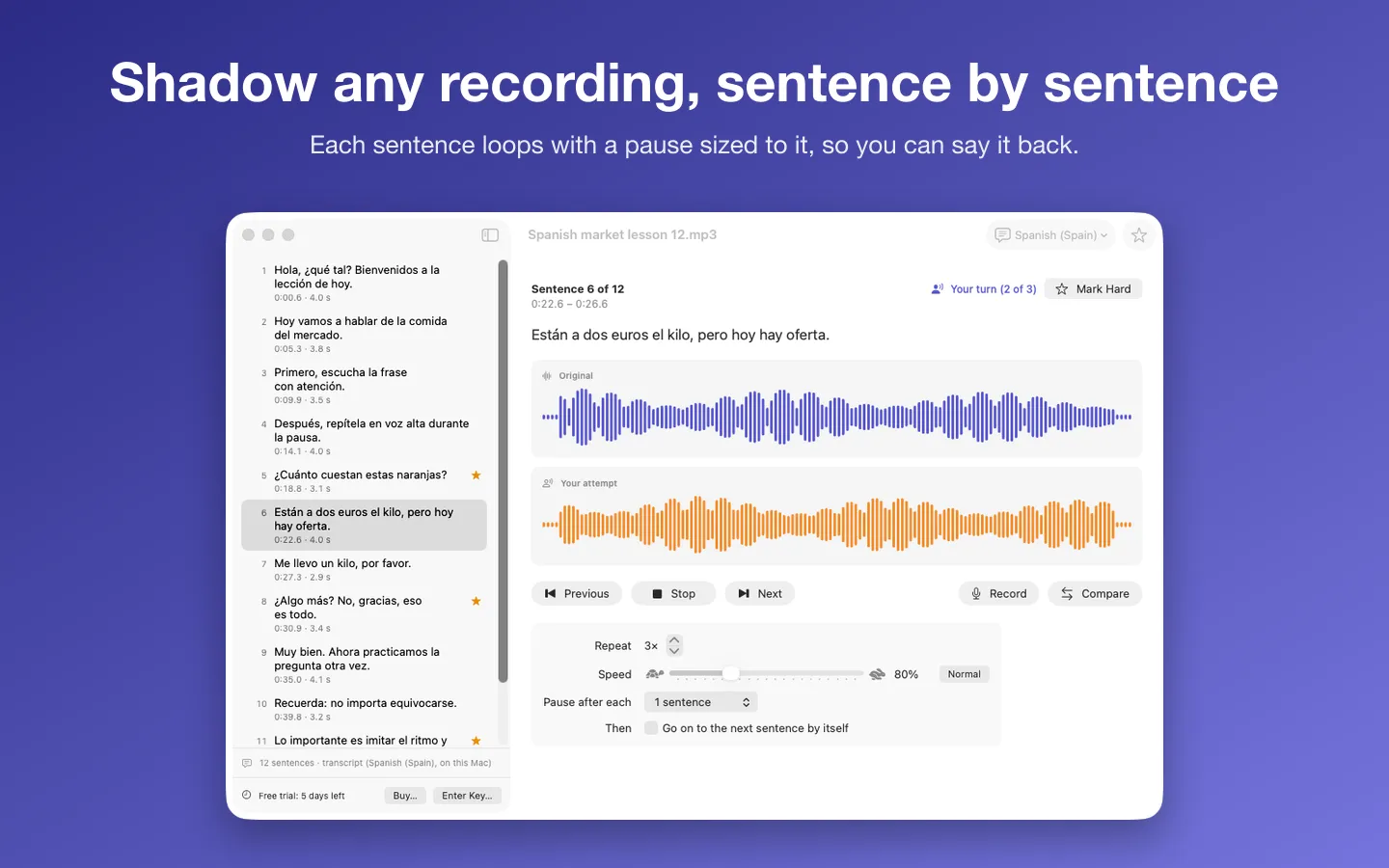
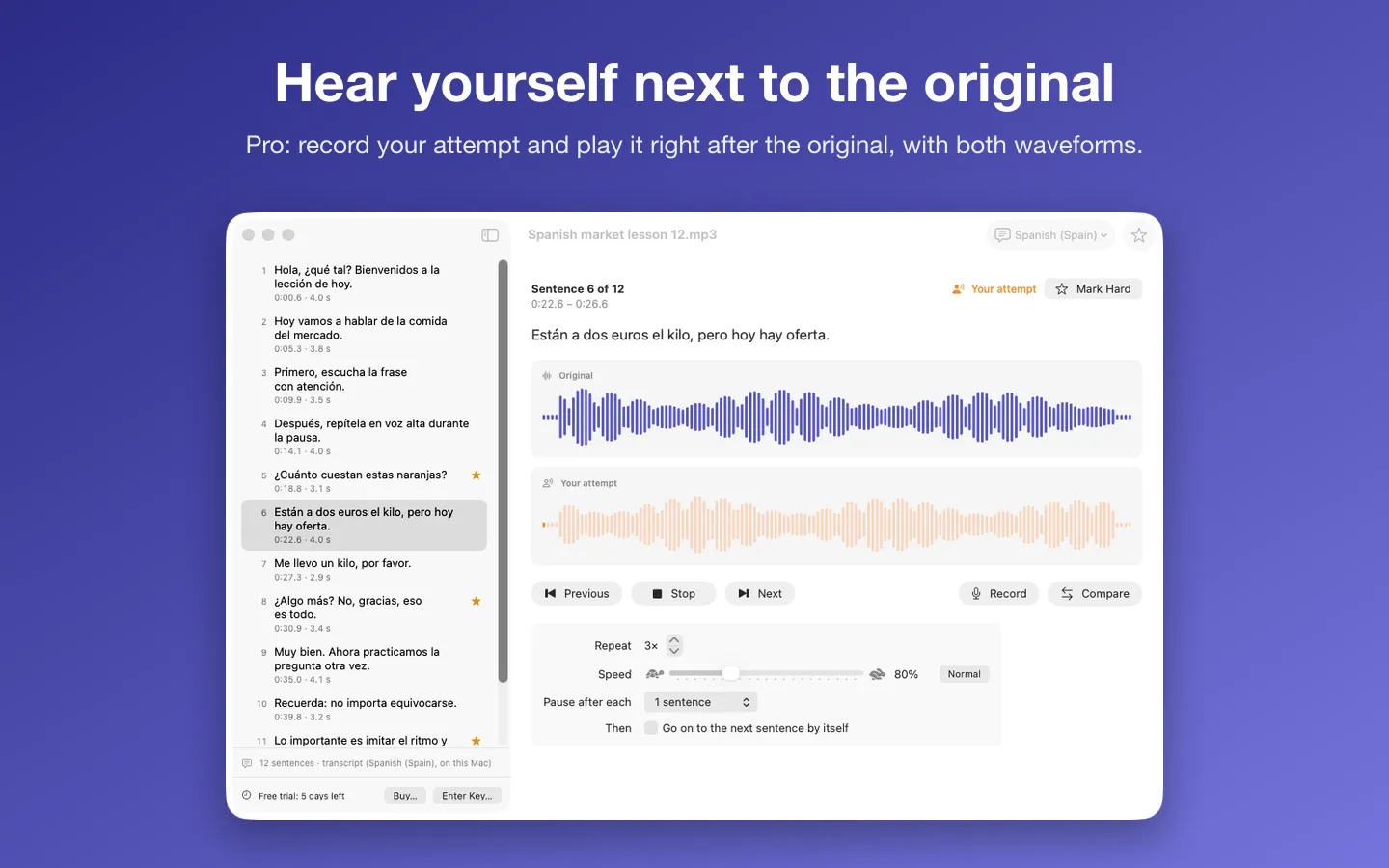
Free for 7 days from the first time you open it, then free to keep using without a key: open files, find sentences with the transcript, and loop at normal speed with pauses.
$19 one-time for Pro, no subscription. Buy a license key to unlock Pro: slow down without changing the pitch, record and compare, hard marks, and going on to the next sentence by itself.
macOS 14 Sonoma or later. Apple silicon and Intel. Asks for Speech Recognition (to find sentences) and the Microphone (to record). Transcripts need an on-device speech model for the file’s language. Only the sound of a video plays.
Questions
What is shadowing?
A speaking exercise: you listen to a native speaker and repeat what they say right away, copying the rhythm and intonation, a short stretch at a time. Short sentences, many repeats and a recording of yourself to compare are the usual routine.
Should I slow the audio down?
For hard sentences at first, a little (for example to 80%) helps you hear every sound. Keep the pitch the same so the voice still sounds natural, and work back up to normal speed.
What recordings work best?
Clear speech with one speaker at a time: lessons, audiobooks and podcasts with transcripts. Music and people talking over each other are hard to shadow and hard to split into sentences.
Does TalkShadow upload my recordings?
No. Speech recognition runs on your Mac, and your files, transcripts and recordings stay there. Transcripts need an on-device speech model for the file's language.