How to remove names from a spreadsheet before pasting it into an AI chatbot, then put them back
UpdatedShort answer
Work on a copy. Replace each real name, email, phone number and address with a stand-in, and keep a list of which stand-in belongs to which person in a separate file. Paste only the copy into the chatbot. When the answer comes back, use your list to swap the stand-ins back for the real values. This is pseudonymization, not anonymization: anyone with the list can undo it, other details can still point to a person, and names written inside notes are easy to miss. Check your employer's rules for AI tools before you paste work data anywhere.
The free ways
Free: a lookup list and Find and Replace
Works in Excel, Numbers or Google Sheets. Best for a short list of people.
- Duplicate the file and work only on the copy. Keep the original closed.
- In a new, separate spreadsheet, make a two-column list: each real value on the left and a made-up stand-in on the right (Customer 1, [email protected], 555-0101). Use the same stand-in for the same person everywhere.
- In the copy, open Find and Replace (Excel: Home › Find & Select › Replace; Numbers: Edit › Find › Find & Replace; Google Sheets: Edit › Find and replace) and replace each real value with its stand-in. In Excel and Google Sheets, turn on the whole-cell match option for name and email columns, so "Ann" doesn't change "Annual".
- Read every free-text column, such as Notes or Comments, yourself and swap any names or numbers written there.
- Save the copy, check it once more, then paste it (or the rows you need) into the chatbot.
- To put the real values back, take the chatbot's answer into a document or spreadsheet and run the same replacements the other way: each stand-in back to its real value.
Keep the lookup list in a different file from the copy you share. Anyone who has both can undo the swap.
Free: leave the personal columns out
If the question is about the numbers (visits, ratings, totals), the chatbot may not need anyone's name at all.
- In a copy, add a column with a row number (1, 2, 3 …) for each row.
- Delete the name, email, phone and address columns from the copy, and check the notes for names.
- Paste the copy. The answer will mention row numbers instead of people.
- Match the row numbers back to your original file with XLOOKUP or VLOOKUP, or by sorting both files by the row number.
Where the free ways stop
- Find and Replace works one value at a time: a list of a few hundred people means hundreds of replacements, both ways.
- Partial matches are easy to get wrong: a short name can also be part of another word or another person's name.
- Names, phone numbers and addresses typed inside notes and comments aren't in their own columns, so they're the easiest to miss.
- Leaving the columns out loses context the chatbot may need, such as which rows are the same person or which town a customer is in.
- Neither way keeps a person's stand-in the same across several files unless you reuse the same lookup list every time.
How Mask & Restore does it

Mask & Restore is a Mac app we make: swap real data in CSV and Excel files for stand-ins, then restore it.
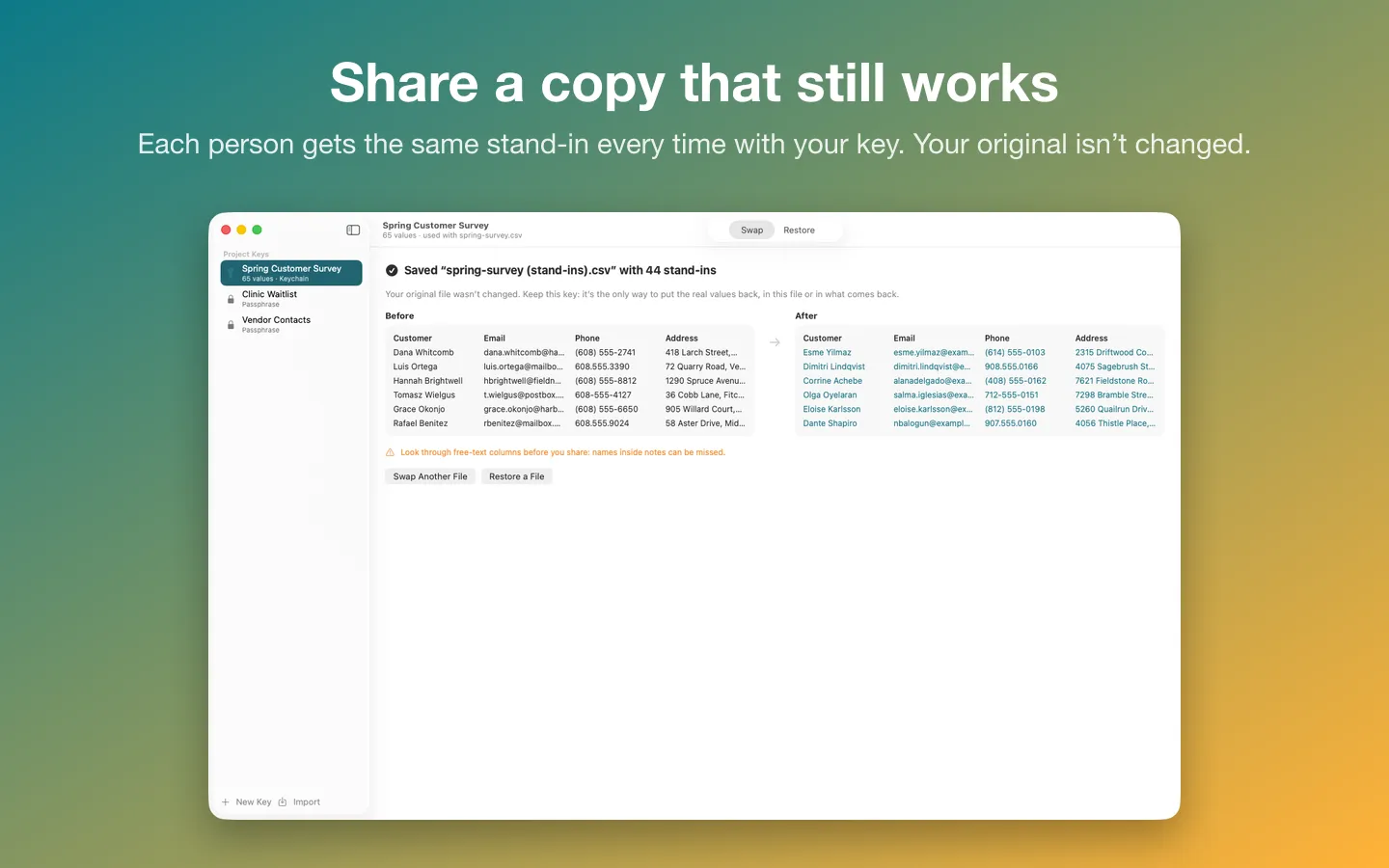
- Make a project key in Mask & Restore and drop in a CSV or Excel file. It guesses which columns hold names, emails, phone numbers and addresses, and can look inside free-text columns too.
- A review list shows every value it found and the stand-in it will get before anything is written. Untick anything to keep it, and add anything it missed: names inside notes can be missed, so read those cells.
- Swap and Save writes a copy with realistic stand-ins in the right format (emails at reserved example domains, 555 phone numbers, made-up streets and towns). Your original file isn't changed. Paste the copy into the chatbot.
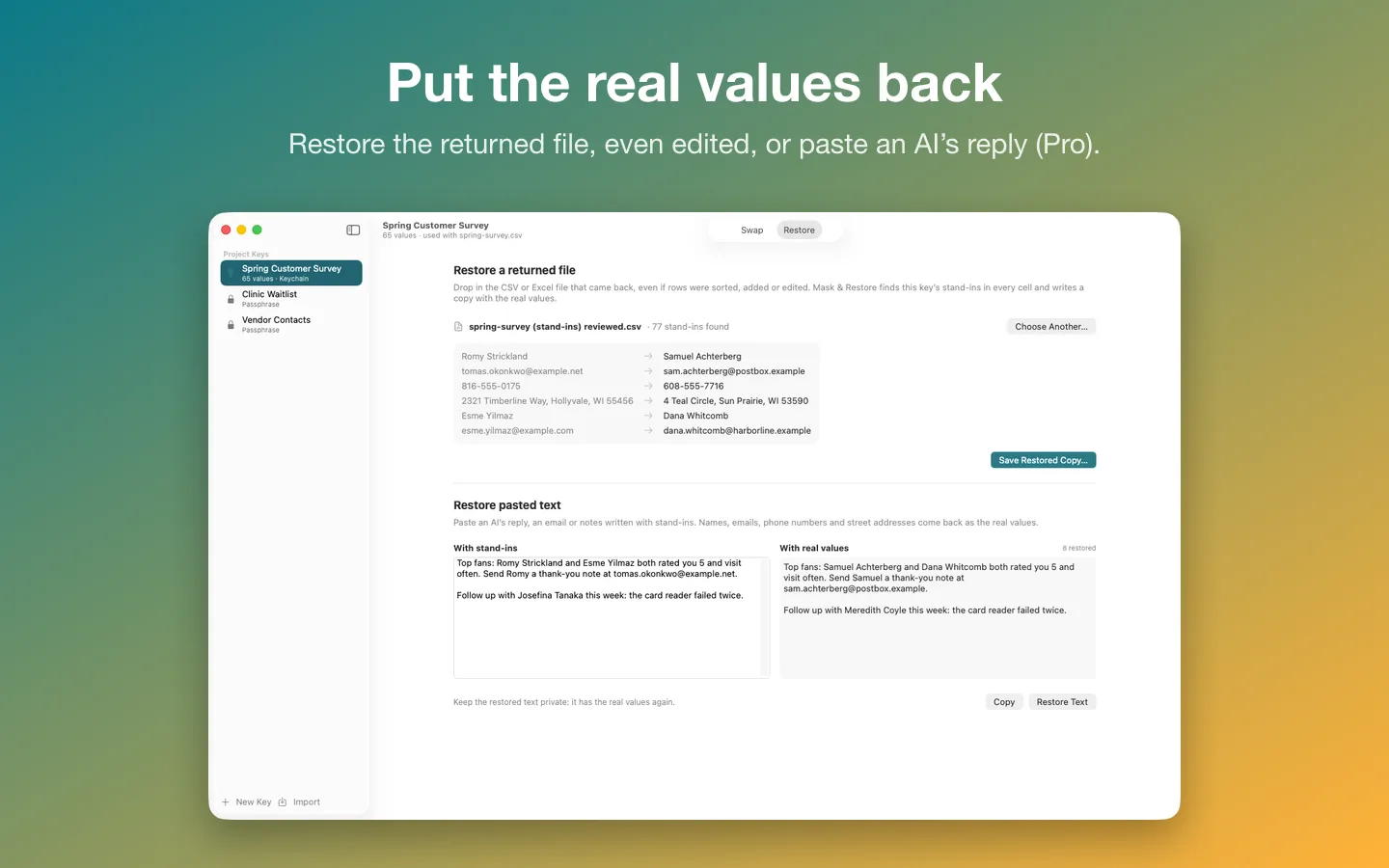
- When the answer comes back, paste the chatbot's reply into Restore (Pro) to get the same text with the real values put back, or drop in a returned CSV or Excel file, even sorted, edited or added to, and save a restored copy.
Free to use without a key: CSV and TSV files up to 200 rows, each project key with one file, the review list and restoring returned CSV files.
$8.99 one-time for Pro, no subscription. Buy a license key to unlock Pro: unlimited rows, one key across many files, Excel workbooks and restoring pasted text.
macOS 14 Sonoma or later. Apple silicon and Intel.
Questions
Does this make the data anonymous?
No. Swapping in stand-ins is pseudonymization: the project key can put the real values back, and other details in a row, such as a rare job title, a small town or a specific date, can still point to a person. Treat the stand-in copy as personal data that's harder to read, not as anonymous data.
Is it OK to paste work data into an AI chatbot?
That's up to your employer and your clients. Many companies have rules about which AI tools can be used and what can go into them. Check those first, and read the AI service's own terms for what it does with what you paste.
Will the chatbot's answers still make sense with stand-ins?
Usually. Each person gets the same stand-in in every cell, so counting, grouping and summaries still work, and numbers like visits or ratings aren't changed. The stand-ins look like real names, so the reply reads normally until you restore it.
Does Mask & Restore upload my file?
No. Your files and keys stay on your Mac. The only network requests are the license check with Gumroad and checking for updates.
What can I do without buying it?
Without a license key it works with CSV and TSV files up to 200 rows, one project key per file, the review list and restoring returned CSV files. The one-time $8.99 license adds unlimited rows, one key across many files, Excel workbooks and restoring pasted text, such as an AI's reply.