How to print Christmas card envelopes on a Mac
UpdatedShort answer
The free way is the Contacts app: put the people in a group, choose File › Print, set Style to Envelopes and pick your envelope size. Word's mail merge does the same from a spreadsheet if you have Word. Whichever you use, print one envelope first to see which way your printer wants them fed. If your list lives in a spreadsheet, needs tidying, or you want to remember who got a card this year, a card-list app saves the rework.
The free ways
Free: Contacts
Contacts prints envelopes from a group of contacts. A spreadsheet list has to be imported as contacts first.
- In Contacts, choose File › New Group and name it (for example, Holiday Cards). Drag the people into it. A spreadsheet list can come in with File › Import (save it as a CSV file first).
- Select the group, choose File › Print, and click Show Details if you only see a small dialog.
- Set Style to Envelopes. Pick your envelope size under Layout, and choose under Label which address to use and whether to print your own address as the return address.
- Print one envelope (or a sheet of paper cut to the envelope's size) to check which side up and which edge first your printer wants. Then print the rest.
If you have Word: mail merge
- In Word, choose Mailings › Start Mail Merge › Envelopes and pick the envelope size.
- Choose Select Recipients › Use an Existing List and pick your spreadsheet.
- Insert the address fields in the address box, preview the results, then finish the merge to print. Print one envelope first to check the feed.
Where the free ways stop
- Contacts prints only contacts: a spreadsheet list has to be imported first, and those people stay in your address book.
- Addresses print the way they were typed: rows in ALL CAPS, spelled-out state names and missing ZIP codes go onto the envelope as they are.
- Neither one keeps track of who you sent a card to this year, or who sent one to you, so next year's list starts from scratch.
- Getting the address to land in the right spot is trial and error: print, look, change a setting, print again.
How Label Printer Studio does it
Label Printer Studio is a Mac app we make: price tags, barcode and seller labels from your spreadsheet, printed through your Mac’s print dialog.
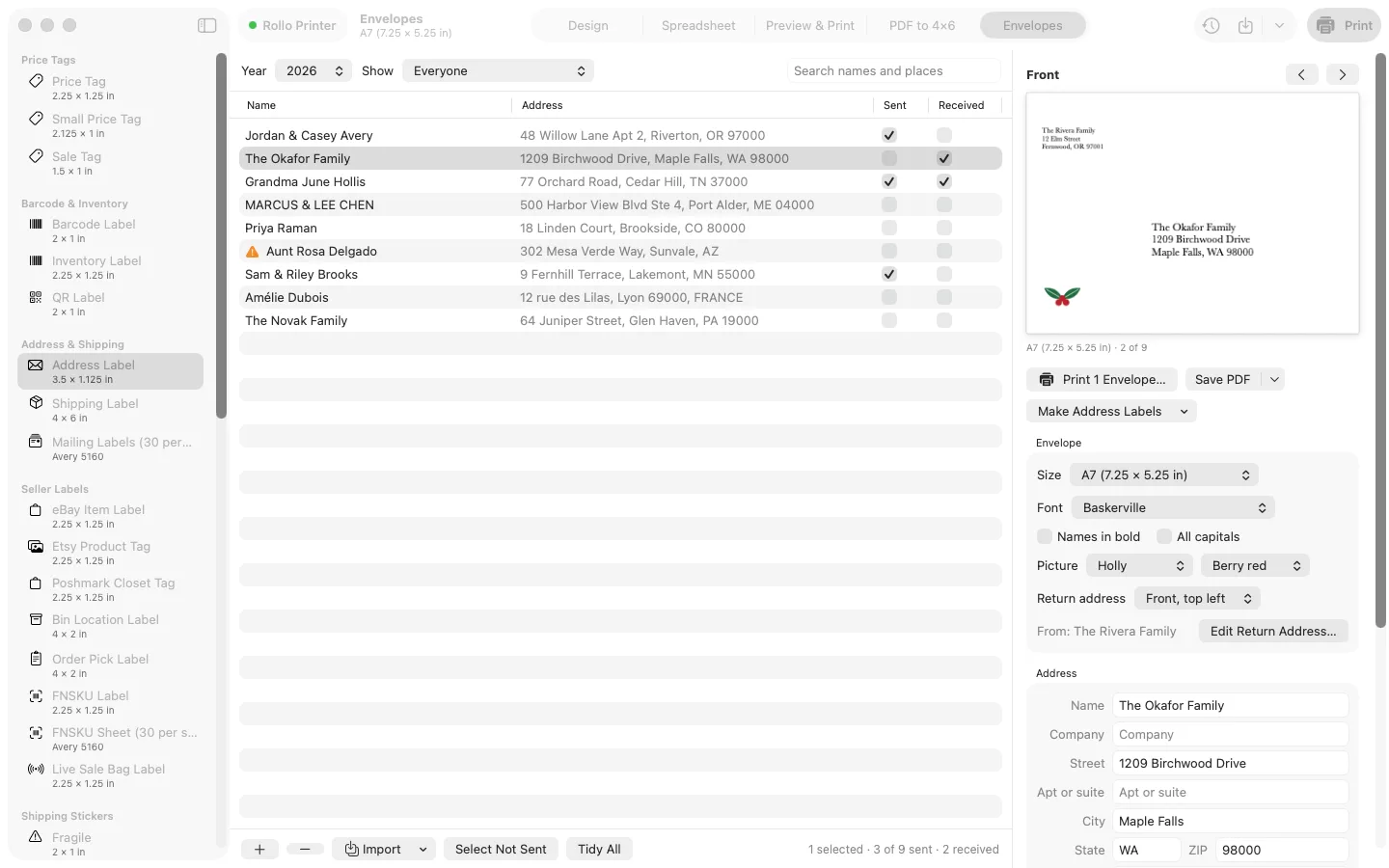
- Open the Envelopes tab (View › Envelopes, or ⌘5) and bring in your list: a Contacts group (macOS asks first), a CSV or Excel file (File › Import Addresses for Envelopes…, or drop the file on the tab), or the address list already on the Spreadsheet tab. Importing again skips people already on the list.
- Click Tidy All. It fixes capitals only for names typed in ALL CAPS or all lowercase, puts apartment and suite numbers on their own line, turns state names into codes and puts back a ZIP code's lost leading zero. An orange mark flags anyone with no ZIP, street or city.
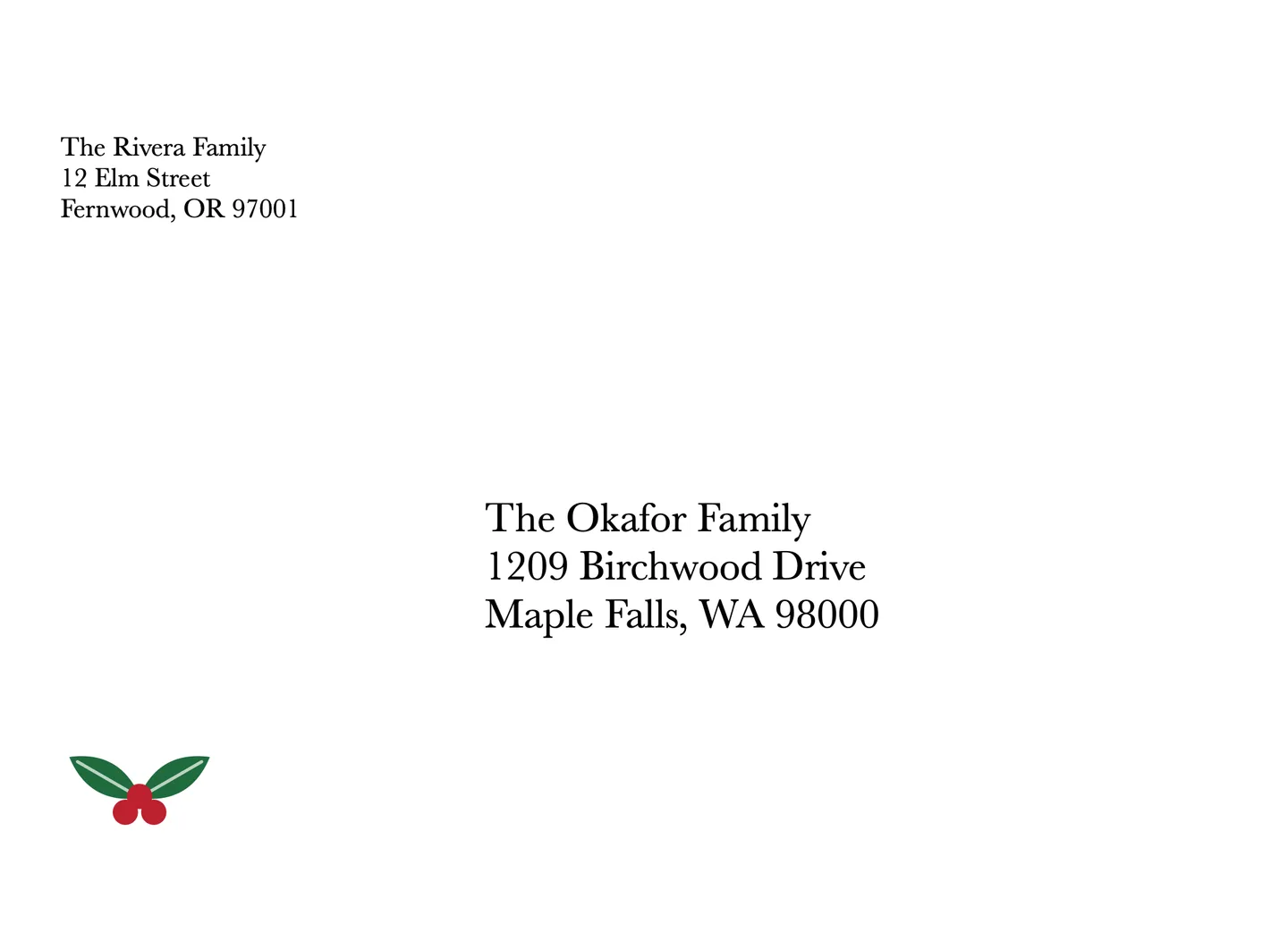
- Pick the envelope size (#10, A2, A6, A7, 5 × 7, 6 × 9, Monarch, DL, C5, C6 or your own size), a font, and if you like a small picture: snowflake, star, tree, ornament, holly or heart. Put your return address top left on the front, on the back flap, or leave it off.
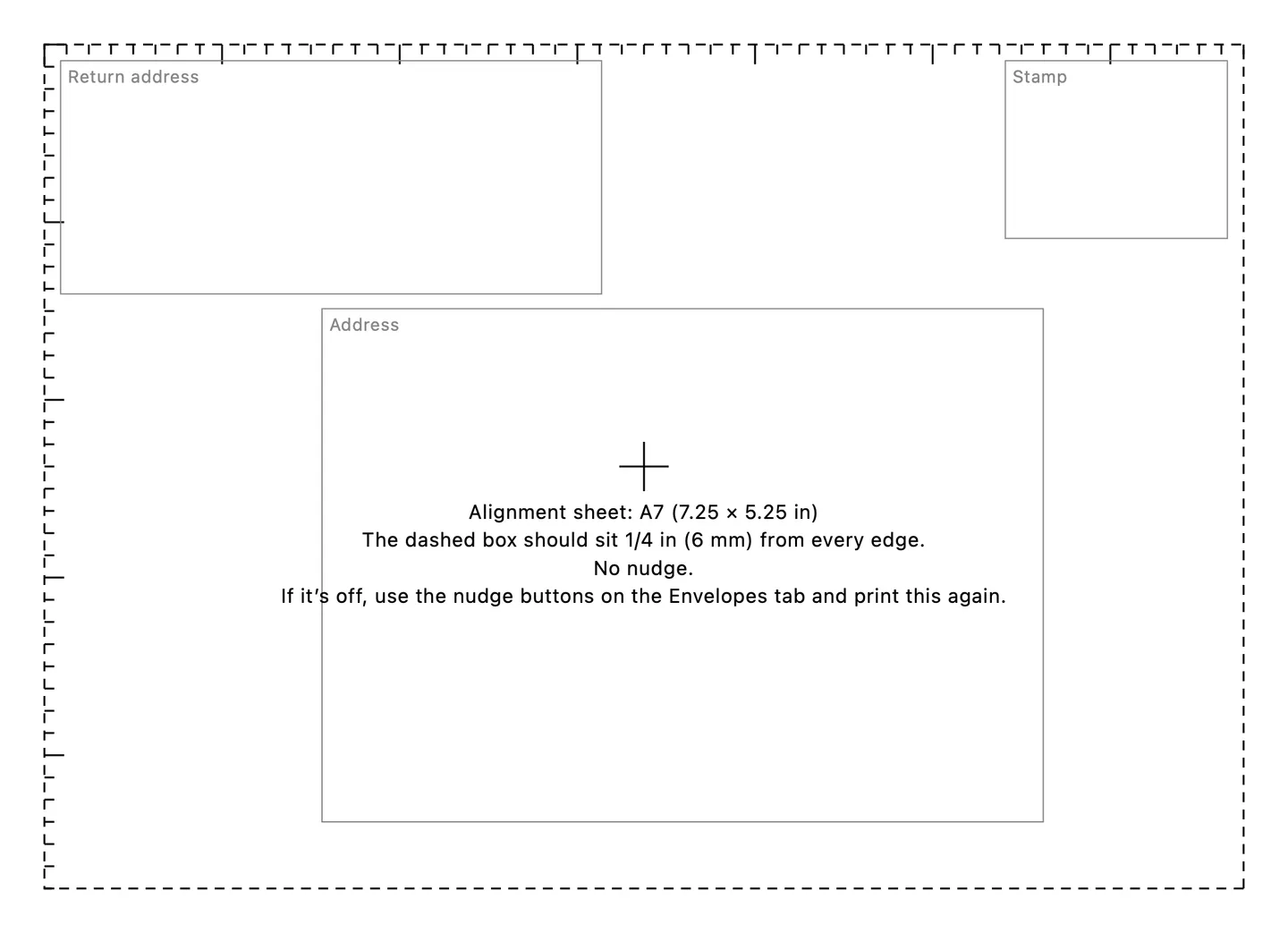
- Print the alignment sheet on one envelope. Its dashed box should sit 1/4 inch from every edge; if it doesn't, move it with the nudge buttons (1/32 inch a click) and print it again. The nudge and the way your printer feeds envelopes are saved for that printer.
- Click Select Not Sent to pick everyone who hasn't had a card this year, check the preview, and print. Afterwards it offers to mark them as sent. You can also save a PDF for a print shop, or print the same list on address labels.
- Free prints or saves 5 envelopes a day with no watermark; the alignment sheet and back flaps are free too. Pro prints your whole list in one go.
Free to use without a key: the label-roll templates and sizes, stickers, logos and borders, Printer Setup, spreadsheet import and a preview of every label; print or save up to 10 labels at a time with a small watermark, convert 3 shipping labels a day, print 5 envelopes a day, and make up to 10 packing slips at a time with the small watermark.
$15.99 one-time for Pro, no subscription. Buy a license key to unlock Pro: whole spreadsheets in one job without the watermark, serial numbers, saved templates, Avery sheets, Code 39, GS1-128, ITF-14 and Data Matrix barcodes, the eBay, Etsy, Poshmark and FNSKU templates, any number of 4 × 6 shipping labels with a Downloads watch, your whole envelope list, and any number of packing slips without the watermark.
macOS 14 Sonoma or later. Apple silicon and Intel. A label printer with a macOS driver from its maker (tested with a Rollo 4×6 thermal printer), or any printer for label sheets.
Questions
Which envelope size fits my Christmas cards?
Check the size printed on the box of envelopes. As a guide, A7 envelopes (7.25 × 5.25 inches) fit 5 × 7 cards, A6 (6.5 × 4.75) fit 4 × 6 photo cards, and A2 (5.75 × 4.375) fit 4.25 × 5.5 folded cards. Label Printer Studio has those sizes and also lets you type your own.
Which way do I put the envelopes in the printer?
It depends on the printer: most home inkjet and laser printers take envelopes through a rear or manual feed slot, and the manual or a picture on the tray shows which side up and which edge first. Set that once in the app's feed setting for that printer, then print the alignment sheet to check.
What happens with a very long name or street?
Since version 1.3.1, a long name, company or street breaks onto a second line instead of shrinking to tiny type, so nothing runs past the edge of the envelope. UK addresses put the post town and the postcode on their own lines, as Royal Mail asks.
Can it send cards abroad?
Yes. An address outside the US gets its country on the last line in capitals. The app doesn't buy postage: leave the top right corner clear for the stamp (the alignment sheet shows where it goes).
Is my address list uploaded anywhere?
No. Your card list stays on your Mac. Contacts are read only if you import a Contacts group, and macOS asks first.