How to fix a drive that won't eject on a Mac (“one or more programs may be using it”)
UpdatedShort answer
Something still has a file open on the drive. Save and quit the apps you used with it, close any Terminal window sitting in a folder on it, and eject again. To see exactly what's holding it, run lsof in Terminal; if it lists nothing, a macOS service such as Spotlight indexing or a Time Machine backup is usually the reason, and waiting a few minutes often fixes it. Force Eject is the last resort, because an app still writing to the drive can lose that file. Ejectwise names the app or service in plain words and ejects the drive for you.
The free ways
Free: find what's holding it with lsof
- Open Terminal (Applications › Utilities).
- Run
lsof | grep /Volumes/NAME, with the drive's name (as shown under Locations in Finder's sidebar) in place of NAME. - The first column is the program's name and the second its process ID. Save your work in that app and quit it normally.
- If the list shows zsh or bash, a Terminal window is sitting in a folder on the drive: type
cdin that window and press Return. - Eject the drive again from Finder's sidebar.
Free: when lsof shows nothing
Without your admin password, lsof lists only your own programs. macOS services that run as the system don't show up.
- Run
sudo lsof | grep /Volumes/NAMEand type your Mac password: mds or mdworker means Spotlight is indexing the drive, backupd means Time Machine is using it. - Give Spotlight a few minutes to finish, or stop a Time Machine backup from its menu bar icon.
- If you must unplug now and nothing is copying or saving to the drive, use Force Eject when Finder offers it.
Where the free ways stop
- Without sudo, lsof can't see Spotlight, Time Machine and other services that run as the system, so an empty list doesn't mean the drive is free.
- The output is raw: names like mds_stores or QuickLookUIService don't say what they're doing or what to do about them.
- You eject by hand, one drive at a time, and nothing remembers which app keeps doing it.
How Ejectwise does it

Ejectwise is a Mac app we make: see what keeps a drive from ejecting, in plain words, then eject it.
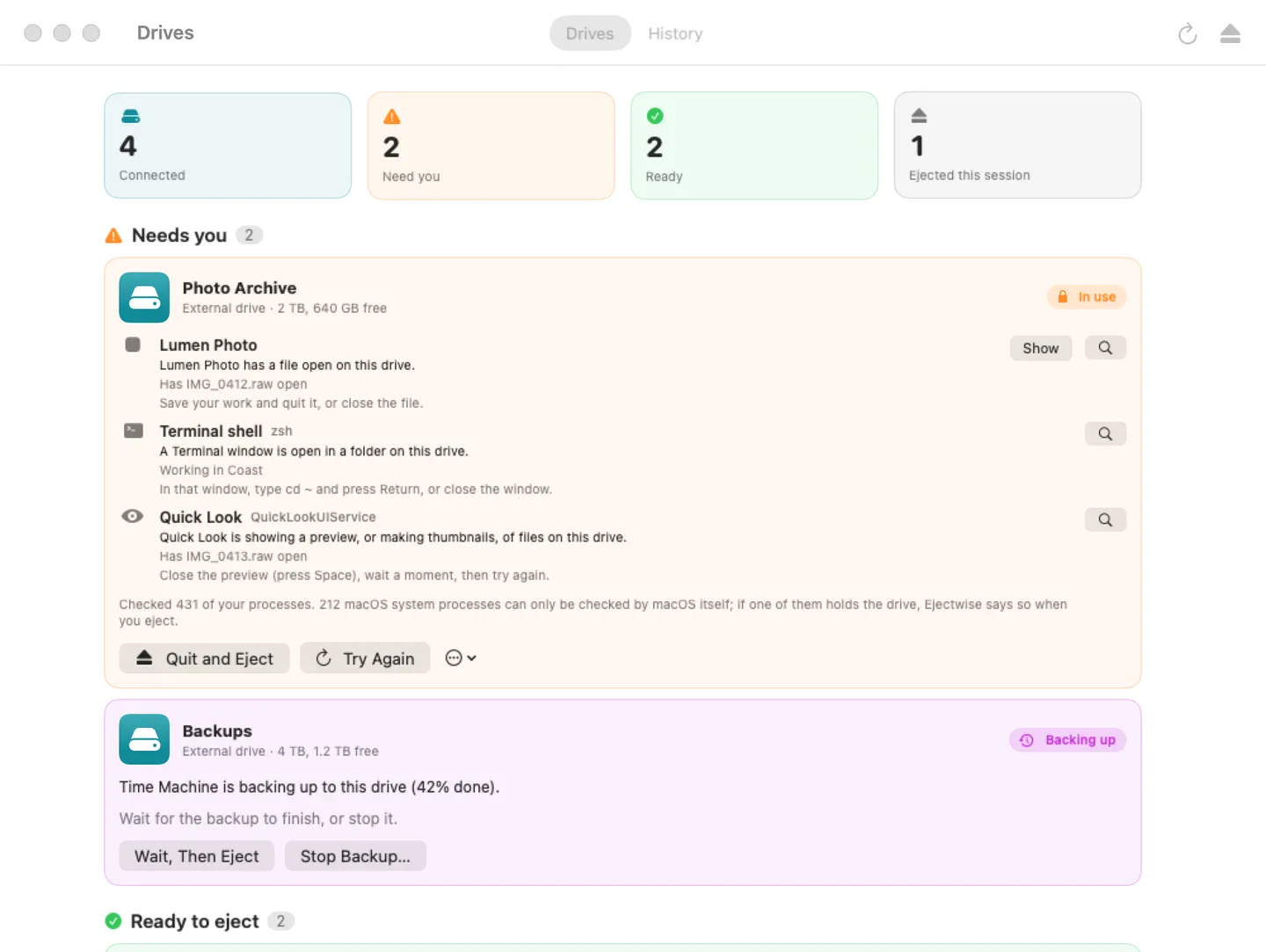
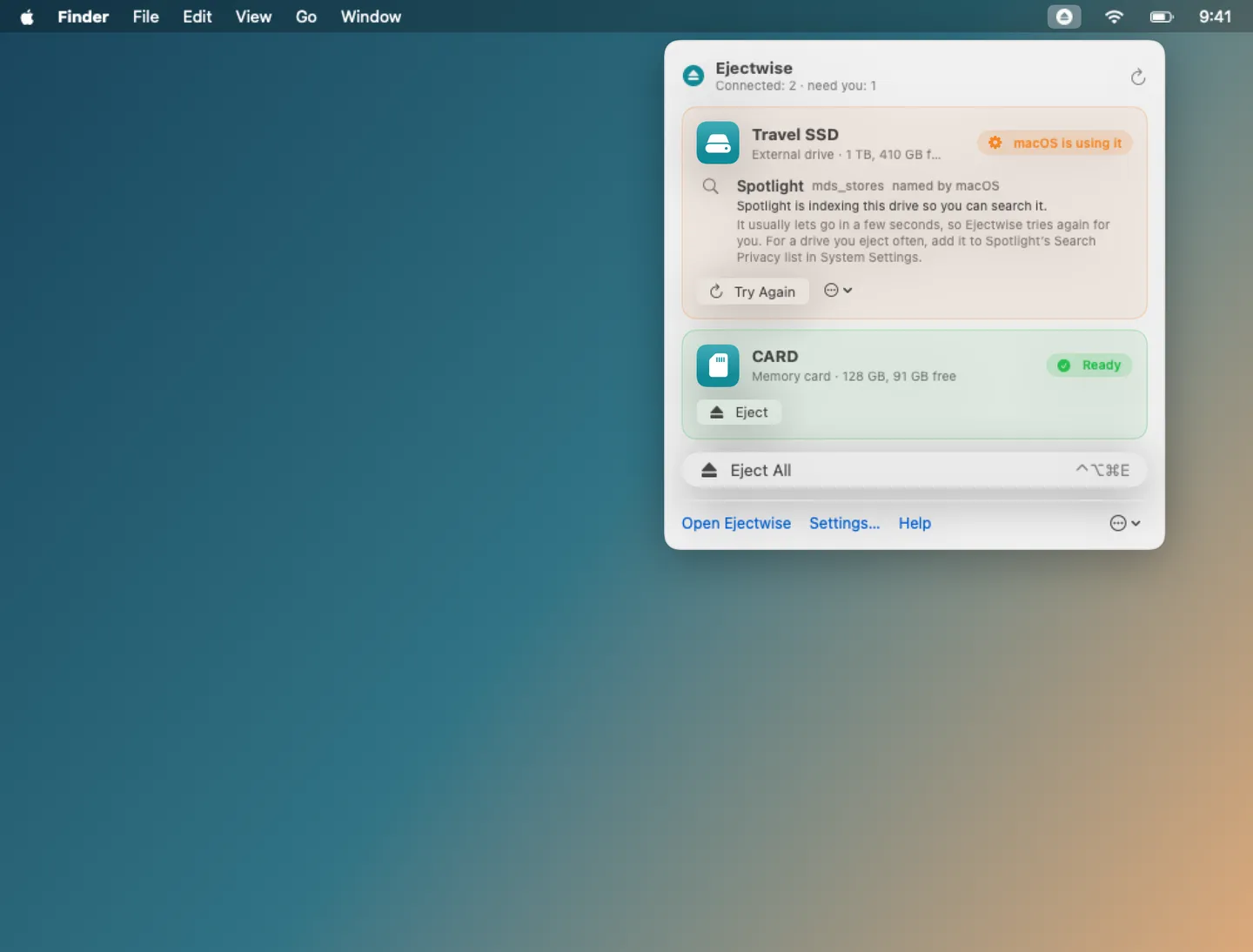
- Click Ejectwise in the menu bar and pick the drive. It names what holds it, such as the app with a file open, a Terminal window in a folder on it, Quick Look, Spotlight or Time Machine, in plain words with advice.
- Eject never pulls a drive your apps are using; when macOS refuses, it looks deeper and tries once more.
- With Pro, Quit and Eject asks the app to quit politely (never forced), Eject All gives a result for each drive, and it can wait for or stop a Time Machine backup.
- It needs no admin password and no Full Disk Access. When a service that runs as the system is the holder, it says so, because no app can list those without admin rights.
Free to use without a key: see what holds each drive and eject drives one at a time.
$4.99 one-time for Pro, no subscription. Buy a license key to unlock Pro: Quit and Eject, Eject All with a result for each drive, waiting for or stopping a Time Machine backup, the "why it wouldn't eject" history, the ⌃⌥⌘E shortcut, Shortcuts actions and ejectwise:// links.
macOS 14 Sonoma or later. Apple silicon and Intel. macOS services that run as root (Spotlight, Time Machine) can't be listed by any app without admin rights; Ejectwise says when one of them is the holder.
Questions
Is Force Eject bad for the drive?
It doesn't hurt the drive itself. The risk is to a file an app is still writing or copying: that file can be damaged or lost. Save and quit first, and use Force Eject only when nothing is writing to the drive.
Why does Spotlight keep my drive busy?
Spotlight indexes a drive the first time it's connected so you can search it, and it usually finishes on its own. To stop it indexing that drive, add the drive under Search Privacy in System Settings › Spotlight.
What does Ejectwise do without a license key?
It shows what holds each drive and ejects drives one at a time, for good. Pro adds Quit and Eject, Eject All, waiting for or stopping Time Machine, the history of why drives wouldn't eject, and the shortcuts.