How to edit the hosts file on a Mac
UpdatedShort answer
Open Terminal, run sudo nano /etc/hosts and type your Mac password. Add a line with an address, a space and a name, such as 127.0.0.1 example.test, and leave the localhost lines that are already there. Save with Control-O and Return, quit with Control-X, then flush the DNS cache with sudo dscacheutil -flushcache; sudo killall -HUP mDNSResponder so the change takes effect. Hostwright shows the file as rows you switch on and off, checks every line and makes a backup before each save.
The free ways
Free: Terminal and nano
- Open Terminal (Applications › Utilities).
- Make a backup first:
sudo cp /etc/hosts ~/hosts-backup, then type your Mac password (nothing shows while you type). - Run
sudo nano /etc/hosts. - Add a line at the end: the address, a space, then the name, for example
127.0.0.1 example.test. A # at the start of a line switches it off. - Press Control-O, then Return to save, and Control-X to quit.
- Flush the DNS cache so the change takes effect:
sudo dscacheutil -flushcache; sudo killall -HUP mDNSResponder.
Where the free ways stop
- nano doesn't check anything: a typo or a deleted localhost line can stop names from resolving.
- Switching a set of lines on and off, for a staging server or for blocking sites, means editing the file each time.
- Browsers can keep their own cache of addresses, so a tab may still reach the old address until you restart the browser.
How Hostwright does it

Hostwright is a Mac app we make: your hosts file and environment variables, without Terminal.
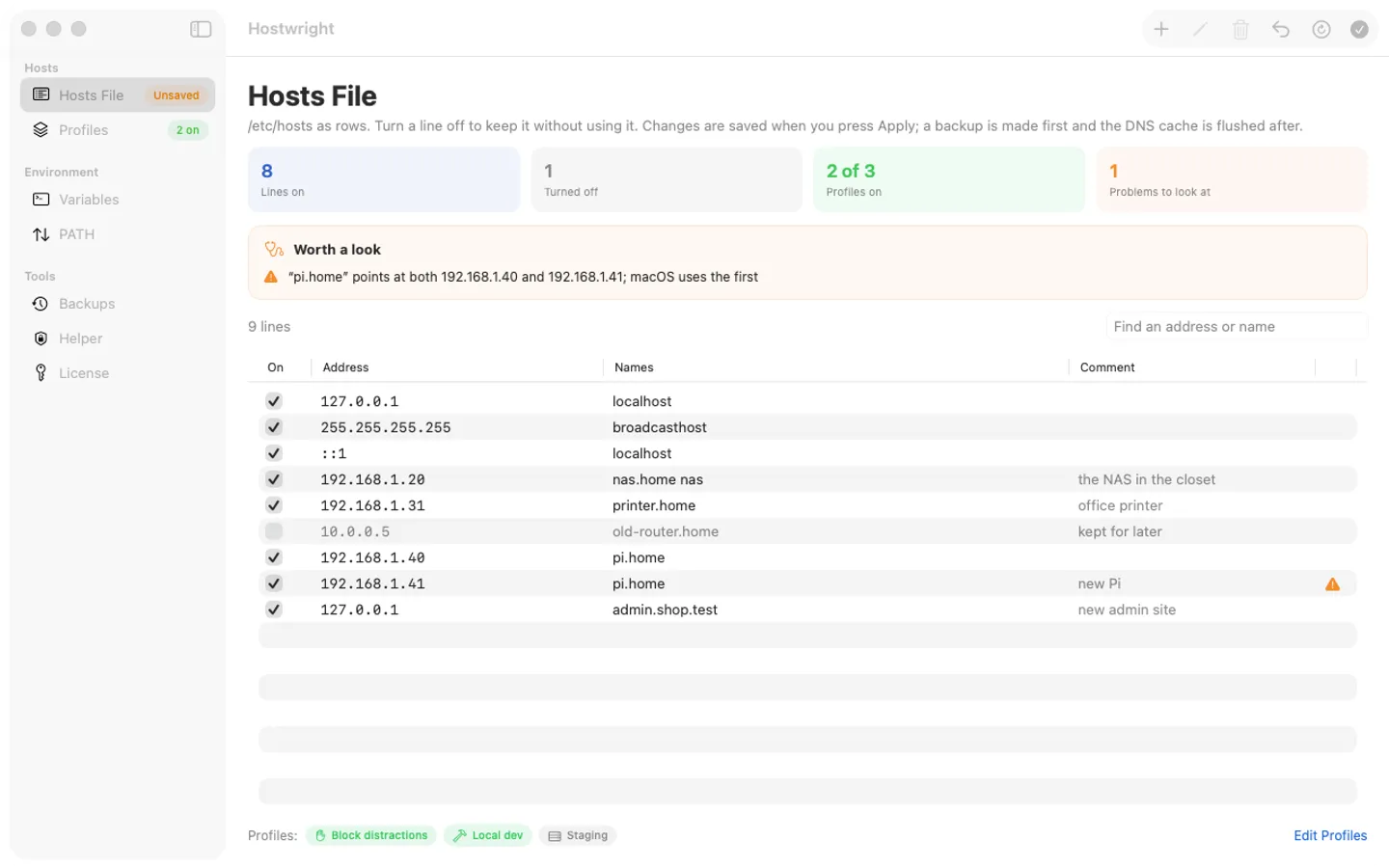
- Hostwright shows /etc/hosts as rows: switch a line off without deleting it, and the lines you don't touch are written back exactly.
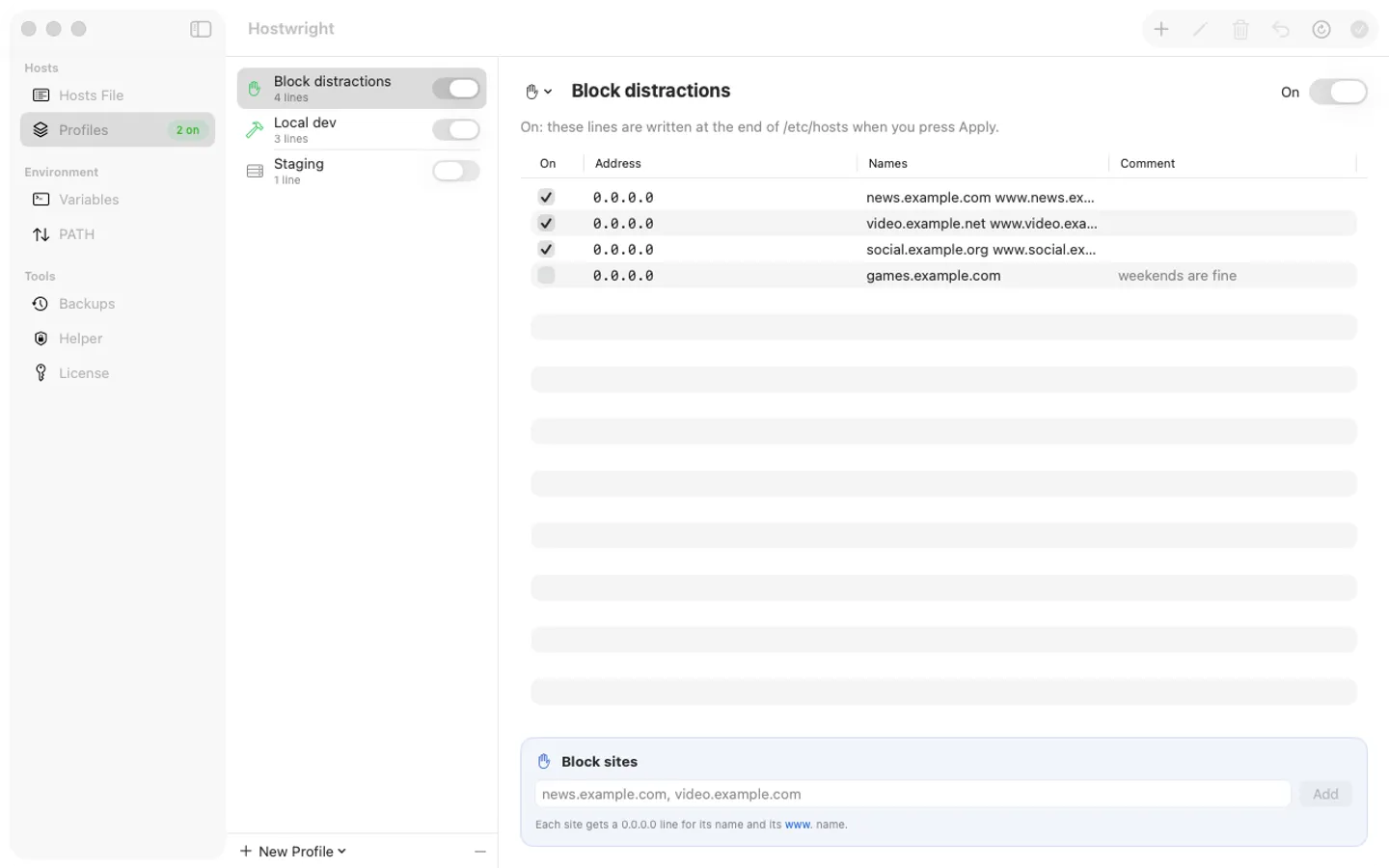
- Group lines into profiles such as Local dev, Staging or Block distractions, and switch them on and off from the menu bar.
- Before saving it checks for bad addresses, names a resolver won't take, a name pointed at two addresses and a missing localhost. It backs up the file and flushes the DNS cache for you.
- Saving needs your OK for Hostwright Helper in System Settings › Login Items. It also sets environment variables and PATH for Terminal and for apps opened from the Dock.
Free for 7 days from the first time you open it: every feature, nothing held back.
$4.99 one-time for Pro, no subscription. Buy a license key to unlock adding and changing hosts entries and variables after the trial. Switching things off, restoring Apple's default hosts file or a backup, undo and turning the helper off always work, with or without a key.
macOS 15 Sequoia or later. Apple silicon and Intel. Saving /etc/hosts needs your OK for Hostwright Helper in System Settings › Login Items (the app explains it first); variables and PATH need no permission.
Questions
Why doesn't my hosts file change work?
Usually the old address is still cached. Flush the DNS cache (sudo dscacheutil -flushcache; sudo killall -HUP mDNSResponder in Terminal) and restart your browser. Also check the line has the address first, then the name, and no # in front.
Can I block a website with the hosts file?
Yes: point the name at 0.0.0.0, with one line for the name and one for its www. form, for example 0.0.0.0 example.com and 0.0.0.0 www.example.com. Hostwright's Block sites makes both lines for you.
How do I put back the original hosts file?
Copy your backup back with sudo cp ~/hosts-backup /etc/hosts in Terminal. Hostwright keeps a backup before every write and has Restore Apple's Default, which works with or without a license key.