How to check if a USB drive or SD card is fake on a Mac
UpdatedShort answer
A fake drive reports more space than it really has, so the size Finder shows proves nothing. To be sure, fill its free space with test data and read it all back: the free F3 tool does that in Terminal (f3write, then f3read), and any data it reports as lost or corrupted means the drive is fake or failing. It erases nothing, but copy your files off first, and expect hours on a big drive. Drive Verdict runs the same kind of fill-and-read check in a window, explains the result in plain English, and also checks the real speed and whether the cable is slowing the drive down.
The free ways
Free: F3 in Terminal (fill it, then read it back)
F3 (Fight Flash Fraud) is a free, open-source command-line tool. It writes test files into the drive's free space and then reads them back.
- Copy anything you want to keep off the drive first: a fake drive can lose files that are already on it once it fills up.
- Install Homebrew from brew.sh if you don't have it, then run
brew install f3in Terminal (Applications › Utilities). - Find the drive's name under Locations in Finder's sidebar. In Terminal its folder is
/Volumes/followed by that name. - Run
f3write /Volumes/NAME, with the drive's name in place of NAME (in quotes if the name has spaces). It fills the free space with 1 GB test files. - Run
f3read /Volumes/NAME. It reads every test file back and prints totals: anything under Data LOST or corrupted means the drive is fake or failing, and Data OK is about how much it really holds. - Delete the
.h2wtest files from the drive when you're done.
Free: see the USB speed in System Information
- Hold Option, open the Apple menu and choose System Information.
- Under Hardware, click USB and select the drive.
- Read the Speed line: Up to 480 Mb/s is USB 2; 5 Gb/s or more is USB 3. A USB 3 drive showing 480 Mb/s is being held back by its cable, a hub or the port.
Where the free ways stop
- F3 is a Terminal tool: you install Homebrew first, type the paths yourself and read the totals yourself.
- A full fill-and-read takes hours on a big drive, with no quicker first answer.
- System Information shows the connection's top speed, not how fast the drive really writes and reads.
- Neither keeps a history, so you can't compare a drive with how it did last time.
How Drive Verdict does it
Drive Verdict is a Mac app we make, on the Mac App Store. Plug in a USB stick, SD card or external drive and find out if it's fake, how fast it really is, and whether the cable is slowing it down, in plain English.
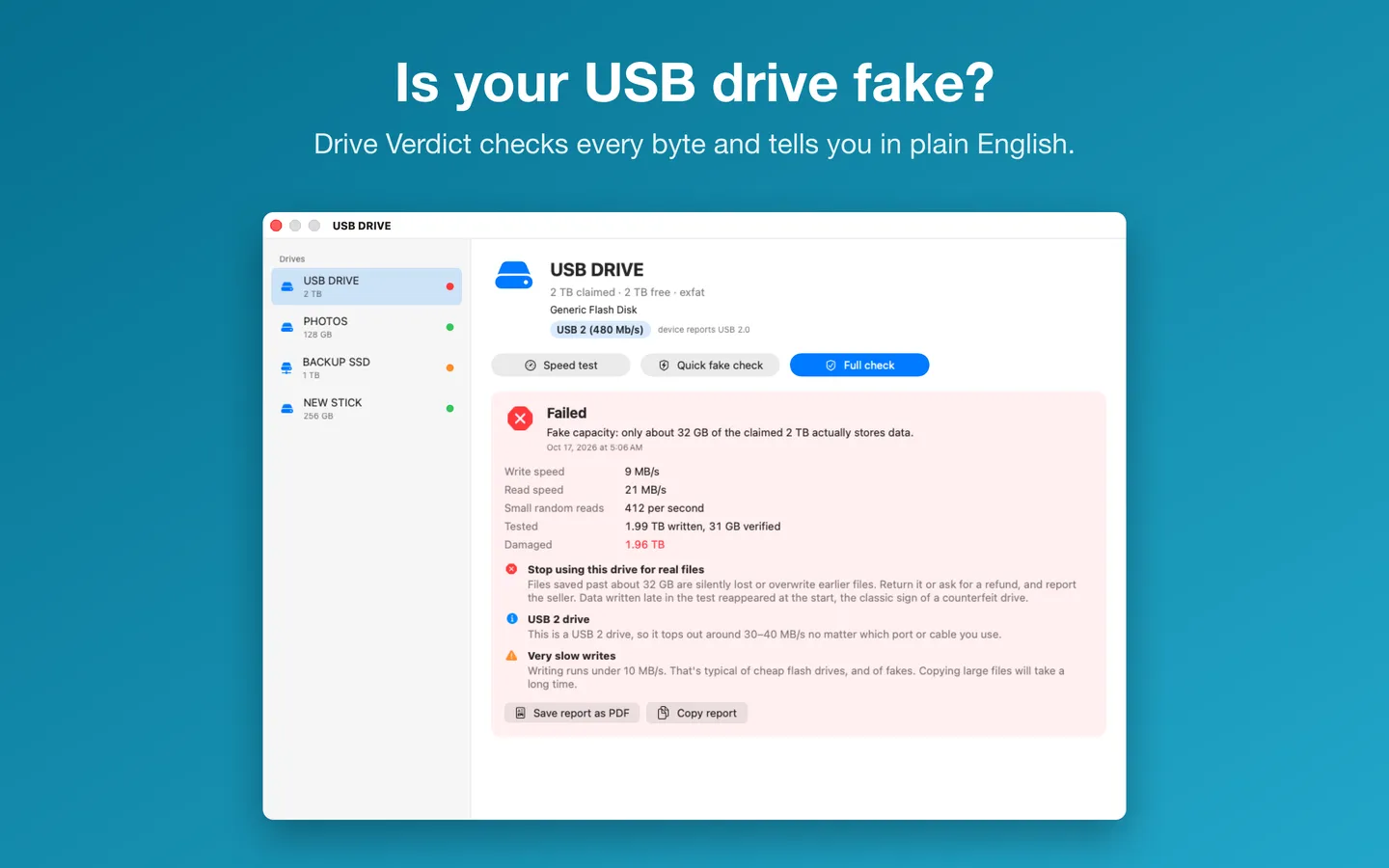
- Open Drive Verdict, choose Full check and pick the drive. It fills the free space with test data, every 4 KB block stamped with its own position, then reads it all back, so a drive that throws data away or wraps it around can't pass.
- The result says in plain English whether the drive is fake, with an estimate of its real size.
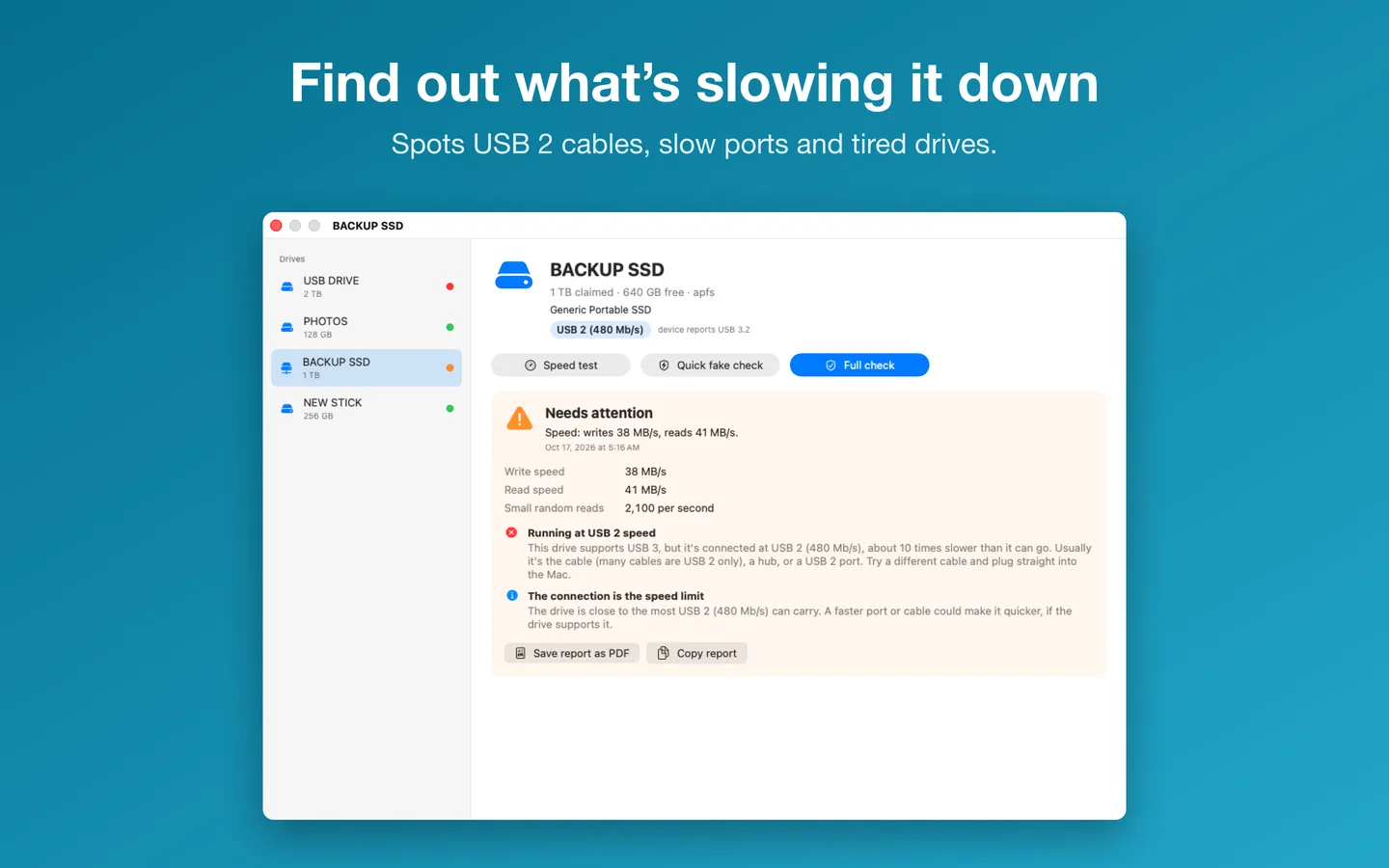
- The speed test writes and reads 1 GB without the Mac's cache and measures small random reads. Drive Verdict also reads the USB link speed and says when a cable or port is holding the drive back.
- Test files go only into a folder on that drive and are deleted afterwards. As with F3, copy your files off a drive you suspect first.
Drive Verdict is $3.99 on the Mac App Store, paid once.
Questions
Can a fake drive look normal in Finder?
Yes. Finder and Disk Utility show whatever size the drive's controller reports, and small files copy and open fine. The problem only shows once data is written past the drive's real size, which is why F3 and Drive Verdict's full check fill all of the free space and read it back.
Does checking a drive erase my files?
No. F3 and Drive Verdict write test files into the free space only, and those are deleted afterwards. But a fake drive can lose files that were already on it once it fills up, so copy anything you need off it before you test.
Why is my USB drive so slow on my Mac?
Check System Information › USB. If a USB 3 drive says Up to 480 Mb/s, it's connected at USB 2 speed, usually because of the cable, a hub or the port. Try another cable or plug it straight into the Mac. If the speed line is fine and it's still slow, the drive itself may be slow or failing.