How to clean up leftover RAW and JPEG files on a Mac without upsetting Lightroom
UpdatedShort answer
Clean up before you import. Lightroom keeps its own list of every photo, so a file that’s moved or deleted behind its back shows as missing. Until the photos are imported, nothing is tracking them and a cleanup can’t break anything: cull, find the leftover twins, move them to a review folder, look once more, and only then import. If the photos are already in a catalog, remove them from inside Lightroom instead. Either way, move files to a folder first and delete later.
The safe order
| Where you are | Do this | Not this |
|---|---|---|
| Photos still on the card or just copied | Copy the card, keep the card as it is, then cull and clean up the copy | Clean up the card itself |
| Culled, not imported yet | Move the leftover twins to a review folder, then import what’s left | Import first and tidy up in Finder later |
| Already in a Lightroom catalog | Remove them from inside Lightroom, so its list and the disk agree | Move or delete the files in Finder or any other app, this one included |
| Moved files by mistake and they show as missing | Put them back in the same place with the same names | Remove the missing photos from the catalog: their edits can go with them |
| In the Photos app | Remove them in Photos | Touch the files inside the Photos library |
The free ways
Free: side by side in Finder
- Open the folder in Finder as a list and sort by Name. A RAW and its JPEG share a name, so they sit next to each other.
- Look for a RAW with no JPEG beside it (you culled the JPEGs), or a JPEG with no RAW (you culled the RAWs).
- Make a folder called Review on the same drive and drag the leftovers there, with their XMP files if they have any.
- Look through Review once more before you delete anything.
Free: list them in Terminal
This only prints names. It moves and deletes nothing.
- In Terminal, type
cd(with a space), drag the folder onto the window and press Return. - Paste the line below. It prints every RAW that has no JPEG. Change CR3 to your camera’s RAW ending (NEF, ARW, RAF, DNG) and JPG to JPEG or HEIC if yours are named that way.
- To find JPEGs with no RAW, swap the two endings.
for f in *.CR3; do [ -e "${f%.*}.JPG" ] || echo "$f"; doneIt checks one folder and matches exact names, so an edited copy such as IMG_1234-Edit.JPG doesn’t count as the twin of IMG_1234.CR3.
Where the free ways stop
- Finder works for one small folder; it gets slow and error-prone over a year of shoots.
- The Terminal line misses renamed and edited copies, so a file you kept can look like a leftover.
- Sidecar files (XMP, PP3, DOP and others) that hold your edits have to be moved along with their photo by hand.
- Nothing puts the files back if you move the wrong ones.
How Pairtrim does it

Pairtrim is a Mac app we make: clean up the RAW and JPEG leftovers after you cull a shoot.
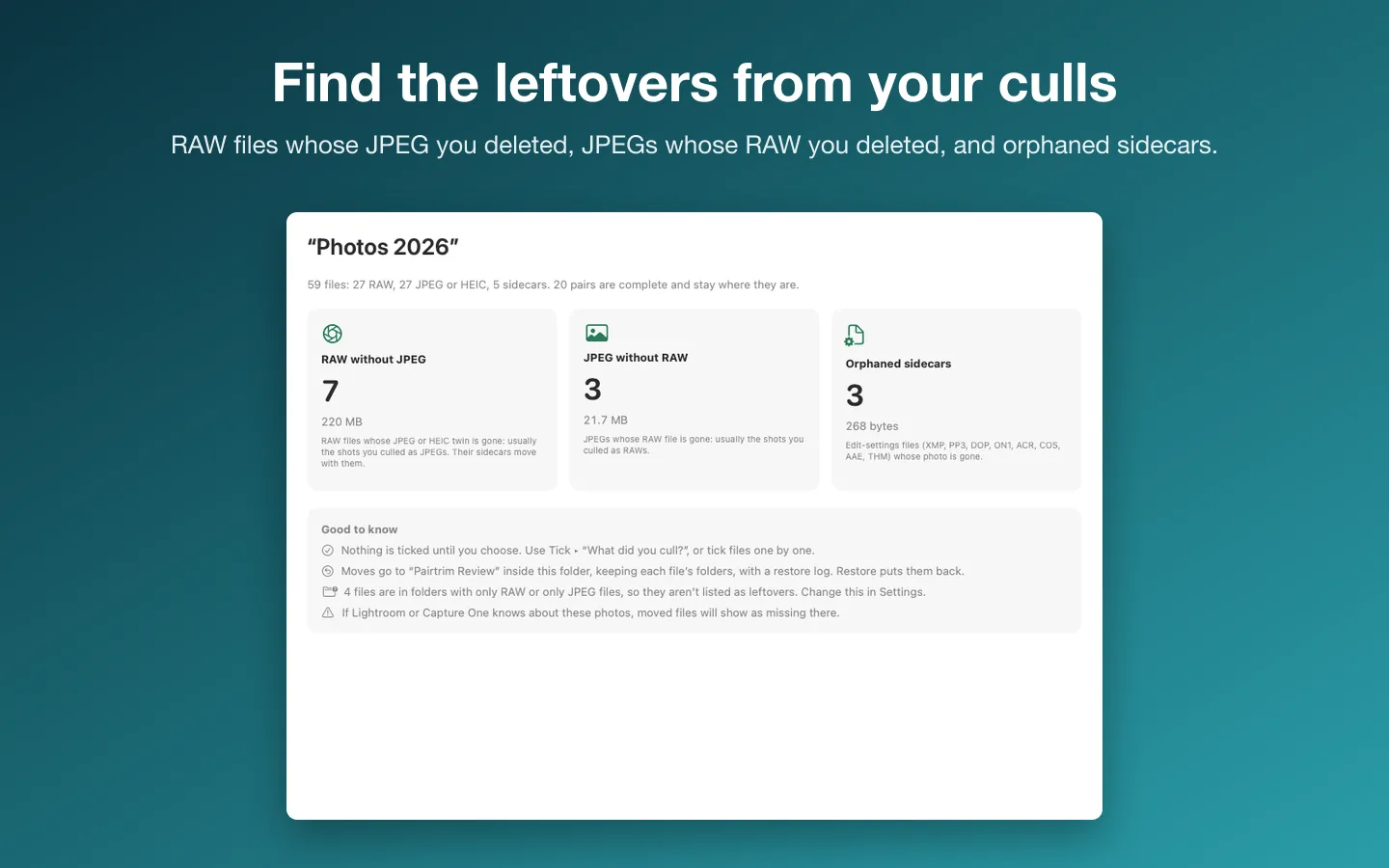
- Drop a folder of shoots on Pairtrim. It lists RAW files whose JPEG or HEIC is gone, JPEGs whose RAW is gone, and sidecars whose photo is gone, with thumbnails. The scan and report are free.
- Edited copies count as the JPEG, and bursts never cross-match. Nothing is ticked until you choose.
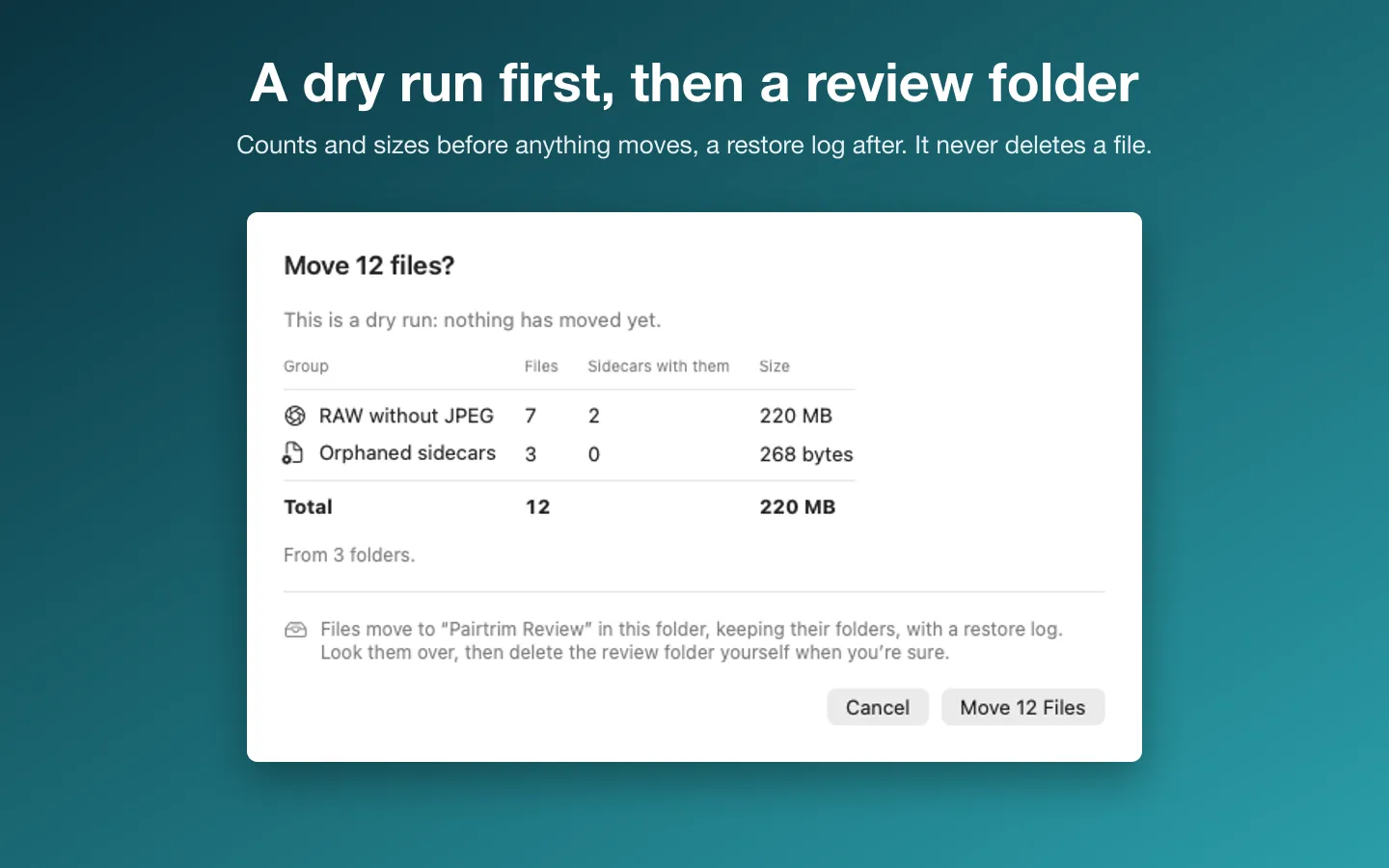
- A dry run shows the counts, sidecars and sizes before anything moves. It’s free too.
- With a license key, ticked files move to a Pairtrim Review folder inside the folder you scanned, keeping their subfolders, with a restore log. It never deletes a file, and Restore puts them back.
- It refuses Photos libraries and folders that hold a Lightroom or Capture One catalog, and warns that photos a catalog knows about will show as missing there.
Free to use without a key: the full scan and report for any folder, the dry run and Restore. Moving files to the review folder needs a key.
$9.99 one-time for Pro, no subscription. Buy a license key to unlock Pro: any number of files, and pairing by capture time.
macOS 14 Sonoma or later. Apple silicon and Intel. Works on folders of files, not the Photos library; if Lightroom or Capture One knows about the photos, moved files will show as missing there.
Questions
Will Pairtrim break my Lightroom catalog?
It never opens or changes a catalog, and it refuses a folder that holds one. But it can’t know that a catalog stored somewhere else lists the photos. If one does, moved files show as missing there until you restore them, so run it before you import.
I already moved files and Lightroom shows them as missing. What now?
Put them back where they were, with the same names. In Pairtrim, open Restore and restore that session. Don’t remove the missing photos from the catalog first: that can take their edits with it.
Where do I click in Lightroom to remove photos?
The menus differ between Lightroom versions, so follow the help for yours. What matters is that the removal is done there, not in Finder.
Should I keep the RAW or the JPEG?
That’s up to you, and the reason nothing is ticked for you. The RAW holds more to edit; the JPEG is what the camera made and is much smaller.