How to open an old Mac CD or floppy that won’t mount (error 49153)
UpdatedShort answer
If an old Mac CD, floppy or Zip disk fails with com.apple.DiskManagement.disenter error 49153, the usual reason is its format: Mac OS Standard (HFS), which recent macOS no longer mounts. The disc itself is often fine. Copy it to an image file, which only reads the disc, then open the image in a program that reads HFS: the free hfsutils commands, or Vintage Disk Reader. A damaged disc can show the same error, so try a second old disc before you decide.
The free ways
Free: copy the disc to an image file
You work on the copy from here on, and the old disc goes back in its sleeve. If a floppy has a write-protect tab, slide it open first. Read the dd line twice before you press Return: if= is what is read (the disc) and of= is the new file. Never put a disk after of=.
- Put the disc in and run
diskutil listin Terminal. Find it by its size and note its name, for exampledisk4. - Run
diskutil unmountDisk /dev/disk4with your disc’s own name, so nothing else is using it. - Run the
ddline with your disc’s number afterrdisk. It asks for your password and prints nothing while it works; a CD can take several minutes. - When the prompt comes back, old-disk.img is on your Desktop. Run
diskutil eject /dev/disk4and put the disc away.
diskutil list
diskutil unmountDisk /dev/disk4
sudo dd if=/dev/rdisk4 of=~/Desktop/old-disk.img bs=2048
diskutil eject /dev/disk4
Free: read the image in Terminal with hfsutils
hfsutils is a free, open-source set of commands for HFS volumes; Homebrew (brew.sh) installs it. From its manual. It also has commands that write and format; you need none of them, and these steps only read the image.
- Install it with
brew install hfsutils. - Open the image with
hmount ~/Desktop/old-disk.img. If the image holds several volumes it asks for a number: add it at the end. - List what’s on it with
hls -l. In a path, folders are separated by colons, not slashes. - Make a folder on your Desktop for the files, then copy one out with the
hcopyline below.-msaves it as MacBinary, which keeps both parts of an old Mac file;-rcopies the plain data only. - Close the image with
humount.
brew install hfsutils
hmount ~/Desktop/old-disk.img
hls -l
mkdir -p ~/Desktop/old-files
hcopy -m ":Letters:Dear Mom" ~/Desktop/old-files/
humount
Free: use an older Mac
- If you or a friend have an older Mac that still mounts the disc, open it there.
- Copy the files to a drive formatted as Mac OS Extended or APFS, not FAT or exFAT, so old files keep their resource forks.
- Bring that drive to your current Mac.
Where the free ways stop
- hfsutils reads HFS only. It doesn’t read MFS, the format of the first 400K Mac floppies.
- A USB floppy drive reads 1.44 MB disks. The older 400K and 800K Mac floppies were written in a way USB drives can’t read, so those need an old Mac’s own drive or a special controller.
- Getting the files off is half the job: MacWrite, ClarisWorks, MacPaint and PICT files don’t open in today’s apps without converting.
- dd stops at a scratch it can’t read. Clean the disc and try another drive before giving up.
How Vintage Disk Reader does it
Vintage Disk Reader is a Mac app we make: open old Mac floppy, hard disk and CD images, and convert the classic files inside.
- Copy the disc to an image file with the steps above. Vintage Disk Reader reads image files, not the disc itself.
- Open the image, or drop it on the window. HFS, the older MFS, ISO 9660 and hybrid CDs, and DOS and Windows PC floppy images open with their folders, dates and type and creator codes. The image is only ever read.
- Browse, search and preview the pictures, documents and sounds. That part is free and needs no key.
- Pro copies files out with their resource forks kept, and converts them: MacWrite, ClarisWorks, Word for Mac and WordPerfect to Word, RTF, PDF or plain text, and MacPaint and PICT to PNG.
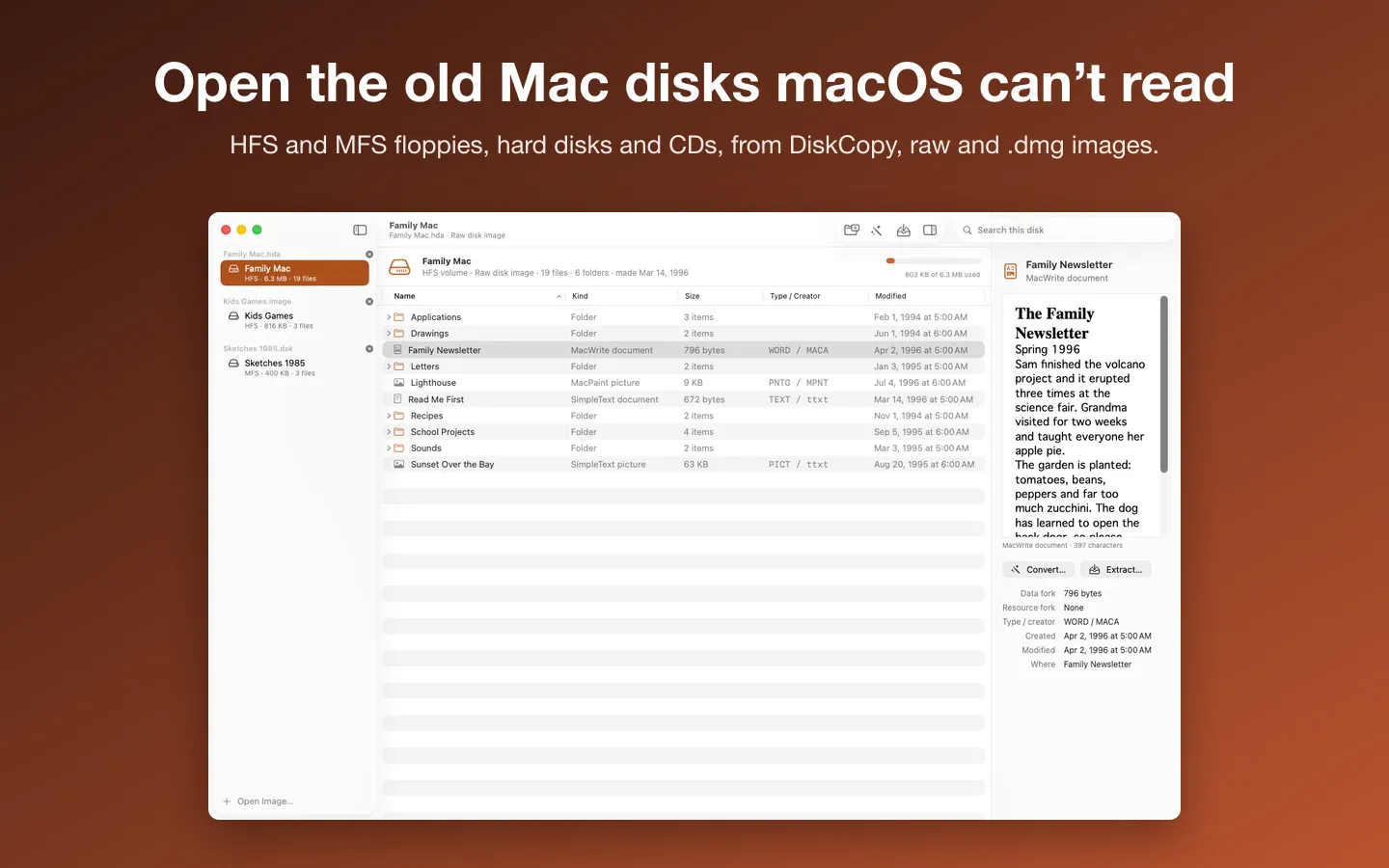
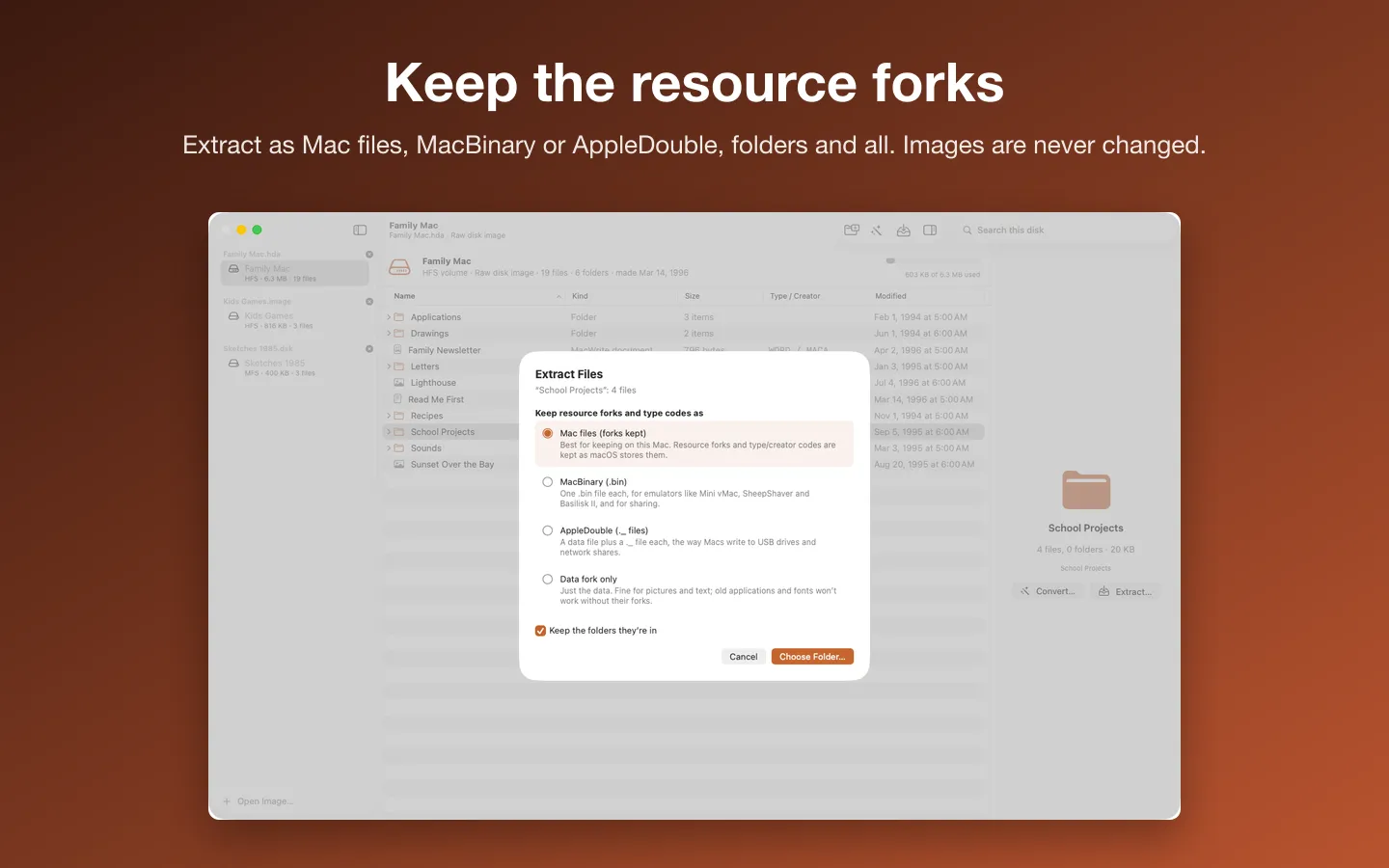
Free to use without a key: open any image, browse and search every folder, and preview every picture, document and sound.
$9.99 one-time for Pro, no subscription. Buy a license key to unlock Pro: extract files with their resource forks and convert them, one at a time, a whole disk, or a whole folder of disk images with Whole Archive Mode, and save sounds as WAV.
macOS 14 Sonoma or later. Apple silicon and Intel. Reads image files, not physical disks (Help shows how to image a floppy or CD); no HFS+, DiskCopy 6 or StuffIt yet. Includes libmwaw, libwpd and librevenge, unmodified, under the Mozilla Public License 2.0: source at sourceforge.net/projects/libmwaw and sourceforge.net/projects/libwpd (exact files: dev-www.libreoffice.org/src/libmwaw-0.3.22.tar.xz, libwpd-0.10.3.tar.xz, librevenge-0.0.5.tar.bz2); notices in the app under Acknowledgements and in the download.
Questions
Does error 49153 mean my disc is ruined?
Usually not. On old Mac discs it mostly means the disc is in Mac OS Standard (HFS), which recent macOS doesn’t mount. But a worn or damaged disc or a failing drive can show the same number, so test with another old disc.
How do I know if a disc is HFS or HFS+?
If it mounts in Finder on a current Mac, it isn’t plain HFS. HFS+ came with Mac OS 8.1 in 1998, so floppies and discs from before then are HFS or older.
Can Vintage Disk Reader read the CD directly?
No. It opens image files, so make an image first with the dd step. Its Help has the same steps.
Will copying the disc change it?
No. Reading it with dd as shown writes only the new image file. If macOS offers to initialize or erase the disc when you put it in, choose Ignore or Eject, never Initialize.
See also
Sources
- hcopy manual (Debian) read
- hmount manual (Debian) read
- hfsutils in Homebrew read