How to save Mail messages as PDFs on a Mac, with attachments, for your records
UpdatedShort answer
For one or two messages, print to PDF: open the message in Mail, choose File › Print and pick Save as PDF from the PDF menu, then choose File › Save Attachments. For a backup of a whole mailbox, Mailbox › Export Mailbox makes an .mbox copy that Mail can import again, though it isn’t something you can hand to an accountant. For a folder of dated PDFs with every attachment and a list, you need a tool that does the whole mailbox. Keep the original messages too: a PDF is a copy.
One client’s mail, by hand and with an index
| What you need | By hand in Mail | With Mailshelf |
|---|---|---|
| Each message as a searchable PDF | Print each one to PDF and name it | One PDF per message, named by date, time, sender and subject |
| The attachments | Save Attachments, message by message, into folders you make | Saved in a folder beside each PDF |
| A list of what’s there | Type it yourself | index.csv: date, from, to, subject, mailbox, attachments and the PDF’s name |
| Only some messages | Search, then open each one | Filter by mailbox, date range, sender or recipient, and subject |
| Remote images and tracking pixels | Depends on your Mail settings | Never loaded; the PDF says how many were left out |
| Attachments Mail never downloaded | Easy to miss | Listed as not downloaded |
The free ways
Free: one message as a PDF
- In Mail, open the message and choose File › Print.
- Open the PDF menu in the print window and choose Save as PDF.
- Name it so it sorts: the date first, then who it’s from, such as
2026-03-14 Northside estimate. - With the message still selected, choose File › Save Attachments and save them in a folder with the same name.
Free: the whole mailbox as a backup
- In Mail’s sidebar, select one or more mailboxes.
- Choose Mailbox › Export Mailbox, pick a folder and click Choose.
- Mail saves each one as an .mbox package. Exporting again makes a new one and doesn’t overwrite the old. File › Import Mailboxes in Mail reads it back.
This is the copy to keep even if you also make PDFs: it holds the full messages, headers included.
A simple way to keep them
- One folder per client, case or tax year.
- The PDFs and their attachments together, named with the date first.
- The .mbox backup beside them, and a second copy of the folder on another drive.
Where the free ways stop
- Printing to PDF is one message at a time, and each file has to be named by hand.
- Attachments aren’t inside the PDF. They’re saved separately, and it’s easy to lose track of which message they came with.
- An .mbox backup needs a mail program to read, so it’s no use to someone who wants PDFs.
- A PDF shows the message but not all of its headers, so it doesn’t prove who sent it. Ask whoever needs the records what they accept; this page isn’t legal advice.
How Mailshelf does it

Mailshelf is a Mac app we make: export Apple Mail messages to searchable PDFs, with attachments and an index.
- Give Mailshelf Full Disk Access (it walks you through it; Mail’s folder opens only to apps that have it). It reads Mail’s files and never changes them. Or choose a copy of the Mail folder instead.
- Pick mailboxes and filter by date range, sender or recipient, and subject words. Duplicates can be skipped.
- Export: one searchable PDF per message, the attachments in a folder beside it, and index.csv. Progress and Cancel for thousands of messages.
- Or Save Attachments Only: just the files, named by date and sender, with their own list.
- Without a key you can browse, filter and preview everything and export 25 messages at a time; the first 14 days have no limit. See a sample export on the app’s page first.
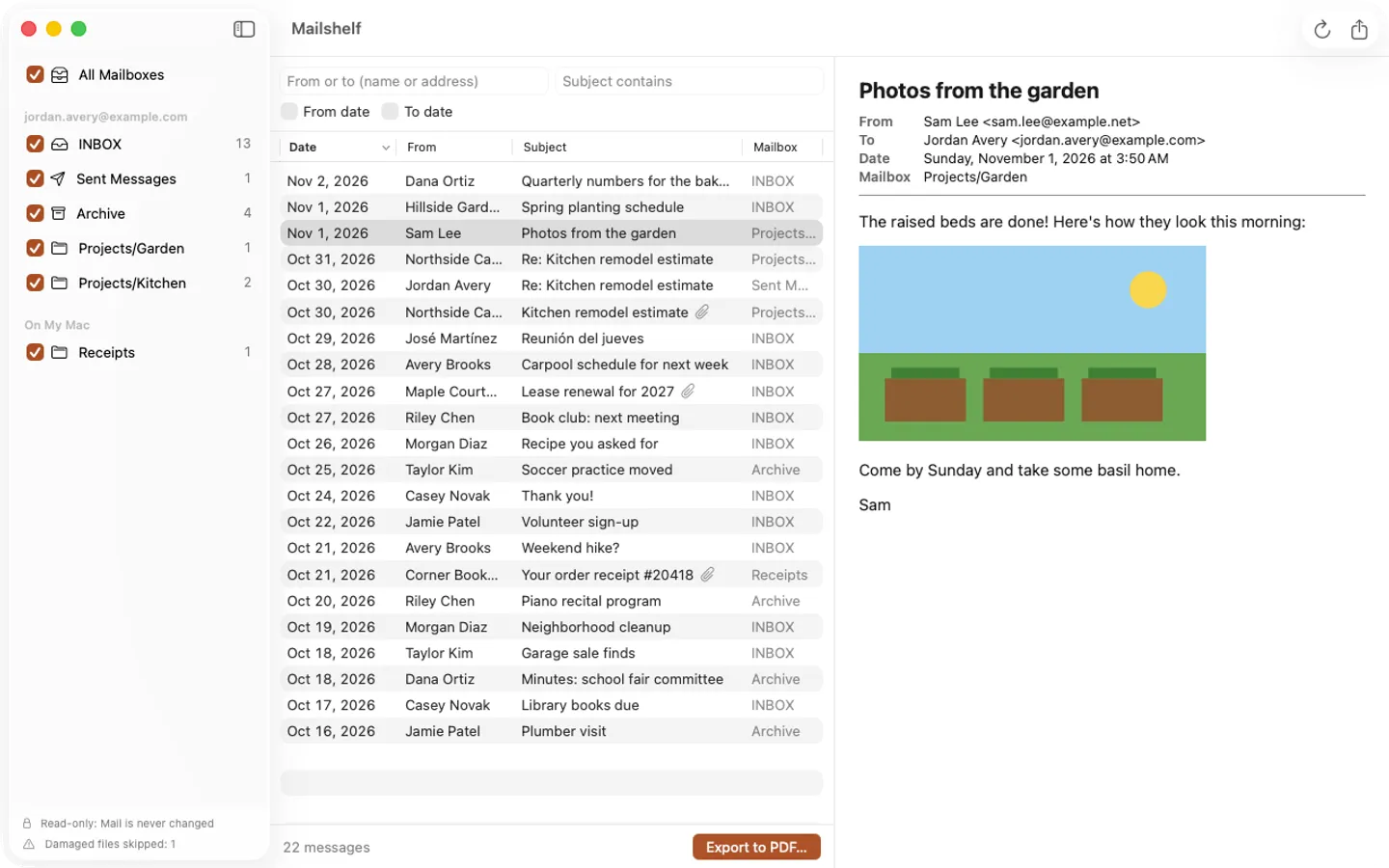
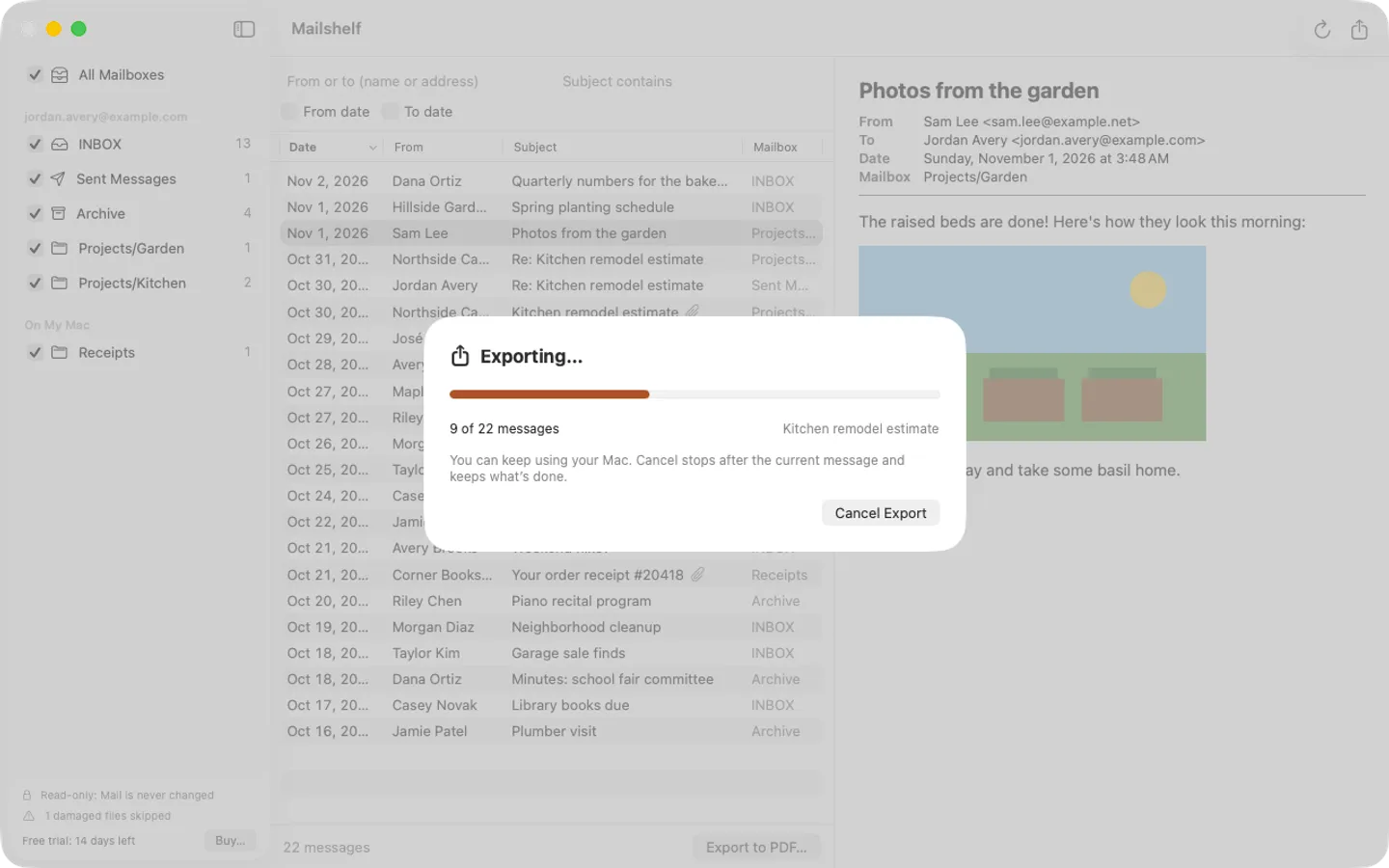
Free to use without a key: browse, filter and preview all your mail and export 25 messages at a time (or the attachments of 25 messages). Everything works for the first 14 days.
$9.99 one-time for Pro, no subscription. Buy a license key to unlock exports of any size, as many messages at once as you like.
macOS 14 Sonoma or later. Apple silicon and Intel.
Questions
Is a PDF of an email good enough for records?
Often, for your own bookkeeping, but it depends on who is asking. Keep the original messages or the .mbox backup as well, because a PDF leaves out most of the headers. This isn’t legal advice.
Does this work with Gmail, iCloud or Outlook accounts?
If the account is set up in Apple’s Mail app and its messages are downloaded to your Mac, yes. Mailshelf reads Mail’s files, not the Outlook app’s and not a website.
Are attachments included?
By hand, choose File › Save Attachments for each message. Mailshelf saves them beside each PDF, and lists the ones Mail hasn’t downloaded yet.
Does Mailshelf send my mail anywhere?
No. It works on your Mac, loads no remote images and uploads nothing. Its only network requests are the license check (with Gumroad and our license page) and the update check.