How to clean up RAW and JPEG leftovers after a Lightroom or Capture One cull, safely
UpdatedShort answer
Work in this order: finish the cull in Lightroom or Capture One, take the photos you don’t keep out from inside that app, and only then clean up the folder on disk. Both apps keep their own list of your photos, so a file moved behind their back shows as missing there. If that happens anyway, put the file back in the same place with the same name. And move leftovers to a review folder first; delete them only once nothing is missing.
The safe order
Leftovers are usually the half of a pair the catalog didn’t remove: for example the JPEGs of RAW files you deleted, when only the RAWs were in the catalog.
| Step | Where | What to do | Why then |
|---|---|---|---|
| 1. Cull | Lightroom or Capture One | Rate, flag or reject as you always do | Your decisions live in the catalog |
| 2. Take out what you don’t keep | The same app | Remove the rejects with the app’s own command, from the catalog or from the disk as it offers | The catalog’s list and the files on disk stay in step |
| 3. Find the leftover twins | The shoot folder | List the RAW files with no JPEG, the JPEGs with no RAW and the stray sidecars | Only now is it clear what the catalog left behind |
| 4. Move, don’t delete | A review folder on the same drive | Move only the files you mean to drop, with their sidecars | A move can be undone; a delete can’t |
| 5. Check the catalog | Lightroom or Capture One | Look for photos marked missing | Anything the catalog still listed shows up here |
| 6. Put back or let go | The review folder | Return anything that shows as missing; delete the review folder only when nothing does | A file back in its old place, with its old name, is where the catalog expects it |
The safe order, free
Free: the order, by hand
- Finish the cull in Lightroom or Capture One: rate, flag or reject as you always do.
- Still in that app, remove the photos you don’t keep with its own remove or delete command. The menus differ between versions, so follow its help.
- In Finder, open the shoot folder as a list sorted by Name. A RAW and its JPEG share a name, so a file with no twin beside it stands out.
- Make a folder called Review on the same drive and move the leftovers there, with any sidecar of the same name (XMP for Lightroom, COS for Capture One).
- Open Lightroom or Capture One again and look for photos marked missing. If any appear, move those files back to where they were, with the same names.
- Delete the Review folder only when nothing is missing.
Where doing it by hand stops
- Removing photos inside the catalog app covers only what the catalog lists. A twin it never listed stays on disk, and you find it by eye.
- Finder shows one folder at a time, so a season of shoots means opening each one.
- Sidecar files hold edits. Moved without their photo, or left behind, they’re easy to lose track of.
- A drag in Finder leaves no record, so putting back exactly what you moved depends on memory.
How Pairtrim does it

Pairtrim is a Mac app we make: clean up the RAW and JPEG leftovers after you cull a shoot.
- Choose the shoot folder, not the folder that holds your catalog. Pairtrim refuses a folder with a Lightroom catalog, a Capture One catalog or session file, or a Photos library anywhere inside it, and says why. Nothing moves.
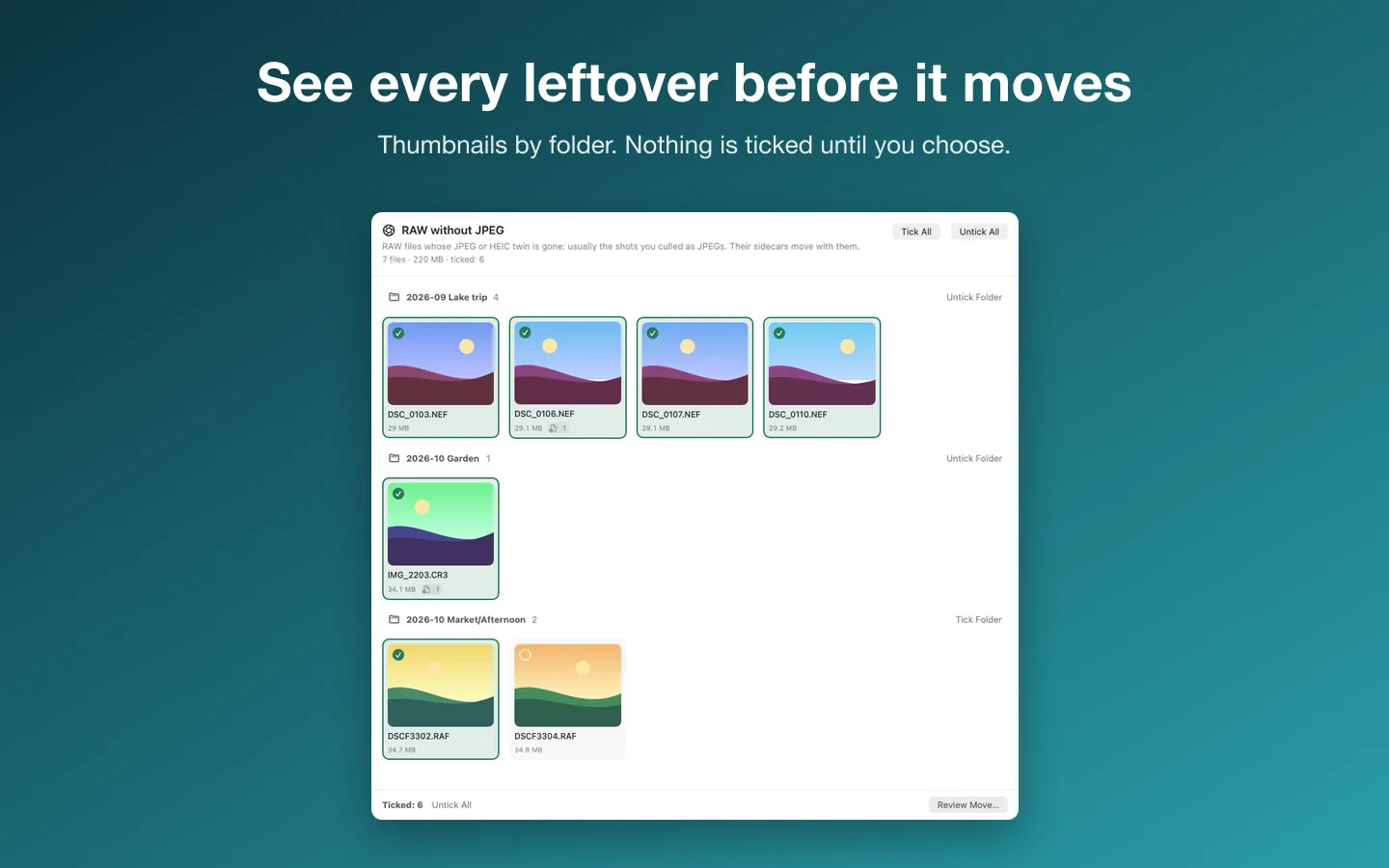
- The scan and report are free: RAW files whose JPEG or HEIC is gone, JPEGs whose RAW is gone, and sidecars (XMP, COS, DOP and others) whose photo is gone. Nothing is ticked for you; Tick › What did you cull? picks a whole group.
- The dry run, free too, shows the counts, sidecars and sizes before anything moves.
- With a license key, the ticked files move into a Pairtrim Review folder inside the folder you scanned, keeping their subfolders, with a restore log. Sidecars go with their photo. It never deletes a file.
- If Lightroom or Capture One then shows a photo as missing, open Restore in Pairtrim’s sidebar and restore that session, even after a relaunch. The files go back to the same place with the same names, and a file that’s already back is never overwritten.
Free to use without a key: the full scan and report for any folder, the dry run and Restore. Moving files to the review folder needs a key.
$9.99 one-time for Pro, no subscription. Buy a license key to unlock Pro: any number of files, and pairing by capture time.
macOS 14 Sonoma or later. Apple silicon and Intel. Works on folders of files, not the Photos library; if Lightroom or Capture One knows about the photos, moved files will show as missing there.
Questions
Does Pairtrim read or change my Lightroom or Capture One catalog?
No. It never opens a catalog, and it refuses a folder that holds one. It also can’t see which photos a catalog stored somewhere else lists, which is why the catalog step comes first and the check comes after.
Why not delete the leftovers in Finder?
You can, but nothing brings them back if you were wrong. Moving them to a review folder first, with a list of what moved, keeps the step undoable until you’re sure.
A photo shows as missing in my catalog after the cleanup. What now?
Put the file back where it was, with the same name: in Pairtrim, restore that session. Don’t remove the missing photo from the catalog first, because its edits in the catalog can go with it.
Which RAW formats does it pair?
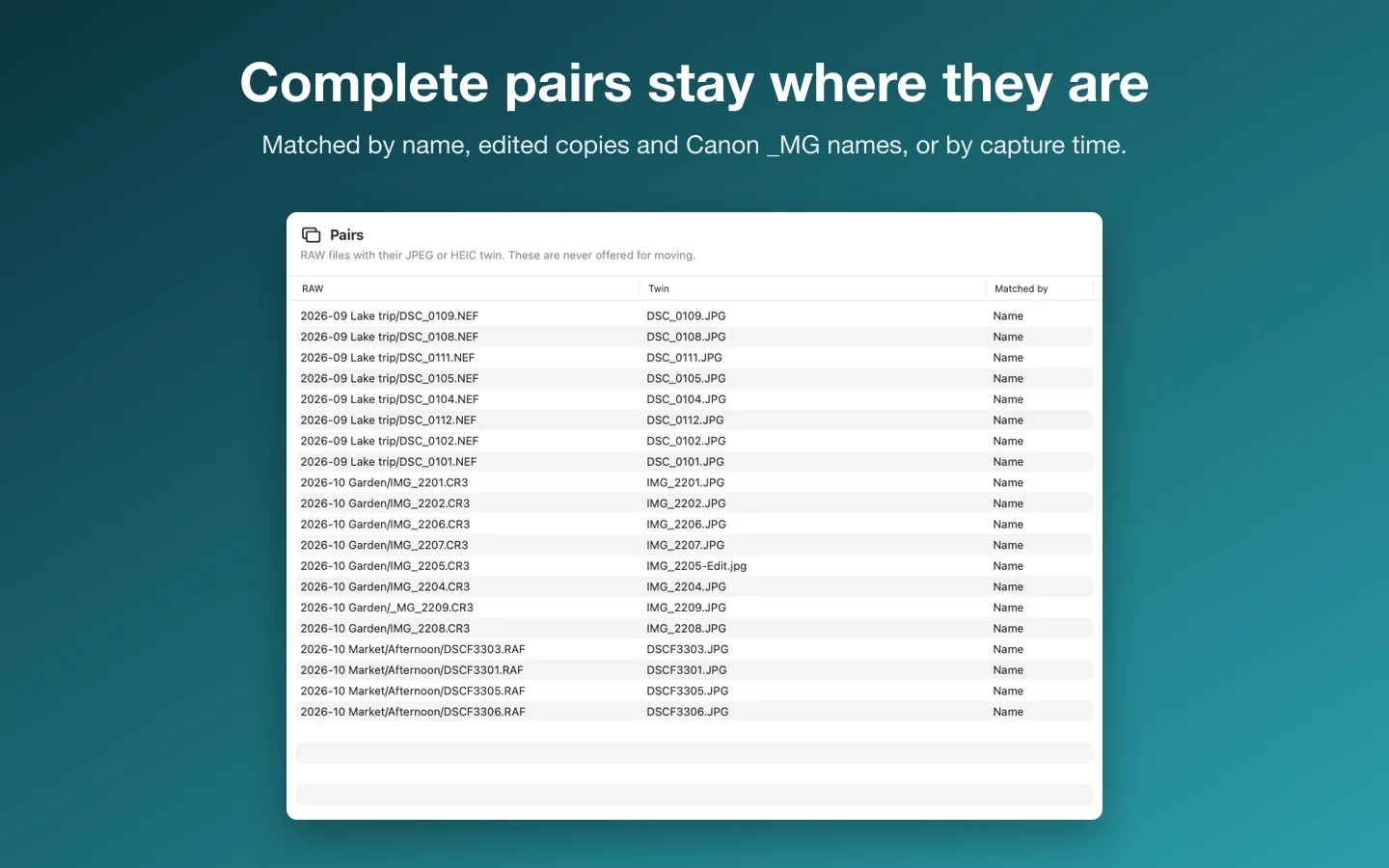
CR2, CR3, NEF, ARW, RAF, ORF, RW2, DNG, PEF and 18 more, each with a JPEG or HEIC of the same name. Edited copies such as -Edit or “ copy” count as the JPEG, and bursts never cross-match.
See also
How to clean up leftover RAW and JPEG files on a Mac without upsetting Lightroom