How to keep email as searchable records for a legal matter, an audit or a client file
UpdatedShort answer
Keep two things. First the original messages, as an .mbox export from Mail: that’s the faithful copy. Then a readable set made from them: one searchable PDF per message, named by date, with its attachments beside it and a spreadsheet listing every message. That set is what a lawyer, accountant or client can open. Mail does the first by itself and the second one message at a time. This page isn’t legal advice: ask whoever wants the records which format they accept.
500 emails, before and after
What one export does to 500 messages, from what Mailshelf’s code writes. The free version exports 25 messages at a time; 500 in one go needs the 14-day trial or a license key.
| What you have | Before: 500 messages in Mail | After one export |
|---|---|---|
| Where they are | Spread over mailboxes and accounts, readable in Mail on this Mac | One new folder, named like Mailshelf Export 2026-11-02 14.32, that any computer can open |
| The messages | Some are the same message twice, such as Gmail’s All Mail and a label | One PDF per message, up to 500; with Skip duplicate messages on, a repeat of the same Message-ID is left out |
| Their names | Subjects in Mail’s list | Date and time first, then sender and subject (2026-03-14 0915 Sender - Subject), so Finder sorts them by date |
| Finding a word | Mail’s search, inside Mail | Real text in every PDF, so Spotlight and Preview find words in them |
| Attachments | Inside each message; some never downloaded by Mail | In a folder named like the PDF; ones Mail never downloaded are listed as not downloaded |
| A list of everything | None | index.csv, one row per message: date, from, to, cc, subject, mailbox, attachment count, PDF, attachment folder, conversation and Message-ID |
| Remote images | Loaded or not, by your Mail settings | Never loaded; each PDF says how many were left out |
| The originals | In Mail | Still in Mail, unchanged: Mailshelf only reads its files |
Free: the originals, then a readable copy
Free: keep the originals first
- In Mail’s sidebar, select the mailboxes that hold the records.
- Choose Mailbox › Export Mailbox, pick a folder and click Choose. Mail saves each mailbox as an .mbox package.
- Put the .mbox files in the matter’s folder, and copy that folder to a second drive.
File › Import Mailboxes in Mail reads an .mbox back, so this is the copy to keep even after you make PDFs.
Free: a readable copy, one message at a time
- Open a message and choose File › Print, then Save as PDF from the PDF menu.
- Name it with the date first, such as
2026-03-14 Northside estimate, so the folder sorts by date. - With the message still selected, choose File › Save Attachments and save them in a folder with the same name.
- Add a line to a spreadsheet: date, from, subject and the PDF’s name. That list is how someone checks nothing is missing.
Where Mail alone stops
- Print to PDF is one message at a time: 500 messages means 500 prints, 500 file names and a Save Attachments for each one that has files.
- A PDF shows the header lines Mail prints, not all of them, so it doesn’t prove who sent a message. Keep the .mbox for that.
- Mail’s search works only inside Mail, so the person you send the records to can’t use it.
- Nothing lists what you saved unless you type the list yourself.
How Mailshelf does it

Mailshelf is a Mac app we make: export Apple Mail messages to searchable PDFs, with attachments and an index.
- Give Mailshelf Full Disk Access when it asks (Mail’s folder opens only to apps that have it), or choose File › Choose Mail Folder… to read a copy of the Mail folder instead. It only reads; Mail’s files are never changed.
- Narrow it to the matter: tick the mailboxes, set a date range, type a person (From, To or Cc) and words from the subject. Settings › General › Skip duplicate messages leaves out repeats.
- Choose Export to PDF… from the File menu. Each message becomes a searchable PDF, US Letter or A4, with its attachments in a folder beside it, and every message goes into index.csv. Cancel stops after the current message and keeps the index of what’s done.
- Need only the files? File › Save Attachments Only… saves the attachments, named by date and sender, with attachments.csv.
- Without a key you can browse, filter and preview everything and export 25 messages at a time; for the first 14 days there’s no limit. The app’s page has a sample export made from made-up mail.
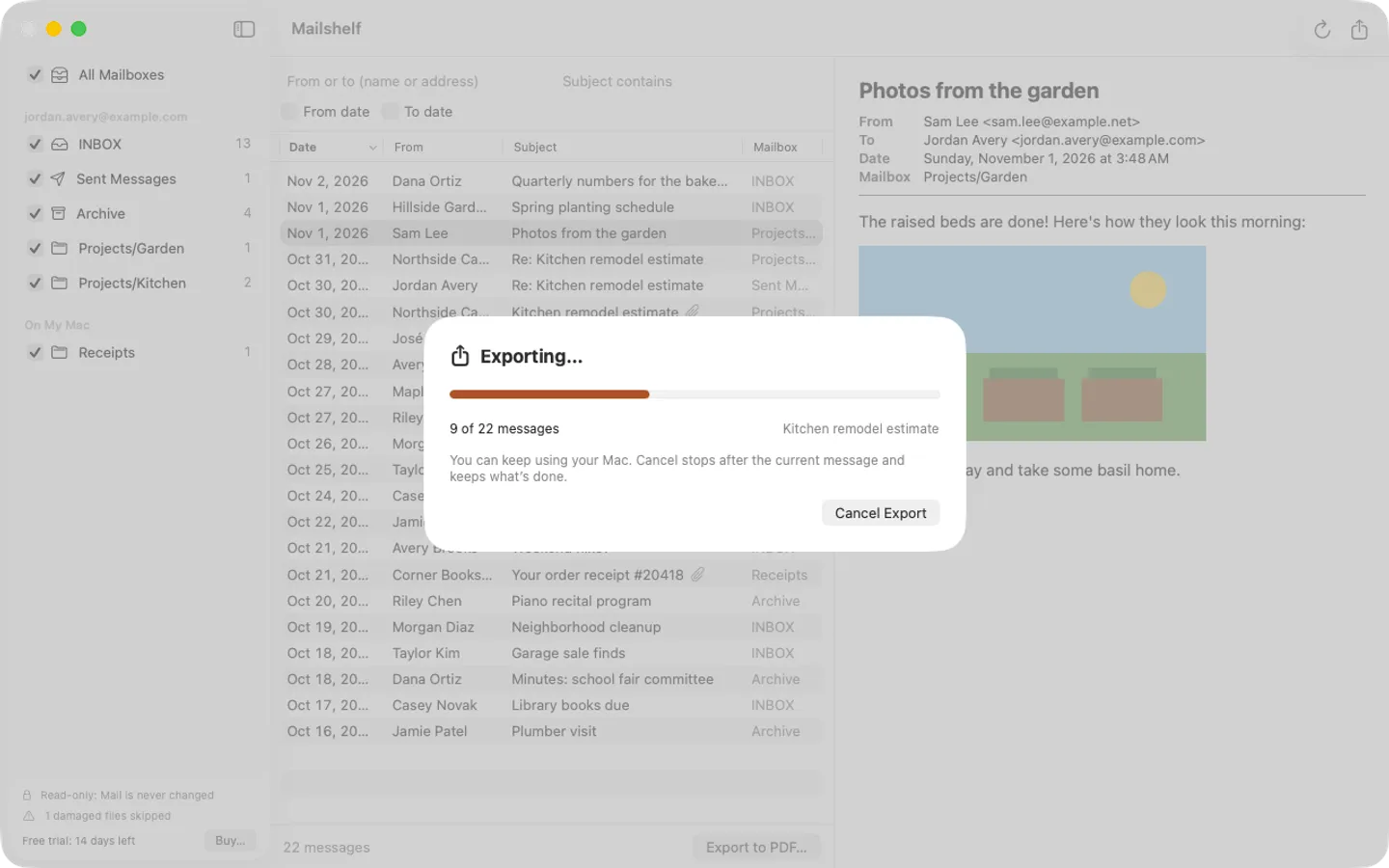
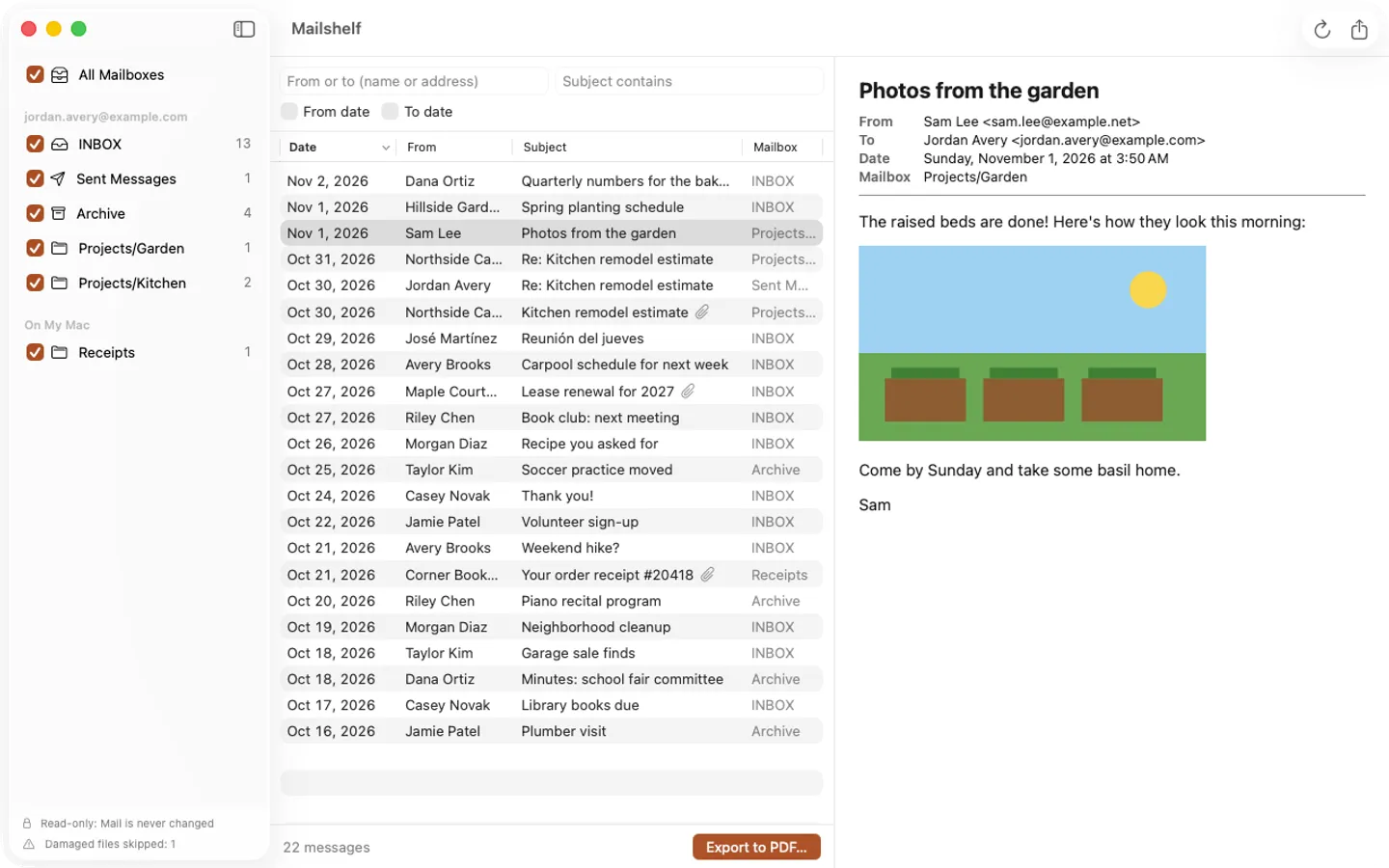
Free to use without a key: browse, filter and preview all your mail and export 25 messages at a time (or the attachments of 25 messages). Everything works for the first 14 days.
$9.99 one-time for Pro, no subscription. Buy a license key to unlock exports of any size, as many messages at once as you like.
macOS 14 Sonoma or later. Apple silicon and Intel.
Questions
Will a court or an auditor accept PDFs of email?
That’s for them to say, and rules differ. This page isn’t legal advice. Keep the original messages (the .mbox export) as well as the PDFs, and ask the person asking for the records which format they want.
What is index.csv for?
It’s the list of the set: one row per message with the date, sender, recipients, subject, mailbox, attachment count, the PDF’s name and the Message-ID. Sort or filter it in a spreadsheet to find a message, or to check a date range has nothing missing.
Does Mailshelf change or delete my mail?
No. It only reads Mail’s files and writes the export into a new folder. Remote images are never loaded, so tracking pixels in the messages don’t load either.
Does it work with Gmail, iCloud or Outlook accounts?
Yes, once the account is set up in Apple’s Mail app and its messages are downloaded to the Mac. Mailshelf reads Mail’s files, not a website and not the Outlook app’s.
See also
How to save Mail messages as PDFs on a Mac, with attachments, for your records