How to combine PDFs into one indexed, bookmarked bundle on a Mac
UpdatedShort answer
Finder and Preview can merge PDFs into one file for free. A proper bundle also needs an index with page numbers, bookmarks for each document and a number on every page, which the free Mac tools don't add for you.
The free ways
Free: merge with Finder
- Name the files so you can see the order you want (01 Claim form.pdf, 02 Witness statement.pdf and so on).
- Select them in Finder in that order: click the first, then Command-click each of the others in turn. The PDF follows the order you select them in.
- Control-click the selected files and choose Quick Actions › Create PDF.
- Finder saves one combined PDF in the same folder, named after the first file. Open it and check the order.
Free: merge and reorder in Preview
- Open the first PDF in Preview and choose View › Thumbnails.
- Drag the other PDFs (or images) from Finder into the thumbnail sidebar, at the place they belong.
- Drag thumbnails to reorder pages; select one and press Delete to remove it.
- Choose File › Export as PDF to save the combined file.
Add an index yourself
- Note each document's first and last page in the combined file.
- Type an index in Pages: each document's title and its pages (for example 13–27). The index pages push every number on by their own length, so add that in.
- Choose File › Export To › PDF, then drag the index into Preview's sidebar as the first pages and export again.
Where the free ways stop
- Preview and Finder don't put page numbers on the pages, and don't make bookmarks (a PDF outline) for each document.
- A typed index isn't clickable: its lines don't link to the pages.
- Change one document and every page number after it moves, so the index has to be redone by hand.
- No divider sheets, tab labels, exhibit stamps or Bates numbers. If you already pay for Adobe Acrobat Pro, it can add bookmarks, headers and footers, and Bates numbers.
- Big scans make a big file. Preview's Quartz Filter › Reduce File Size shrinks it, but lowers image quality a lot.
How Tabbound does it
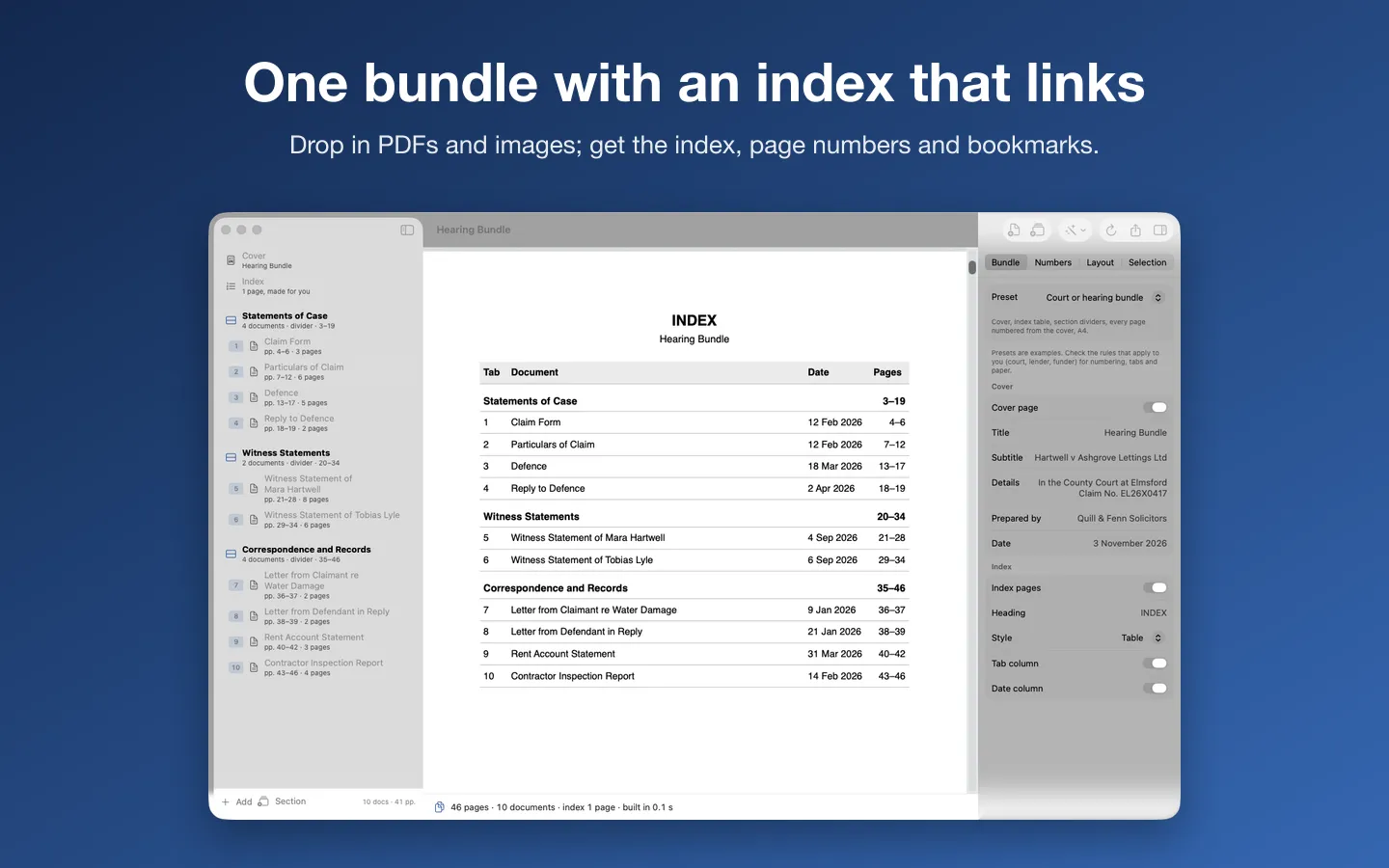
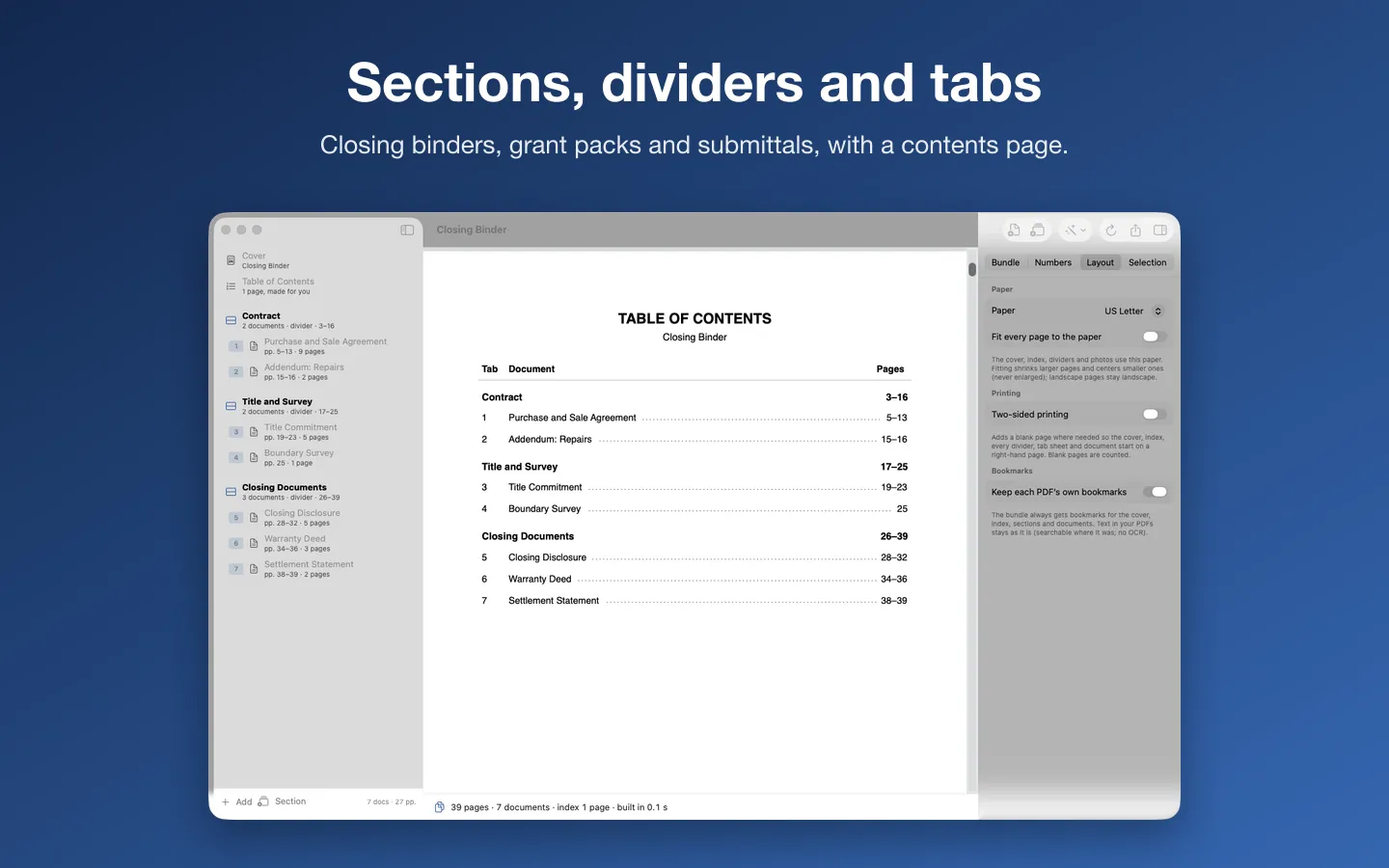
Tabbound is a Mac app we make: indexed, paginated PDF bundles with a cover, dividers and bookmarks.
- Drag in PDFs and images (JPEG, PNG, HEIC) or a folder, put them in order and group them into sections.
- Tabbound writes the index with page ranges that allow for its own length. Each line links to its document, and every section and document gets a bookmark.
- Add a cover page, divider sheets and tab labels, and number every page ("12", "Page 12 of 500" or Bates numbers).
- Export the bundle. If a document changes later, rebuild and the numbers follow.
Free to use without a key: every feature, for bundles of up to 3 documents.
$49 one-time for Pro, no subscription. Buy a license key to unlock Pro: bundles with any number of documents and pages.
macOS 14 Sonoma or later. Apple silicon and Intel. PDFs and images (save Word or Pages files as PDF first). Presets are examples: check your court's, lender's or funder's own rules.
Questions
Does merging in Preview keep the text searchable?
Yes, pages keep the text they had. Scanned pages only have text if they were OCR'd before you merged them.
What's the difference between an index and bookmarks?
The index is a page in the document that lists each item and its pages, so it prints. Bookmarks are the PDF's outline, shown in a PDF reader's sidebar, so people can jump to each document on screen. Bundles are often asked to have both.
Will a court or lender accept a bundle made this way?
Rules differ: page numbering, index layout, bookmarks and file-size limits all vary. Check the rules that apply to you. Tabbound's presets are examples, and it's a formatting aid, not legal advice.
Can I add Word or Pages files?
Save them as PDF first (File › Export To › PDF in Pages, or Save As PDF in Word). Tabbound takes PDFs and images.