How to fix wrong dates on scanned photos before importing to Photos
UpdatedShort answer
Photos can change dates after import (Image › Adjust Date and Time), and the free exiftool can write the real dates into the files before you import them. Either way, set the date roll by roll or envelope by envelope, and work on copies.
The free ways
In Photos, after importing
- Import the scans, then select the photos from one roll or envelope.
- Choose Image › Adjust Date and Time, enter the real date and time for the first photo, and click Adjust.
- With several photos selected, Photos moves them all by the same amount, so they keep their order.
The change is kept in your Photos library. The scanned files themselves still carry the scan date if you use them somewhere else.
Free: exiftool, before importing
exiftool is a free, widely used command-line tool for photo information (exiftool.org). It isn't built in to macOS, and it changes files, so work on a copy of the folder.
- Install exiftool from exiftool.org (there's a Mac package), and duplicate your scans folder.
- In Terminal, go to the copied folder: type
cd(with a space), drag the folder onto the window and press Return. - Set one date for every photo in the folder with the first line below.
- Or shift every date by a fixed amount (here 2 years and 3 hours earlier) with the second line, for a camera whose clock was wrong.
- Import the folder into Photos.
exiftool -AllDates="1987:06:14 12:00:00" -overwrite_original .
exiftool -AllDates-="2:0:0 3:0:0" -overwrite_original .
Where the free ways stop
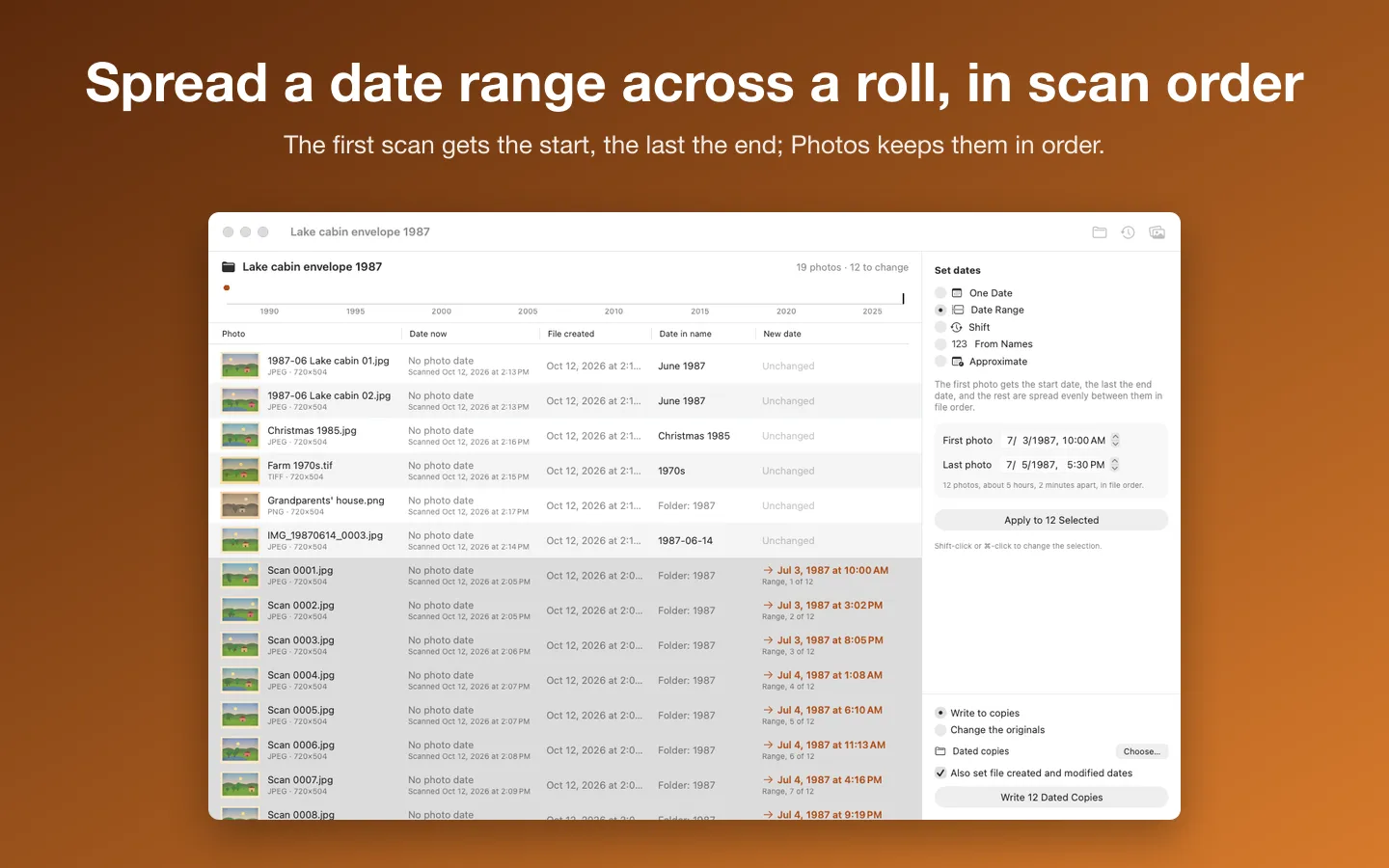
- Photos gives the photos you select one date, shifted together. Spreading a range of days over a roll ("July 3 to 5, 1987") means doing small groups one at a time.
- exiftool is powerful but unforgiving: a typo can change every photo in a folder, which is why you work on copies.
- exiftool can read a full date from a file name (with
"-AllDates<filename"), but not "Christmas 1985" or "Summer 1992". - Neither has a way to say "about Summer 1987": you choose an exact day and add a note yourself.
How Datepatch does it
Datepatch is a Mac app we make: fix the dates on scanned photos before they go into Photos.
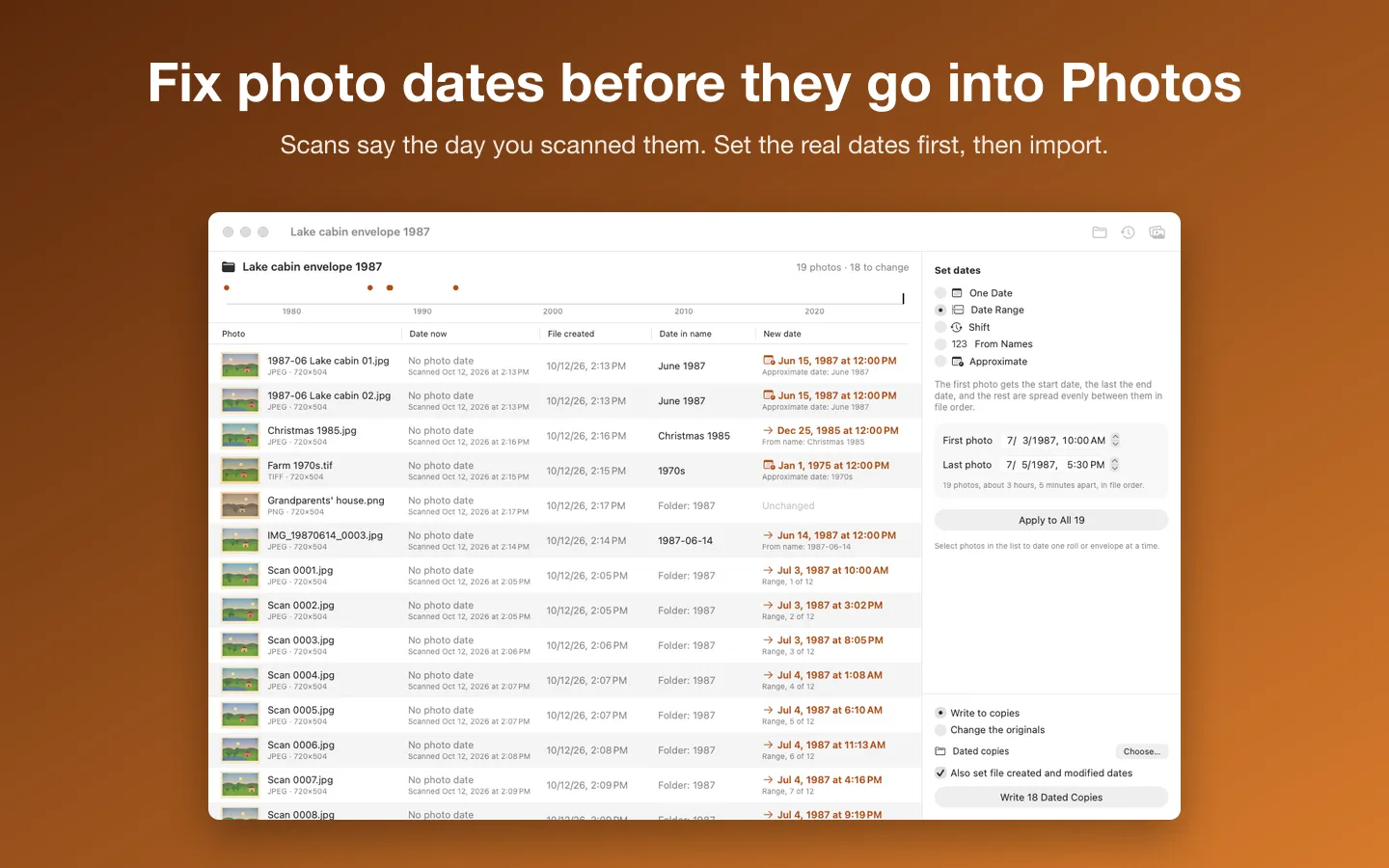
- Drop a folder of scans. Each photo shows its current date, its file date and any date in its file or folder name.
- Set the dates roll by roll: one date, a range spread in scan order, a clock offset, the date from the file name, or an approximate "Summer 1987".
- Check the preview, then write dated copies (the originals stay as they are unless you choose otherwise). JPEG, HEIC and TIFF are never re-encoded.
- Import the dated copies into Photos.
Free to use without a key: everything works, 25 photos per batch.
$15.99 one-time for Pro, no subscription. Buy a license key to unlock Pro: write every photo in a batch, however big the box of scans.
macOS 14 Sonoma or later. Apple silicon and Intel. JPEG, HEIC, TIFF and PNG photos; RAW files get a sidecar.
Questions
Why do all my scans have the same date in Photos?
A scanner saves each file on the day it was scanned, and the photo has no older date inside it, so Photos files the whole box under that afternoon.
Should I fix dates before or after importing?
Before, if you can: the date is then inside each file, so it stays right in any app or backup, and Photos sorts the photos correctly from the start. For a few photos, Photos' Adjust Date and Time is fine.
Does changing the date lower the photo's quality?
It shouldn't: the date is information stored next to the picture, not the picture itself. Tools that save the whole image again can recompress a JPEG, though. exiftool doesn't, and Datepatch never re-encodes JPEG, HEIC or TIFF and checks every written photo against the original's image data.
What if I only know the season or the year?
Pick a date in the middle and note the uncertainty in the caption. Datepatch does this for you: "Summer 1987" becomes mid-July 1987 with the note "Approximate date: Summer 1987".