How to convert a bank statement PDF to CSV or Excel on a Mac
UpdatedShort answer
Start with your bank's website: most let you download recent transactions as a CSV, QFX or OFX file, which is free and exact. For older months, when only the statement PDFs are left, you can copy the transaction table out of Preview into Numbers and tidy it up by hand. That works for a page or two. For a year of statements, or for an upload to QuickBooks or Xero, a converter that reads the PDF and checks each statement's balances saves the retyping.
The free ways
Free: download the transactions from your bank
- Sign in to your bank's website and open the account's activity or transactions page (not the statements page).
- Look for Download or Export, pick the dates, and choose CSV for a spreadsheet, or QFX or OFX for accounting software.
- Open the CSV in Numbers or Excel, or import the file into your accounting software.
Banks keep this download for a limited time, often months rather than years, and card accounts often keep less. Older months are usually only there as statement PDFs.
Free: copy the table out of the PDF
- Open the statement in Preview and choose Tools › Text Selection.
- Drag across the transaction rows on one page and press Command-C.
- Paste into a blank Numbers sheet. Depending on the PDF, the columns land in their own cells or all in one column, which you then split by hand.
- Fix the dates, make money out negative, and delete the headers and page totals that came along. Repeat for each page.
- Add up the rows and check that the opening balance plus the rows equals the statement's closing balance before you use the sheet.
Where the free ways stop
- Bank downloads only go back so far, and every bank's file looks a little different.
- Copying from a PDF breaks easily: columns run together, descriptions wrap onto a second line, and the sign of an amount often lives in a column heading or a CR marker that doesn’t come along.
- Nothing checks your copy: a dropped or doubled row only shows if you check the balances yourself.
- A scanned statement is a picture of the page, with no text to copy at all.
How Ledgerpull does it
Ledgerpull is a Mac app we make: bank and card statement PDFs to CSV, QuickBooks, Xero and OFX.
- Drop one statement PDF or a folder of them: checking, savings or credit card statements, the ones you download from your bank.
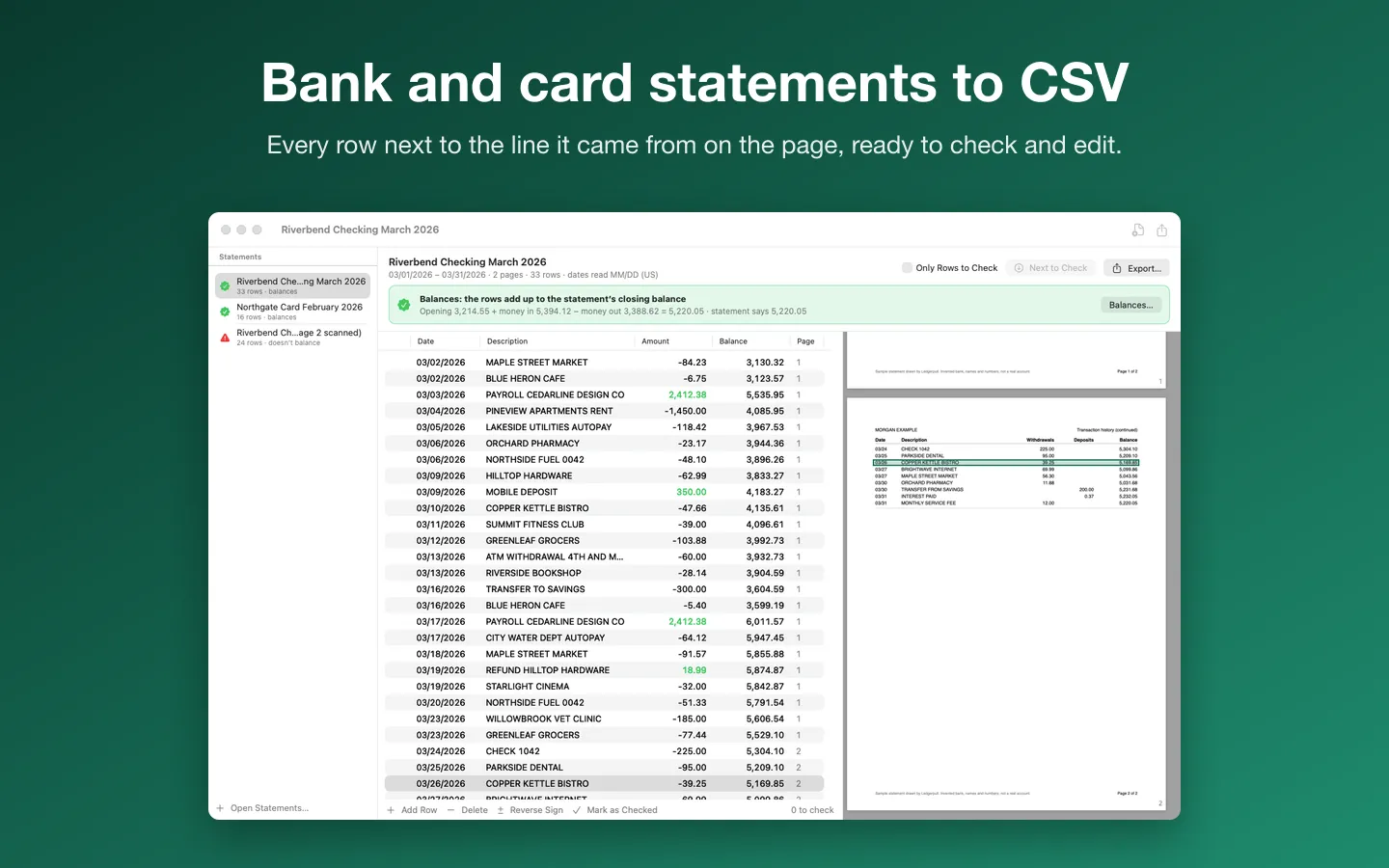
- Check the review grid: date, description, amount and running balance, with the page beside it and the selected row highlighted where it's printed. Edit any cell, or add, delete or reverse a row.
- Look at the balance check: green when the opening balance plus the rows equals the closing balance. Otherwise Ledgerpull shows the gap and the rows to look at first, and asks before it exports.
- Export CSV (you choose the columns and the sign), QuickBooks Online CSV (3- or 4-column), Xero CSV or OFX, one file per statement or one merged file. Without a key every feature works and you can export 2 different statements; reading and checking have no limit.
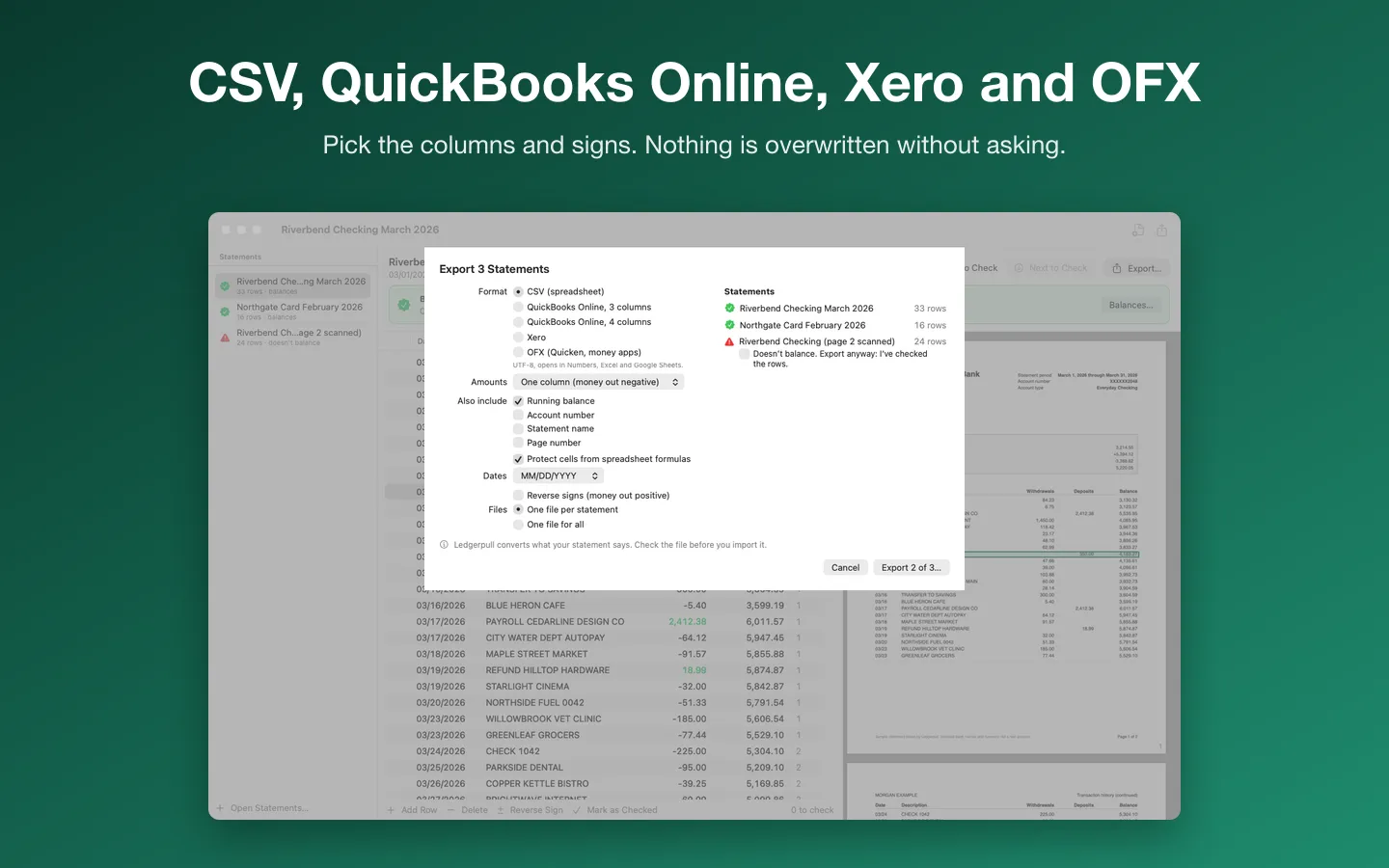
Free to use without a key: every feature, exporting 2 different statements (as often as you like, in any format); reading and checking have no limit.
$39 one-time for Pro, no subscription. Buy a license key to unlock Pro: export any number of statements.
macOS 14 Sonoma or later. Apple silicon and Intel. Needs statement PDFs with text (downloaded from your bank, not scanned). Ledgerpull converts what your statement says; check the result before you import it. It isn't financial, tax or accounting advice.
Questions
Can it read scanned bank statements?
No. Ledgerpull reads statements that have text in them, the PDFs you download from your bank. A scanned page is a picture, and Ledgerpull says so plainly instead of guessing at it.
Why check the balances?
Because a converted statement can look right and still be missing a row. If the opening balance plus every row equals the closing balance printed on the statement, nothing was dropped or doubled. Ledgerpull runs that check on every statement and shows the gap when it doesn’t add up.
What is the difference between the 3- and 4-column QuickBooks files?
The 3-column file has the date, the description and one amount, with money out as a negative number. The 4-column file keeps money out and money in in separate columns. Ledgerpull exports either; use the one your QuickBooks Online upload asks for.
Does it handle dates written day first?
Yes. Settings › Reading switches between MM/DD (US) and DD/MM, and Ledgerpull warns you when a statement doesn’t look like a US one.
Are my statements uploaded?
No. Ledgerpull reads the PDFs on your Mac; statements never leave it.