How to make a step-by-step guide with screenshots on a Mac
UpdatedShort answer
The free way on a Mac is by hand: take a screenshot of each step with Shift-Command-4 (press Space to capture just the window), circle the spot in Preview, and put each picture under a numbered step in Pages. The Mac has nothing like Windows' Steps Recorder built in. A screen recording (Shift-Command-5) is the other free option, but a video is harder to follow, and to update, than numbered steps.
The free ways
Free: screenshots, Preview and Pages
- Before each step, press Shift-Command-4, then Space, and click the window: the screenshot goes to your desktop. (Shift-Command-5 has more options, such as where screenshots are saved.)
- Open the screenshot in Preview, click the Markup button, and draw a shape around what to click. Save it.
- In Pages, type a numbered list, one line per step (“Click the Save button”), and drag each picture under its step.
- Cover names, email addresses or account numbers with a filled shape before you share it.
- Choose File › Export To › PDF, or share the Pages document.
Where the free ways stop
- Every step is three jobs by hand: the screenshot, the circle and the caption.
- It's easy to miss a step while you're doing the task and writing it down at the same time.
- When the app changes, those steps are redone from the start.
How Howwright does it
Howwright is a Mac app we make: record your clicks, get a step-by-step guide with pictures.
- Allow Accessibility and Screen Recording once (the Setup page explains both first), then press Record, or ⌃⌥⌘R from anywhere.
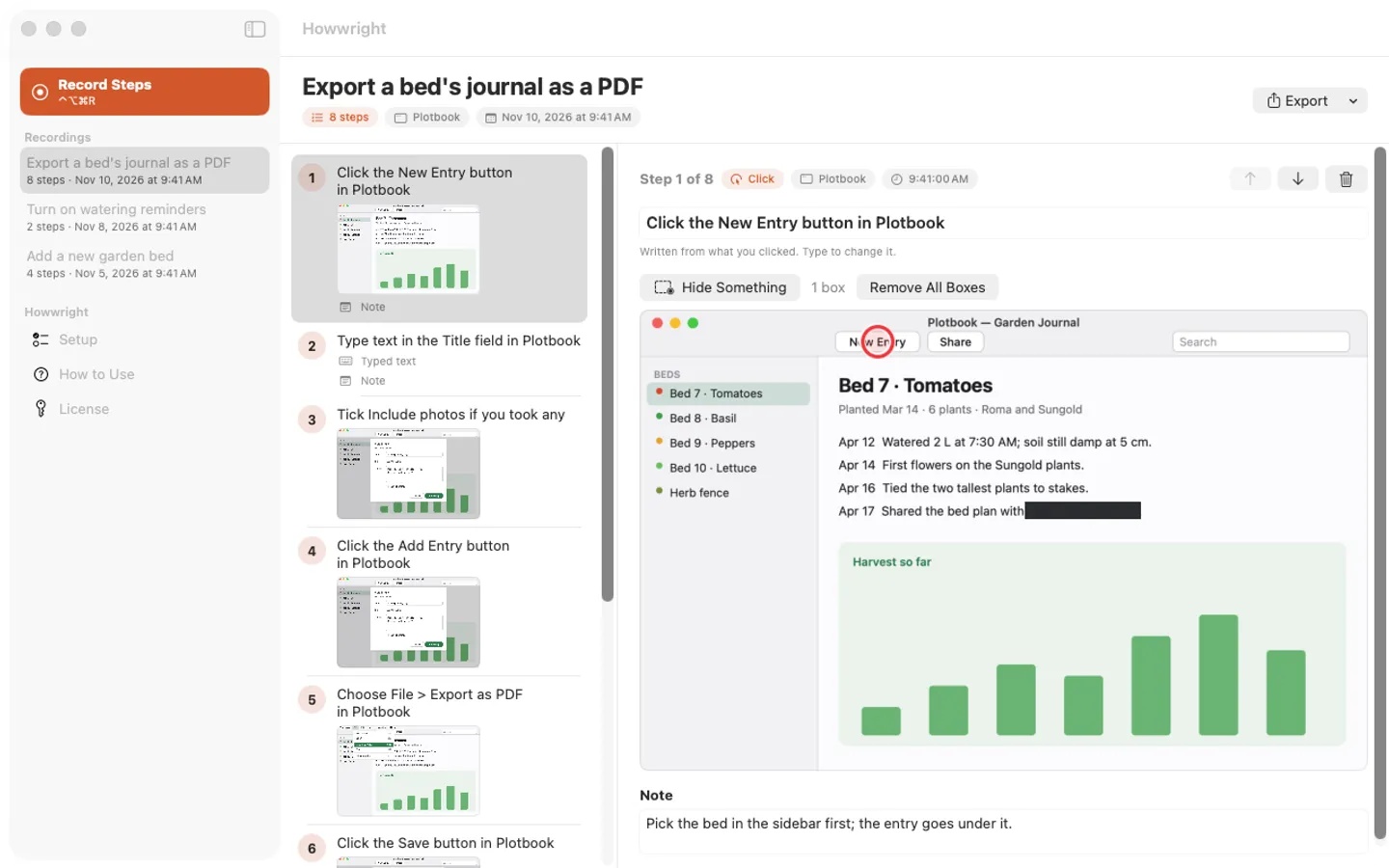
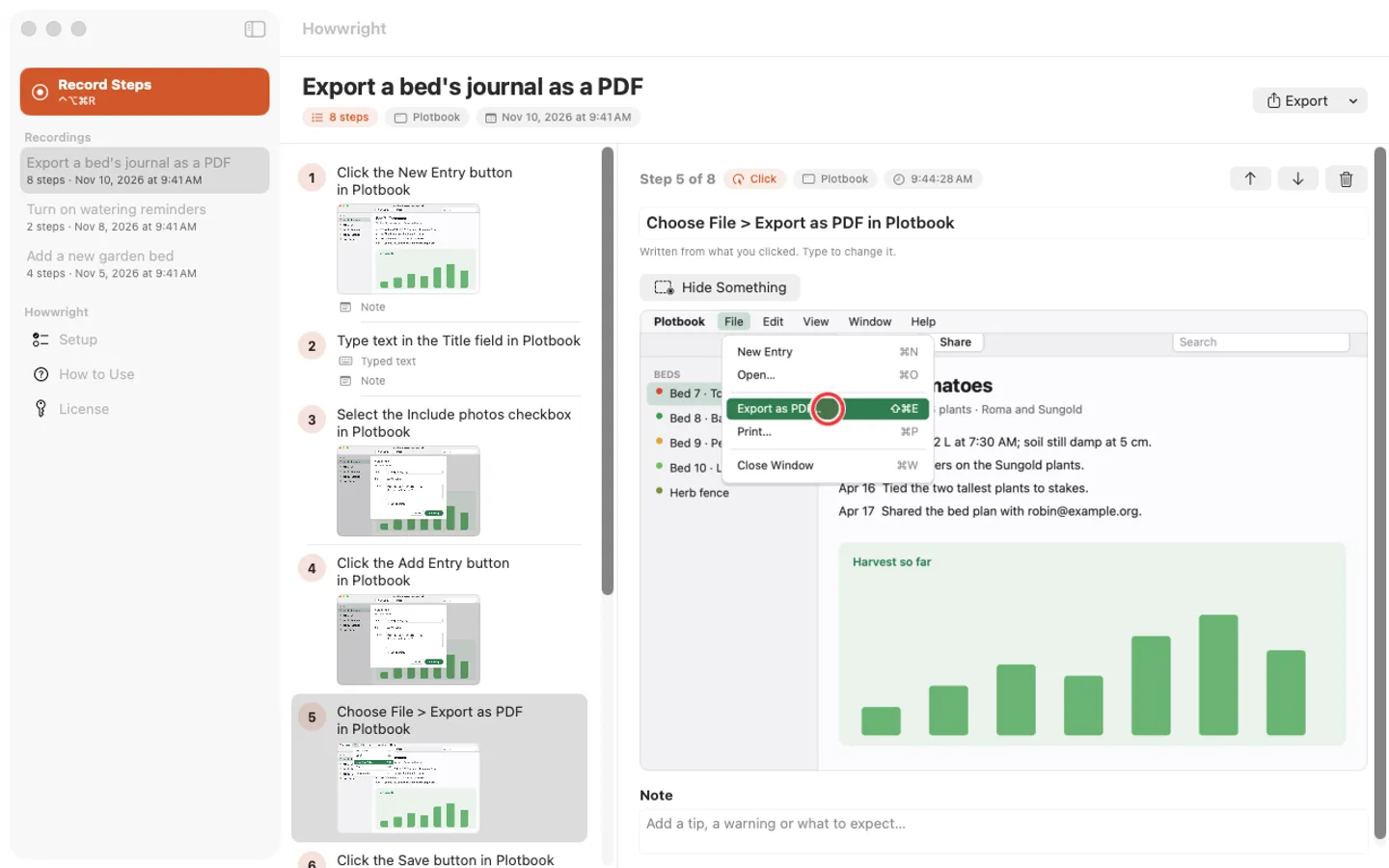
- Do the task once. Every click becomes a numbered step with a picture of the window, the spot circled in red, and a caption such as “Click the Save button” or “Choose File > Export as PDF”. Typing becomes one “Typed text” step: never the keys, and never in password fields.
- Tidy it up: reorder, delete, rewrite captions, add notes, and draw solid boxes over names, emails or numbers with Hide Something.
- Export Markdown with images, a PDF or one self-contained web page. Every feature is free for 7 days, and guides you’ve made stay openable, editable and exportable without a key.
Free for 7 days from the first time you open it: every feature, nothing held back.
$9.99 one-time for Pro, no subscription. Buy a license key to unlock recording after the trial. Guides you already made stay openable, editable and exportable with or without a key.
macOS 15 Sequoia or later. Apple silicon and Intel. Accessibility and Screen Recording permission (the app explains both first).
Questions
Is there a Steps Recorder on a Mac?
Not built in. macOS takes screenshots and records the screen, but nothing turns your clicks into numbered steps with pictures. Howwright does that.
Does Howwright record what I type?
No. Typing becomes one “Typed text” step that names the field, never the keys, and nothing at all in password fields.
Does it make a video?
No. It takes one still picture of the clicked window for each click, and the steps are made from those.
Where do my recordings go?
They stay on your Mac.