How to save and restore your Dock layout on a Mac
UpdatedShort answer
The Dock keeps its layout in its preferences, so you can save it for free with defaults export com.apple.dock and put it back with defaults import and a Dock restart. That's a backup of the whole Dock: it also brings back the hot corners and Mission Control settings you had when you saved it, and apps you've since removed come back as question marks.
The free ways
Free: back up the Dock in Terminal
- Open Terminal (in Applications › Utilities).
- Save the Dock as it is now with the first line below. It writes Dock-backup.plist to your Documents folder.
- To put it back later, run the second line: the Dock reads the file and restarts.
- To use it on another Mac, copy the file across first, and expect apps that aren't installed there to show as question marks.
defaults export com.apple.dock ~/Documents/Dock-backup.plist
defaults import com.apple.dock ~/Documents/Dock-backup.plist && killall Dock
Where the free ways stop
- It's all or nothing: the backup also holds hot corners and Mission Control settings, which go back to how they were.
- Several layouts (work, school, streaming) mean several files, and typing the command every time you switch.
- Apps you've removed come back as question marks.
How Dockswitch does it
Dockswitch is a Mac app we make: save your Dock as profiles and switch in one click.
- Set the Dock up the way you like it and choose Save Current Dock: the profile keeps its apps, folders and stacks, size, magnification, position, auto-hide and recent apps.
- Make another profile for another job, such as school or streaming.
- Switch from the menu bar in one click; the Dock restarts once. Your original Dock is backed up before the first switch, and Restore Original brings it back.
- Apps no longer on the Mac are left out instead of showing as question marks, and hot corners and Mission Control are left alone. Two profiles, switching, backups, Restore Original, import and export are free for good.
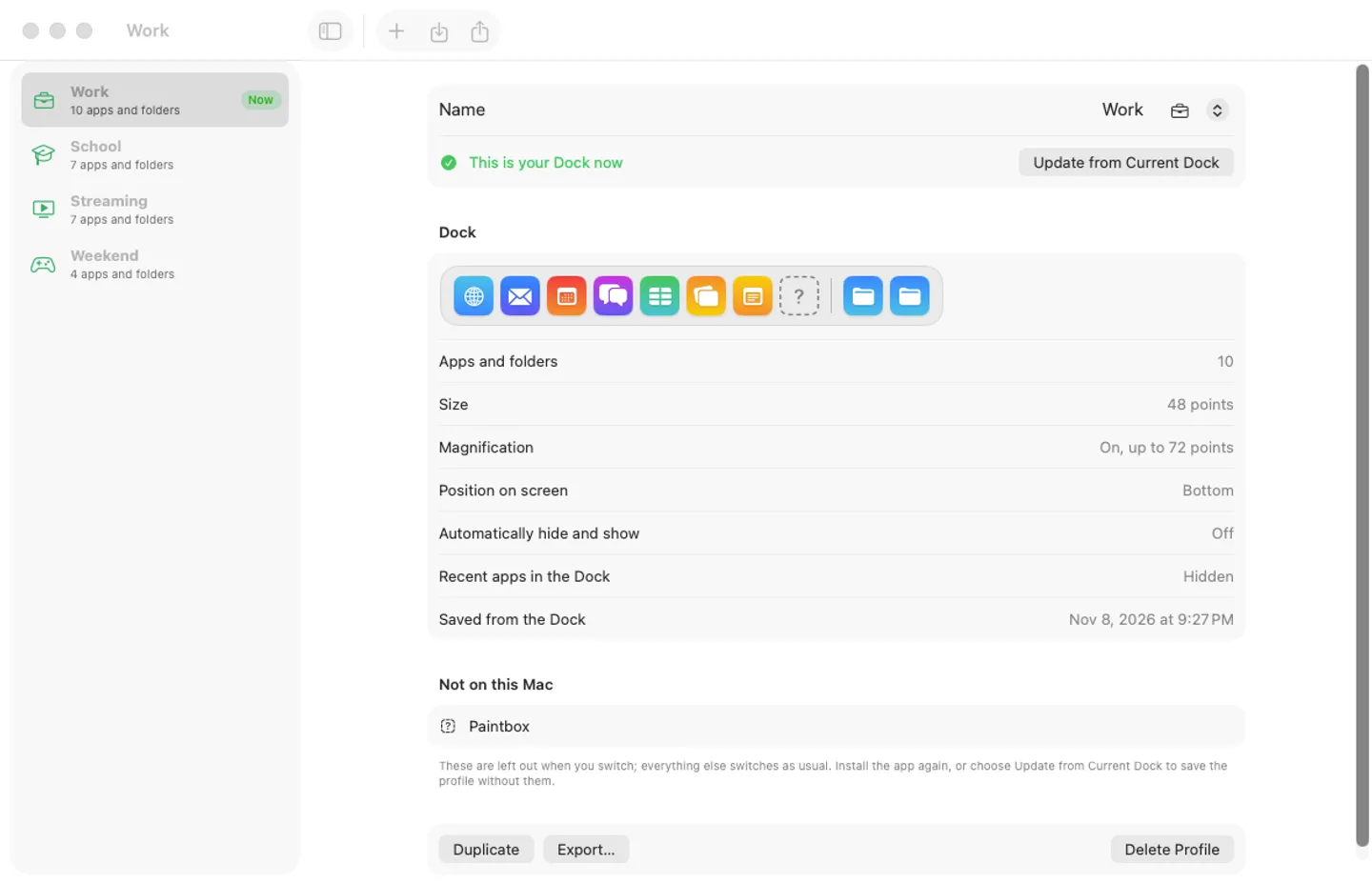
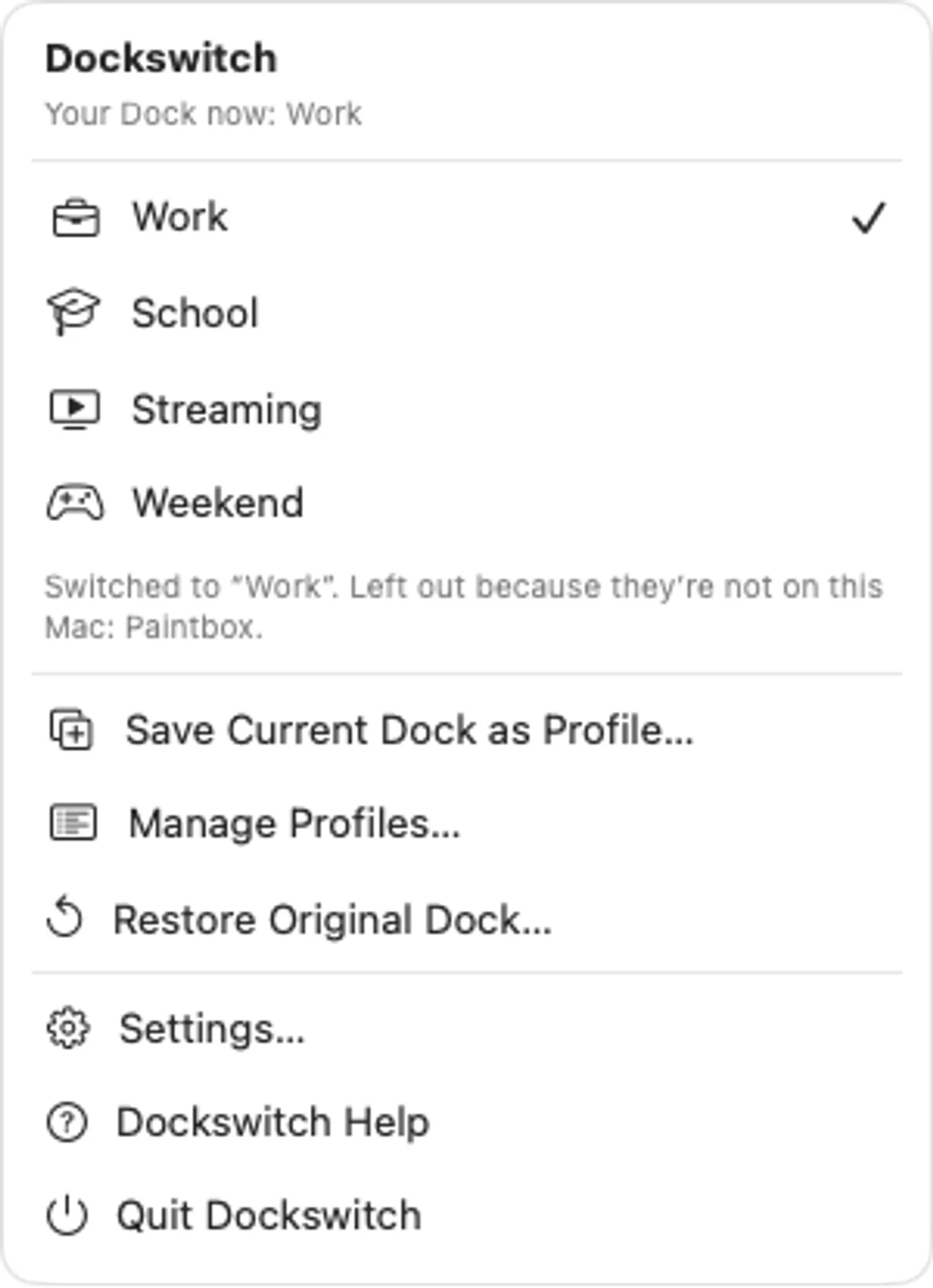
Free to use without a key: 2 Dock profiles, switching from the menu bar, backups and Restore Original, import and export, for good.
$1.99 one-time for Pro, no subscription. Buy a license key to unlock Pro: as many Dock profiles as you like.
macOS 14 Sonoma or later. Apple silicon and Intel.
Questions
Where does the Mac keep the Dock layout?
In the Dock’s preferences, com.apple.dock, in the Preferences folder of your Library. Save it with defaults export rather than copying the file, which the Mac may not have written out yet.
Can I move my Dock to a new Mac?
Yes: export it on the old Mac and import it on the new one, as above, or export a Dockswitch profile and import it there. Dockswitch leaves out apps that aren’t installed yet.
Does Dockswitch change hot corners or Mission Control?
No. A profile holds only the Dock’s apps, folders and its own settings; everything else in the Dock’s preferences is left alone.
Can I get my old Dock back?
Yes. Dockswitch backs up the whole Dock before the first switch, and Restore Original puts it back.