How to check your Mac's security settings (a free checklist)
UpdatedShort answer
Most of a Mac's security comes down to a handful of settings you can check yourself, for free, in System Settings: FileVault on, the firewall on, automatic security updates on, a password right after sleep, no automatic login, sharing off unless you use it, and nothing you don't recognise in Login Items. What System Settings won't do is tell you later when one of them changes, or when something new starts running in the background.
The free ways
Free: the checklist, in System Settings
- FileVault: System Settings › Privacy & Security › FileVault should say it’s on.
- Firewall: System Settings › Network › Firewall. Turn it on if it’s off.
- Updates: System Settings › General › Software Update, then the info button next to Automatic Updates: turn on installing security responses and system files.
- Screen lock: System Settings › Lock Screen: require a password immediately (or soon) after the screen saver starts or the display turns off.
- Automatic login: System Settings › Users & Groups: Automatically log in as should be Off.
- Sharing: System Settings › General › Sharing: turn off File Sharing, Screen Sharing, Remote Login and Remote Management unless you use them.
- Background items: System Settings › General › Login Items & Extensions: look through what opens at login and what’s allowed in the background for anything you don’t recognise.
Free: three of the checks in Terminal
These lines only read the settings; they change nothing.
- Open Terminal (in Applications › Utilities).
- Run the lines below one at a time: FileVault, Gatekeeper and the firewall each answer on or off (enabled or disabled).
fdesetup status
spctl --status
/usr/libexec/ApplicationFirewall/socketfilterfw --getglobalstate
Where the free ways stop
- Each setting is on its own page: nothing lists them all or says which matters most.
- Nothing tells you later when a setting changes, or when a new background item appears.
- Browser extensions are checked in each browser, one by one, with their permissions in each browser’s own words.
- None of this is antivirus: it checks that the doors are shut, not what may already be inside.
How Latchwise does it

Latchwise is a Mac app we make: checks your Mac's security settings and keeps watch between checkups.
- Run the checkup: Latchwise reads about fifteen settings, including FileVault, the firewall, Gatekeeper, updates, screen lock, sharing and background items, without a password or admin rights.
- Read the score and the findings, grouped by what needs attention first; each is explained in plain words with a fix and a link to the right System Settings page.
- See your browser extensions in Chrome, Edge, Brave and Firefox with plain risk labels.
- The checkup, the score, every fix guide and the extension list are free for good. A license key adds watching between checkups: an alert when a new background item appears, decoy files that flag mass changes, proof your backup restores, scheduled scans and a dated PDF report.
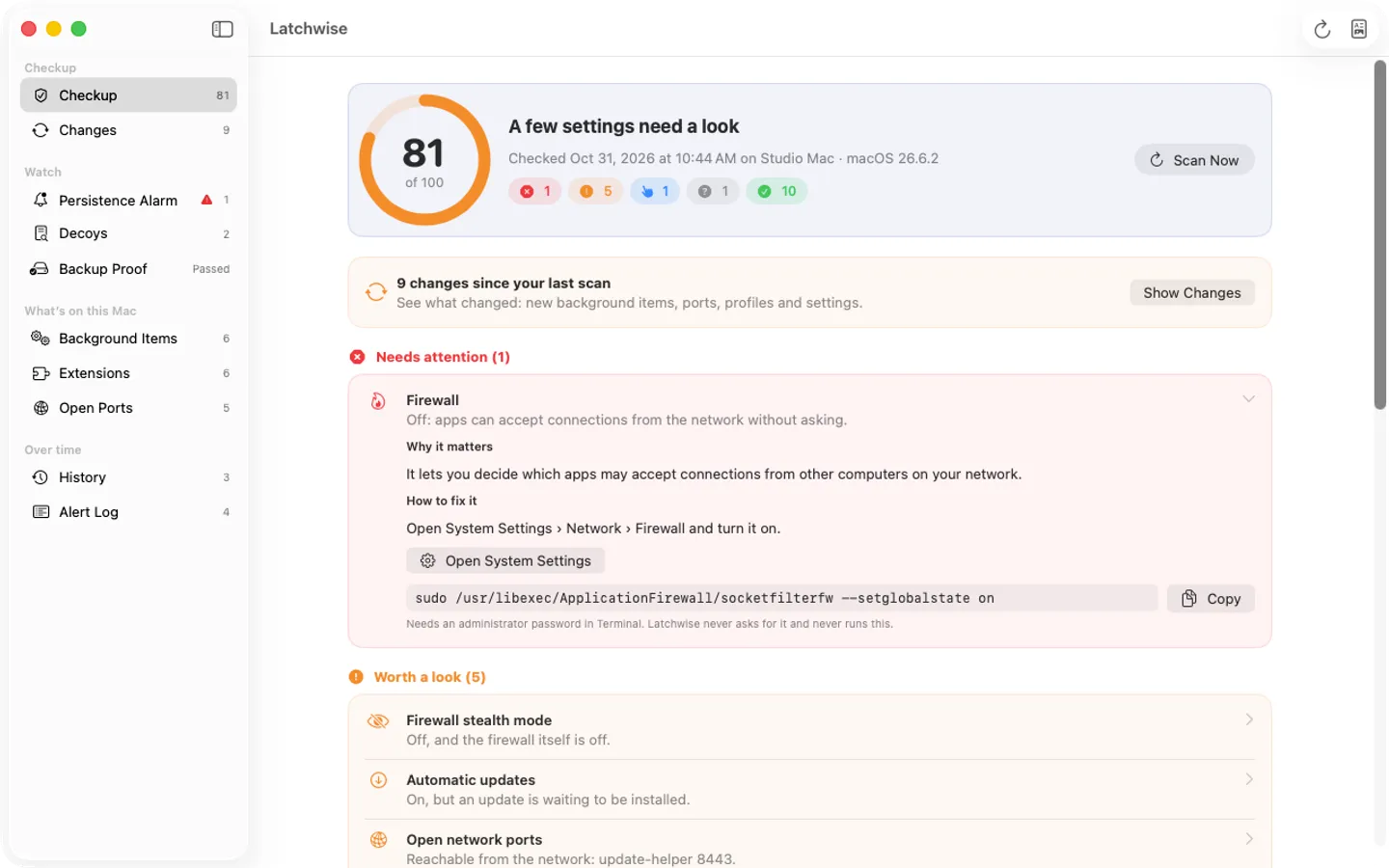
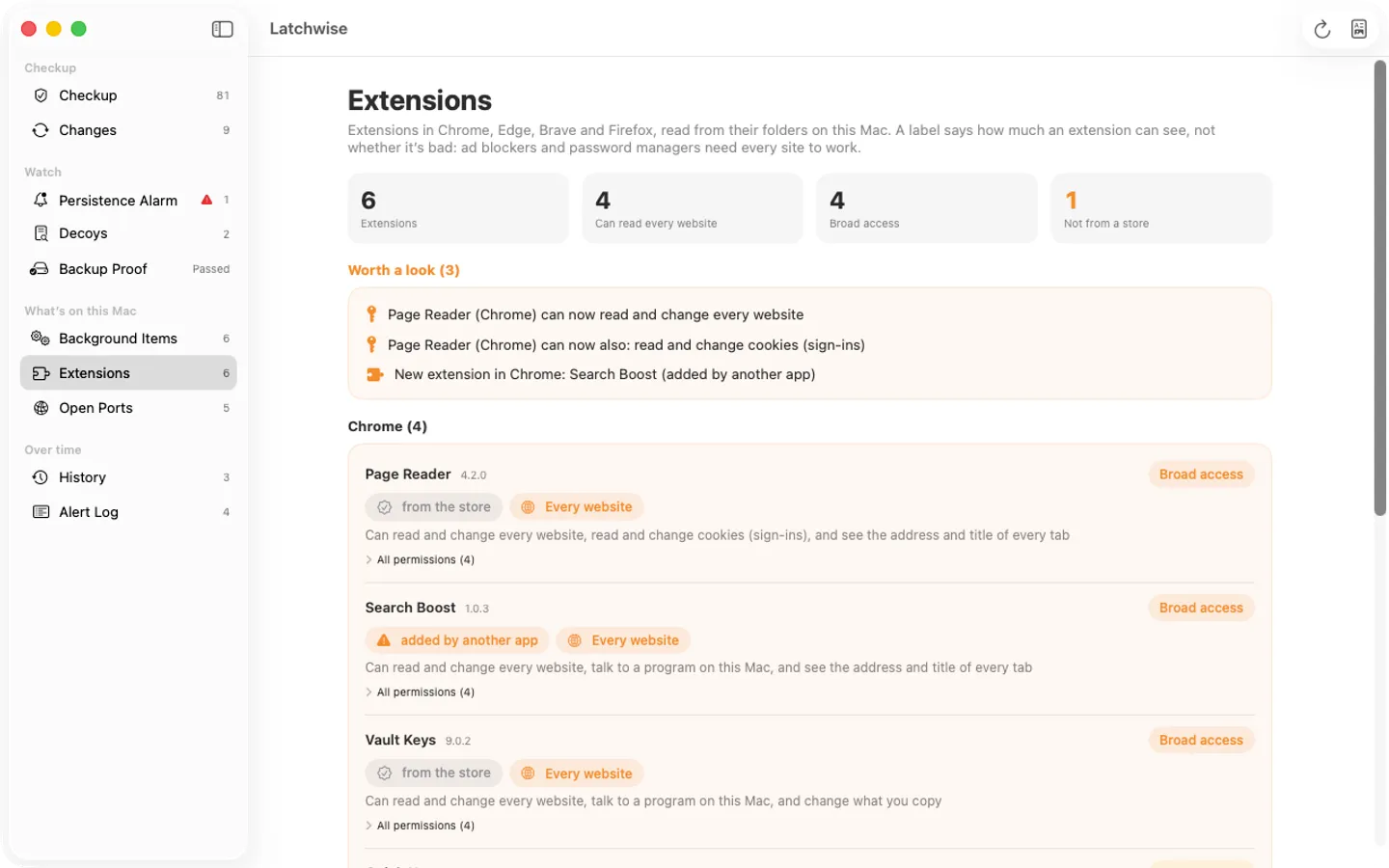
Free to use without a key: the full checkup, the score, every fix guide and the list of your browser extensions with risk labels, for good.
$19.99 one-time for Pro, no subscription. Buy a license key to unlock Pro: what changed between scans and scan history, the persistence alarm, decoys, backup proof, extension change alerts, scheduled scans and a dated PDF report.
macOS 14 Sonoma or later. Apple silicon and Intel.
Questions
Is Latchwise antivirus?
No. It checks your settings, keeps watch and tells you what it finds; it does not stop or remove malware.
Does the checkup need my password?
No. It reads the settings without a password or admin rights, and your scans stay on your Mac.
Is my Mac encrypted without FileVault?
On a Mac with Apple silicon or a T2 chip the data is encrypted anyway, but FileVault adds the need for your login password to read it, which is why it’s worth turning on.
How often should I check?
After a macOS update, after installing new software, and every month or so. With a license key, Latchwise runs scheduled daily or weekly scans and shows what changed since the last one.