How to print game cards from a spreadsheet on a Mac
UpdatedShort answer
For a free start, Pages' mail merge fills a card-sized page with each row of a Numbers spreadsheet, one card per page, and the print dialog can put several pages on a sheet. That's fine for testing a few dozen cards. What it doesn't do is print cards at their real size with cut marks, line up backs for double-sided printing, or make copies from a quantity column, and those are what make a deck quick to cut out.
The free ways
Free: Pages mail merge
- Keep the cards in a Numbers table, one row per card, with a header row such as Name, Cost, Type and Rules.
- In Pages, start a blank document and give it a card-sized page with File › Page Setup › Paper Size › Manage Custom Sizes (2.5 × 3.5 inches for a poker-size card).
- Lay out the card with text boxes and shapes. Click Document in the toolbar, then the Document tab, then Mail Merge; choose Add Merge Field › Add from Spreadsheet and pick your Numbers file.
- Put a merge field in each text box (the card name in the title, the rules in the body), then merge to make one page per row.
- Print on card stock with File › Print, setting Pages per Sheet in the Layout options to fit several cards on each sheet.
Where the free ways stop
- Pages per Sheet scales each card to fit its space, so cards don't come out at their real size, and there are no cut marks.
- Backs for double-sided printing are lined up by hand, flipped the right way for your printer.
- A quantity column means nothing to it: three copies of a card are three rows.
- After you change the spreadsheet, you choose it as the source again and merge again.
How Deckpress does it
Deckpress is a Mac app we make: print game cards from a spreadsheet.
- Open a CSV, TSV or Excel (.xlsx) file with one row per card (from Numbers, export to CSV). Columns are matched to fields by name, and a quantity column sets the copies.
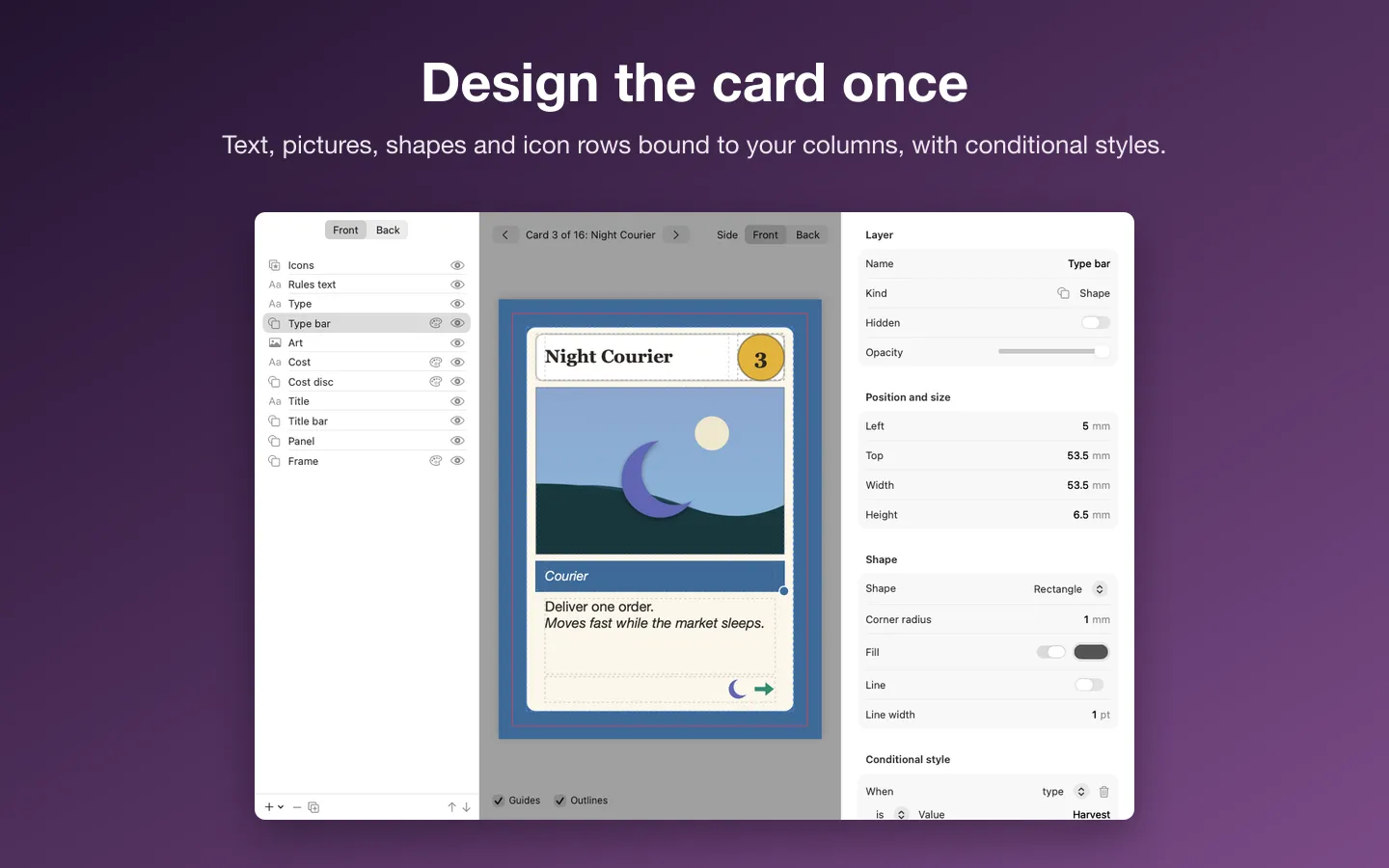
- Design the card once in the template editor: text, pictures, shapes and icon rows, front and back, with bleed and safe-zone guides. Bold, italic and inline icons work in the cells, and conditional styles change a card when a field matches.
- Save the spreadsheet in Excel or Numbers (as CSV) and the preview follows it.
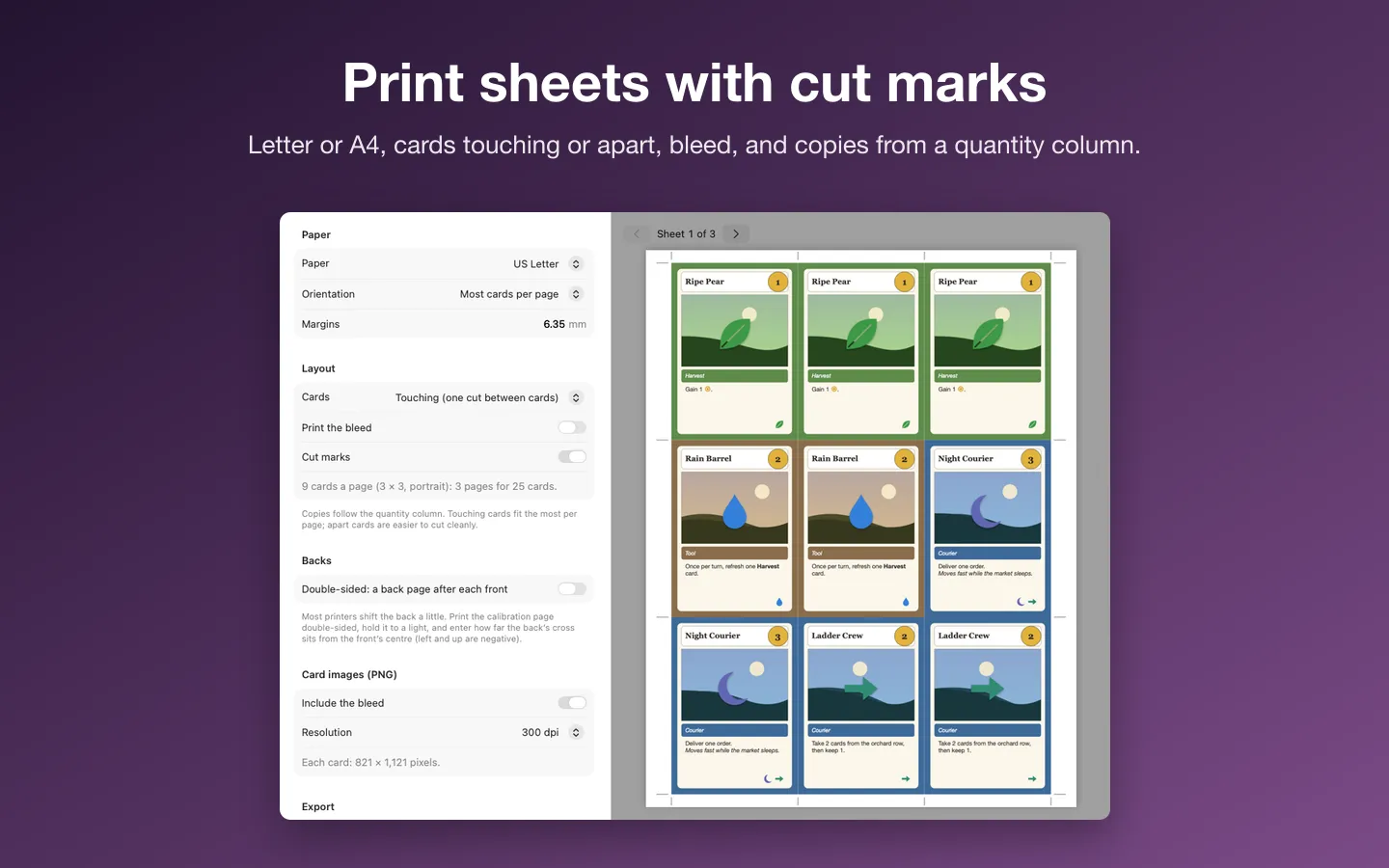
- Print Letter or A4 sheets with cut marks at poker, bridge, tarot, mini, square or custom sizes, with double-sided backs and a calibration page, or export card images at 300 or 600 dpi and Tabletop Simulator deck sheets. Without a key every feature works for the first 18 cards of each deck.
Free to use without a key: every feature, printing and exporting the first 18 cards of each deck (copies count).
$14.99 one-time for Pro, no subscription. Buy a license key to unlock Pro: print and export decks of any size.
macOS 14 Sonoma or later. Apple silicon and Intel. Tabletop Simulator is a trademark of its owner; Deckpress isn't affiliated with it.
Questions
What size is a playing card?
Poker size is 2.5 × 3.5 inches (63.5 × 88.9 mm) and bridge size 2.25 × 3.5 inches. Deckpress has both, plus tarot, mini, square and custom sizes.
How do I print card backs that line up?
Print the fronts, put the sheets back in the printer and print the backs, flipped on the long edge. Deckpress prints a calibration page first so you can see how far your printer shifts the backs and set offsets to match.
Can I use it for Tabletop Simulator?
Yes. Deckpress exports Tabletop Simulator deck sheets as well as single card images. It isn’t affiliated with Tabletop Simulator.
My cards are in a Numbers file. Can I use it?
Yes: in Numbers, choose File › Export To › CSV and open that file in Deckpress. Export again after a change and the preview follows.