How to make listing photos for a printable PDF on a Mac
UpdatedShort answer
Everything a printable's listing needs can be made for free on a Mac: export the pages you want to show as images from Preview, lay them out on 2000-pixel slides in Keynote and export those as images, and export the same slides as a movie for a short flip-through video. Doing it again for every new PDF is where the time goes.
The free ways
Free: Preview and Keynote
- Open the PDF in Preview, select a page in the sidebar and choose File › Export, with Format set to PNG. Do it for each page you want to show.
- In Keynote, start a new presentation and set the slide size to your listing size: in the Document sidebar choose Slide Size › Custom Slide Size, such as 2000 × 1500 for 4:3 or 2000 × 2000 for square.
- Drop the page images onto the slides: a cover slide with the title, then a few slides with two or three pages laid out, slightly overlapping.
- Choose File › Export To › Images to save every slide as a JPEG or PNG listing image.
- For a flip-through video, give each slide a transition and choose File › Export To › Movie.
Where the free ways stop
- Every new printable means exporting the pages and laying out the slides again.
- A watermarked preview PDF that buyers can look through but not use takes another round in another app, and the text of a plain PDF can still be copied out.
- Each store has its own image sizes and file limits, which you look up and set by hand.
How Listing Shots does it
Listing Shots is a Mac app we make: turn a printable PDF into listing images, a preview PDF and a flip-through video on your Mac.
- Open a worksheet pack, planner or activity pack PDF. File › Open the Sample PDF draws a made-up pack so you can try everything first.
- Choose the pages to show: Listing Shots lays them out as a page grid under the title. With a license key it adds the cover, fanned pages and clipboard, desk and frame scenes, all drawn by the app, with no stock photos.
- Pick the sizes: square thumbnails and 2000 px listing images in 4:3 and square, with one-click sizes for Teachers Pay Teachers, Etsy and Amazon KDP; every size can be changed.
- Choose Make Listing Set: the images, a watermarked preview PDF flattened so its text can’t be copied out, and, with a key, a 10 to 15 second flip-through video, each in its own folder. Free: the page grid at every size and the watermarked preview PDF, one PDF at a time.
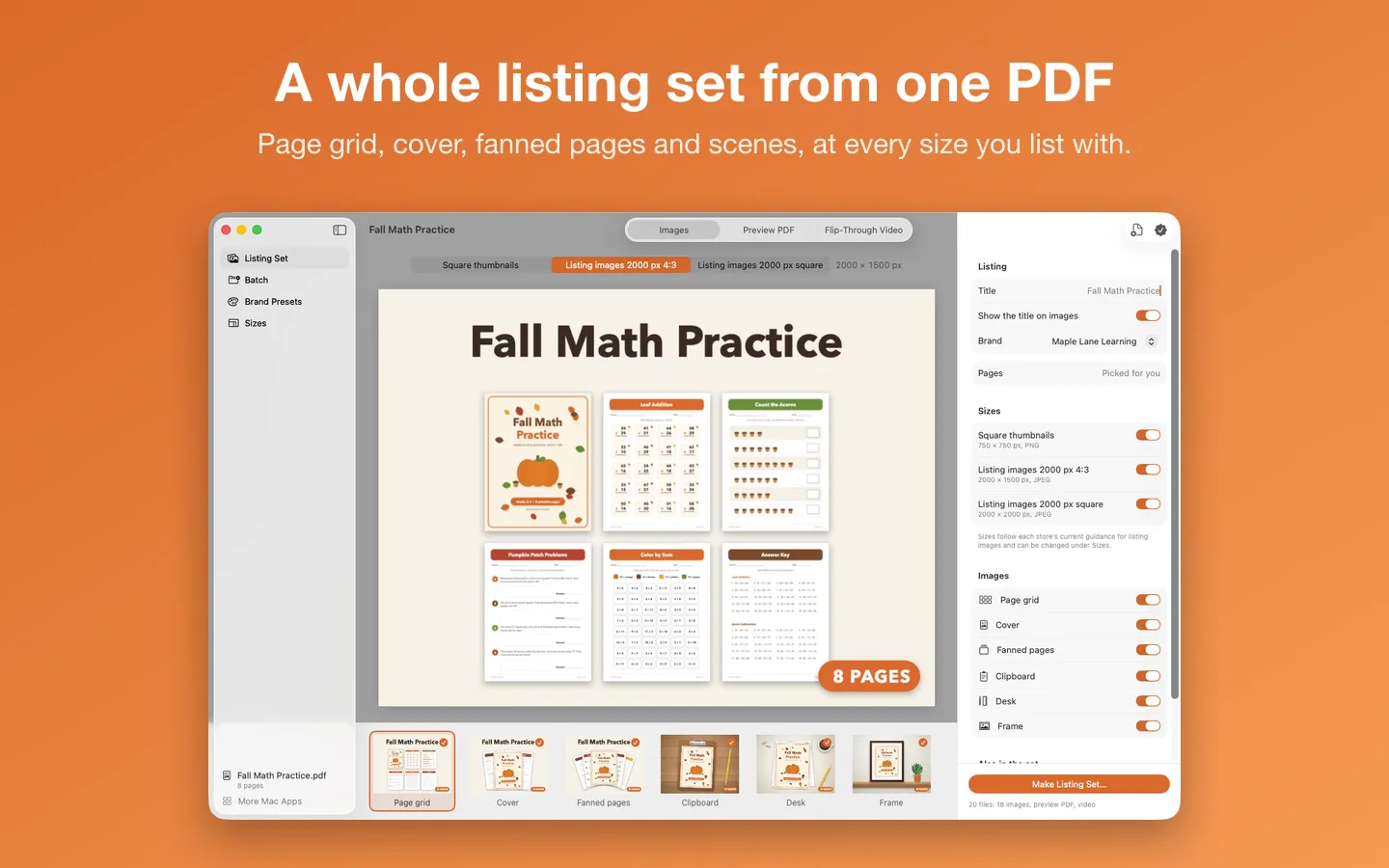
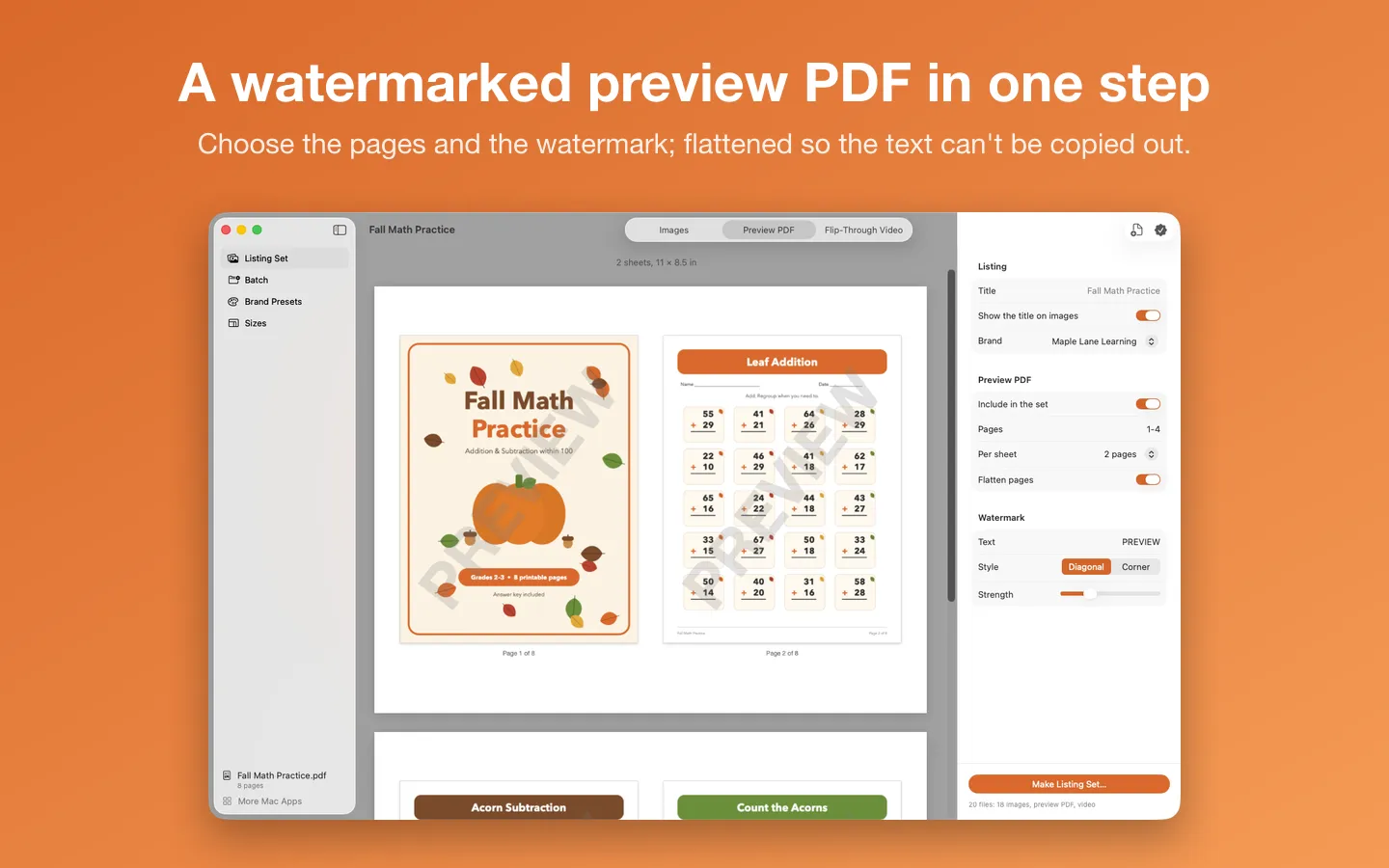
Free to use without a key: the page grid at every size and the watermarked preview PDF, one PDF at a time. File › Open the Sample PDF draws a made-up worksheet pack so you can try everything first.
$9.99 one-time for Pro, no subscription. Buy a license key to unlock Pro: the cover, fanned pages and the clipboard, desk and frame scenes, the flip-through video, batch (a folder of PDFs, each to its own set) and brand presets.
macOS 14 Sonoma or later. Apple silicon and Intel.
Questions
What size should listing images be?
Each store sets its own sizes and file limits, and they change, so check the store’s current help page. Listing Shots makes square thumbnails and 2000-pixel images in 4:3 and square, with one-click store sizes that follow each store’s current guidance, and every size can be changed.
Are the scene images mine to use?
Yes. The clipboard, desk and frame scenes are drawn by the app, with no stock photos, so the images it makes are yours to use.
Can buyers copy the pages out of the preview PDF?
The preview PDF is watermarked and flattened, so its text can’t be copied out.
Does it upload to my shop?
No. It makes the files on your Mac and isn’t connected to any store; you add them to your listing yourself.