How to restore a previous version of a file on a Mac
UpdatedShort answer
In apps that keep versions (Pages, Numbers, Keynote, TextEdit, Preview and many others), open the file and choose File › Revert To › Browse All Versions. For any other file or folder, open the folder it's in and enter Time Machine to step back through your backups and restore it. Both are free and built in, and both need the version to have been kept, by the app or by a Time Machine backup.
The free ways
Free: File › Revert To, in apps that keep versions
- Open the file in its app.
- Choose File › Revert To › Browse All Versions. (Revert To › Last Opened goes straight back to how it was when you opened it.)
- Step through the versions with the timeline, compare one with the current file beside it, and click Restore, or copy what you need out of the old version.
Free: Time Machine, for any file or folder
- Open a Finder window for the folder the file is (or was) in.
- Open Time Machine: search for it with Spotlight, or use the Time Machine menu in the menu bar.
- Use the arrows or the timeline on the right to go back to a backup with the version you want; press Space to preview a file.
- Select it and click Restore. It goes back to its original place; if a file with the same name is there, Time Machine asks what to do.
Where the free ways stop
- Revert To only works in apps that keep versions, and only for files they saved.
- Time Machine shows the whole folder as it was at each backup, so finding the backup where your one file changed means stepping through them one at a time.
- Neither shows what changed between a version and the file you have now, except by opening both.
- Without a Time Machine backup or local snapshots, there are no earlier copies to restore.
How Rewindwise does it
Rewindwise is a Mac app we make: windows' Previous Versions for the Mac.
- Right-click a file or folder in Finder and choose Services › Previous Versions…, or drop it on the window.
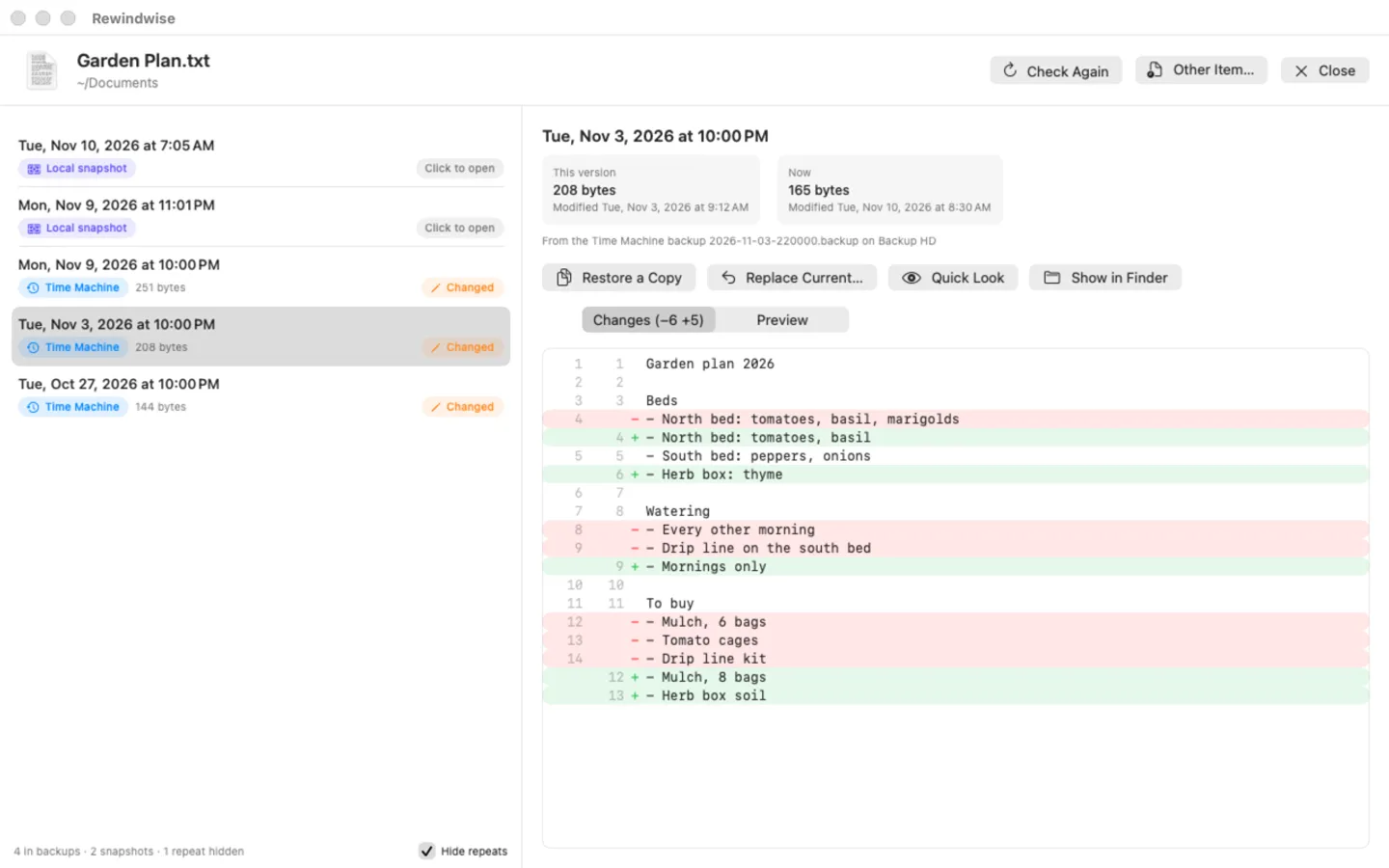
- See every earlier copy from Time Machine backups and local snapshots in one list, newest first, each marked Same as now, Changed or Deleted since, with repeats hidden.
- Compare: a text file shows the lines changed since that version; photos, PDFs and everything else open in Preview and Quick Look. For a folder, see what was deleted, changed or added since, with Put Back.
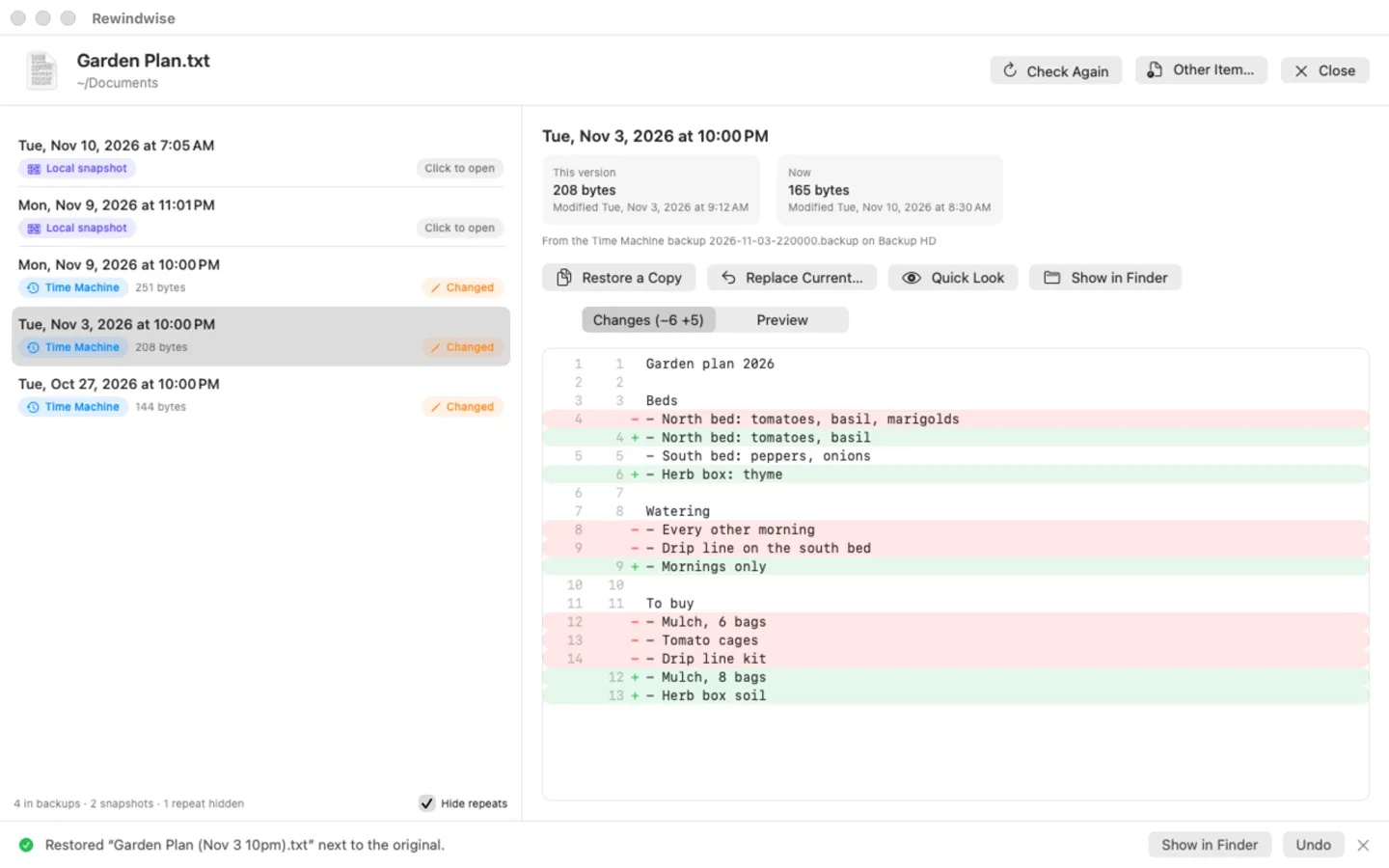
- Restore a copy next to the original (Plan (Nov 9 3pm).txt) or replace the current file, with Undo; Rewindwise never writes into your backups. Every feature is free for 7 days, and without a key you can still list, compare and preview every version.
Free for 7 days from the first time you open it: every feature, nothing held back.
$9.99 one-time for Pro, no subscription. Buy a license key to unlock restoring after the trial. Without a key you can still list, compare and preview every version and open it in Finder.
macOS 14 Sonoma or later. Apple silicon and Intel. Needs a Time Machine backup or local snapshots (without Time Machine there are no earlier copies to show) and Full Disk Access (the app shows how to turn it on).
Questions
Does a Mac have Previous Versions like Windows?
Not as a tab in Finder. The closest built-in ways are File › Revert To › Browse All Versions in apps that keep versions, and Time Machine for everything else. Rewindwise adds the Windows-style list: right-click a file and see its earlier copies.
Do I need Time Machine?
Yes, or local snapshots: without either there are no earlier copies on the Mac to show. Rewindwise also needs Full Disk Access to read them, and shows how to turn it on.
What are local snapshots?
Copies Time Machine keeps on the Mac’s own disk, so you can go back even while the backup disk isn’t connected. They’re kept for a short time and removed when the disk needs the space.
Will restoring overwrite my current file?
Only if you choose Replace Current, which puts the current file in the Trash, and Undo brings it back. Restore a Copy keeps both.